
How to Write Google Ads That Get Clicks (Headlines and Descriptions)
By Adrian Chromenko, primarydm.com·November 23, 2026·6 min read
Quick answer
Go to Campaigns › Ads, click + and choose Responsive search ad. Use the page for that service as the final URL, then write up to 15 headlines (30 characters each) and up to 4 descriptions (90 characters each). Put your service and city in one headline, make the rest say different things (proof, an offer, a call to action), aim for Good or Excellent Ad Strength, and pin sparingly.
Most Google ads for local businesses say the same thing: a business name, "quality service", "contact us today". The ad that gets the click is the one that says exactly what the searcher needs, where they are, and why they should pick you. Google Ads now uses responsive search ads: you write several headlines and descriptions, and Google mixes them into the ad that fits each search best. Here's how to write them well. Watch the video above, or follow the steps below.
Why specific ads get the click
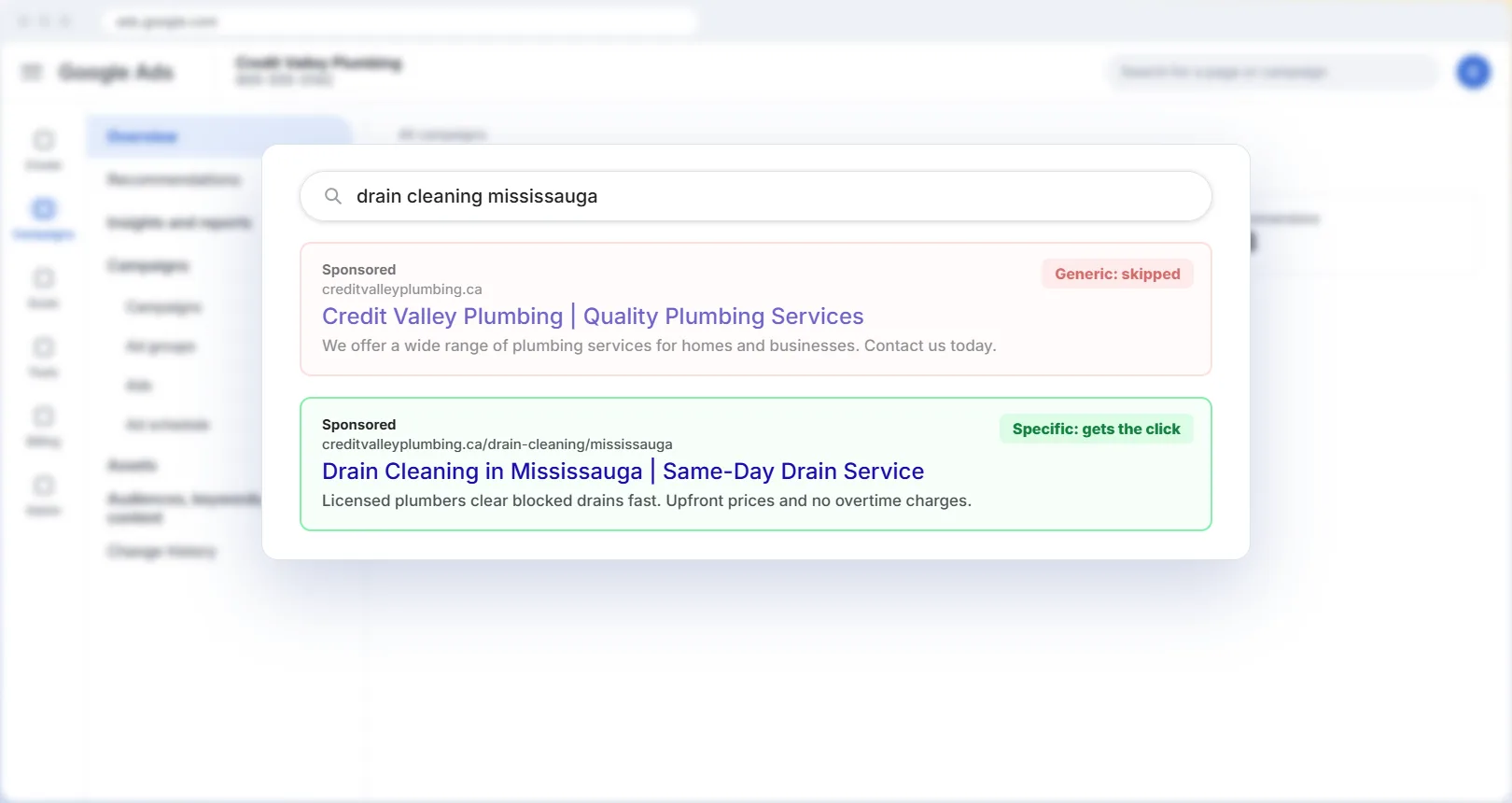
Someone searching drain cleaning mississauga sees a few ads, and they all look alike at a glance. An ad that repeats their search, gives a reason to trust you and says what happens next stands out. A generic ad about "a wide range of services" gets skipped, even if you do exactly what they need.
How to write a responsive search ad
1Open the Ads page
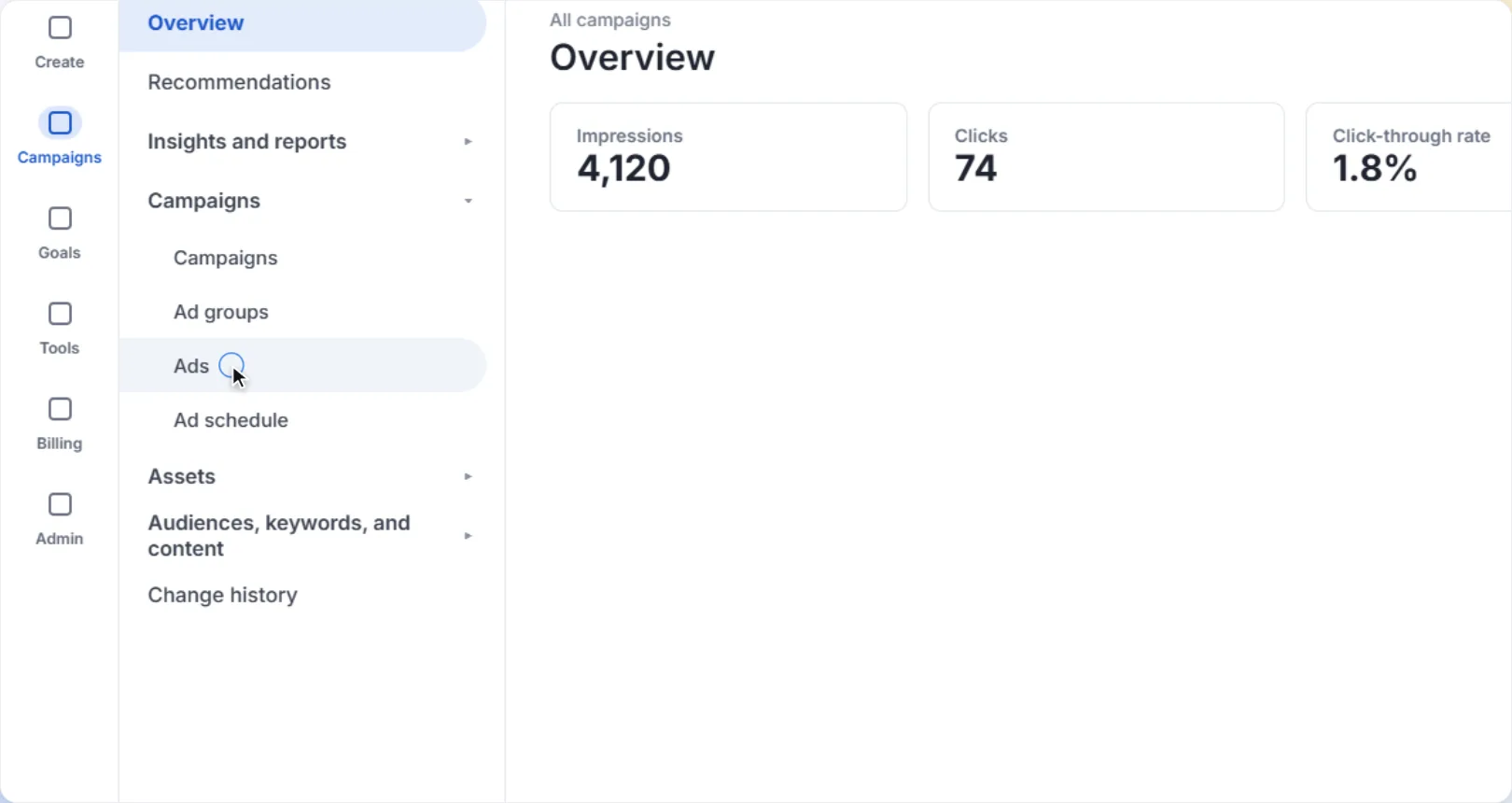
In the left menu, open Campaigns and click Ads. You'll see your current ads, their status and their Ad strength.
2Click the plus button and choose Responsive search ad
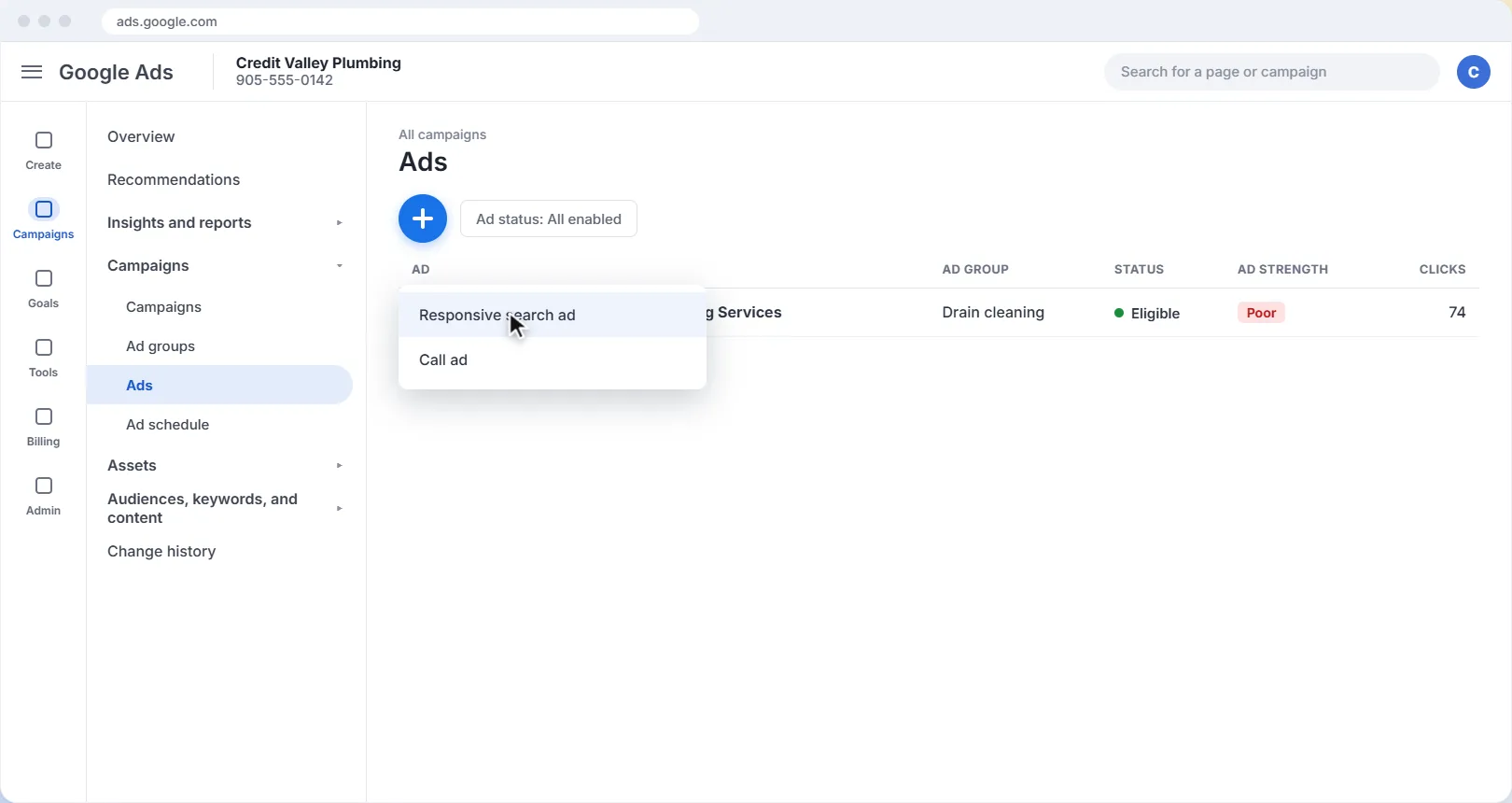
Click the blue + button and choose Responsive search ad. Pick the campaign and ad group it belongs to: one ad group per service works best, so the ad can talk about that service only.
3Enter the final URL and display path
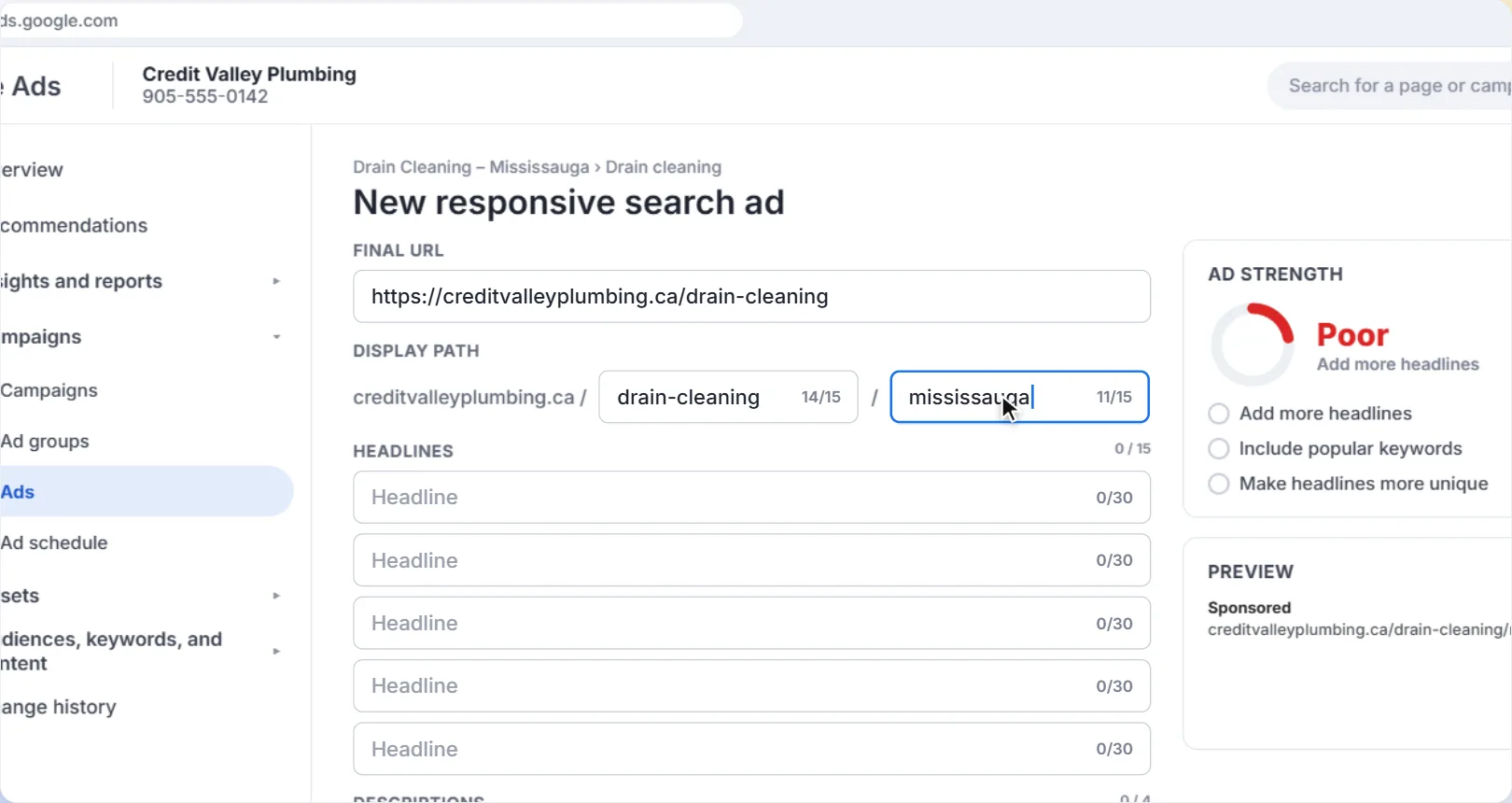
The final URL is the page people land on after clicking. Use the page for that service, not your homepage: someone who searched for drain cleaning should land on a page about drain cleaning. The display path is the short text shown after your domain, like /drain-cleaning/mississauga. Each of the two path fields takes up to 15 characters, and it doesn't have to match the real page address.
4Write your headlines
You can add up to 15 headlines (at least 3), and each can be up to 30 characters. Google shows up to three at a time, in any order, so every headline has to make sense on its own and next to any other. Put your main service and city in the first one, then make each of the rest say something different: proof, an offer, a reason to choose you, a call to action.
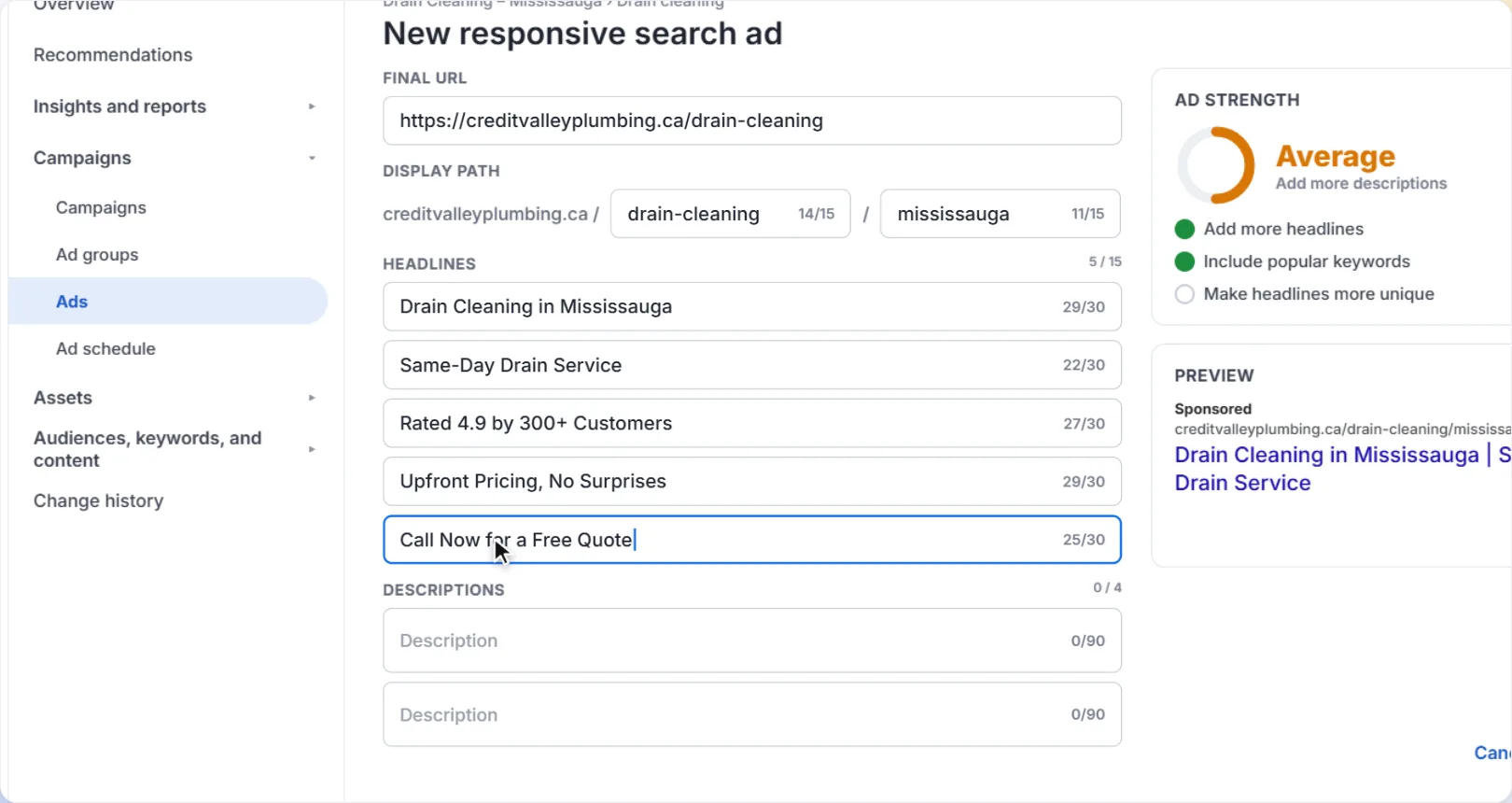
5Write your descriptions
Add up to 4 descriptions (at least 2), each up to 90 characters. Use them for what doesn't fit in a headline: what makes you different, the areas you serve, and what to do next. Like headlines, they can appear in any combination, so don't write one that only makes sense after another.
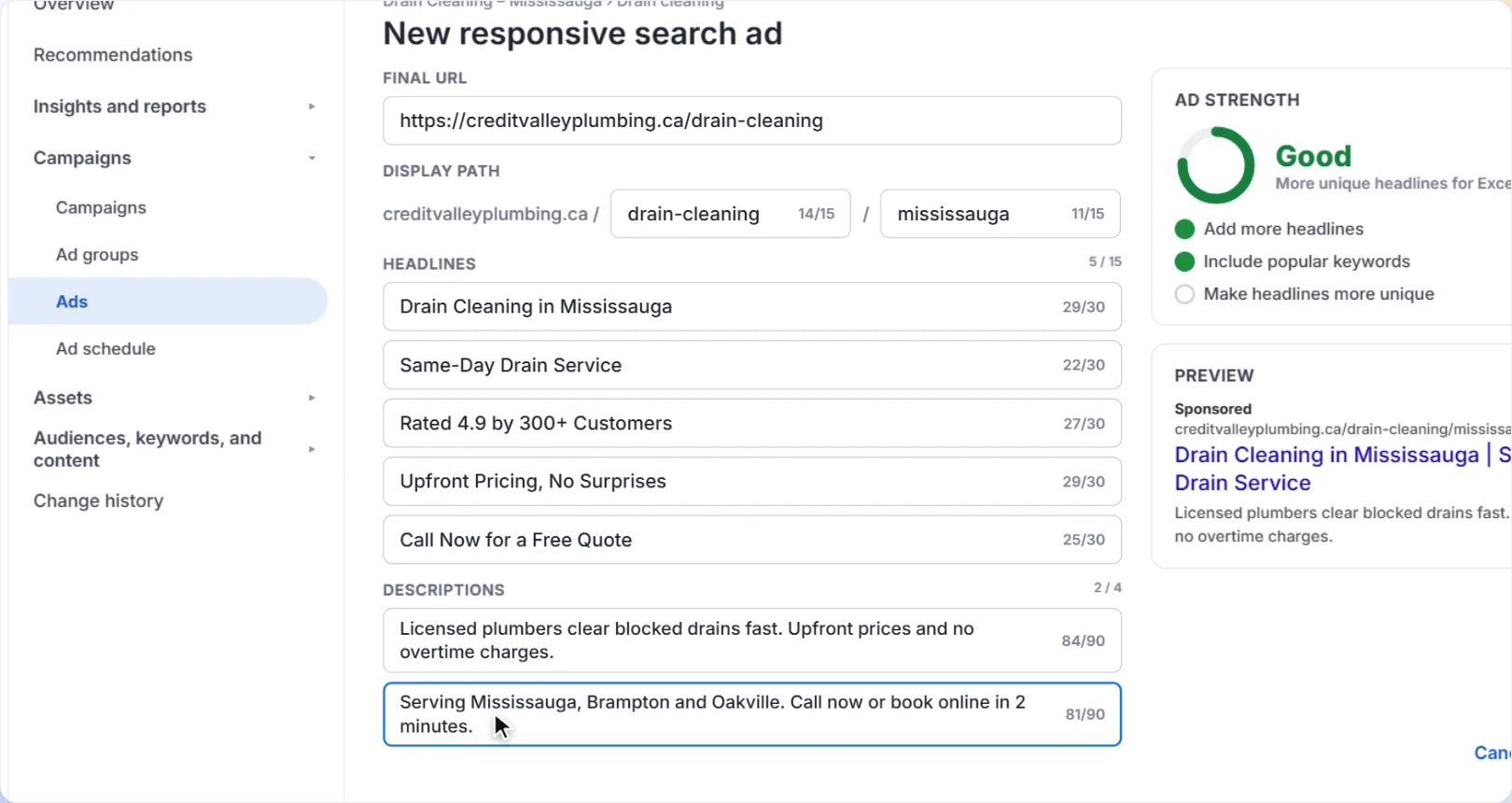
6Check Ad Strength, then save
The Ad strength panel rates the ad from Incomplete and Poor to Average, Good and Excellent, with suggestions such as adding more headlines or including popular keywords. Aim for Good or Excellent, then click Save. New ads show as Under review until Google approves them, usually within a business day.
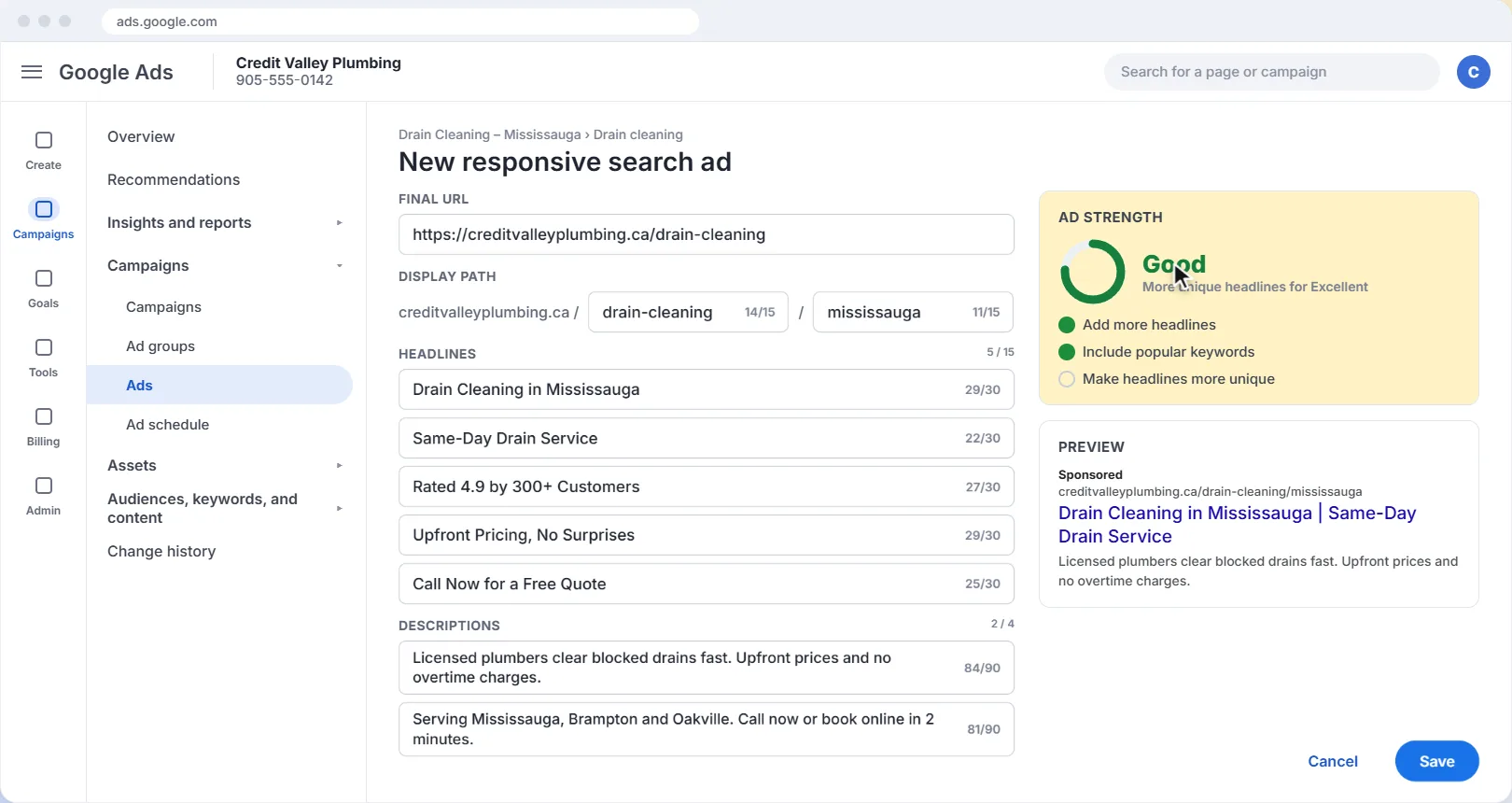
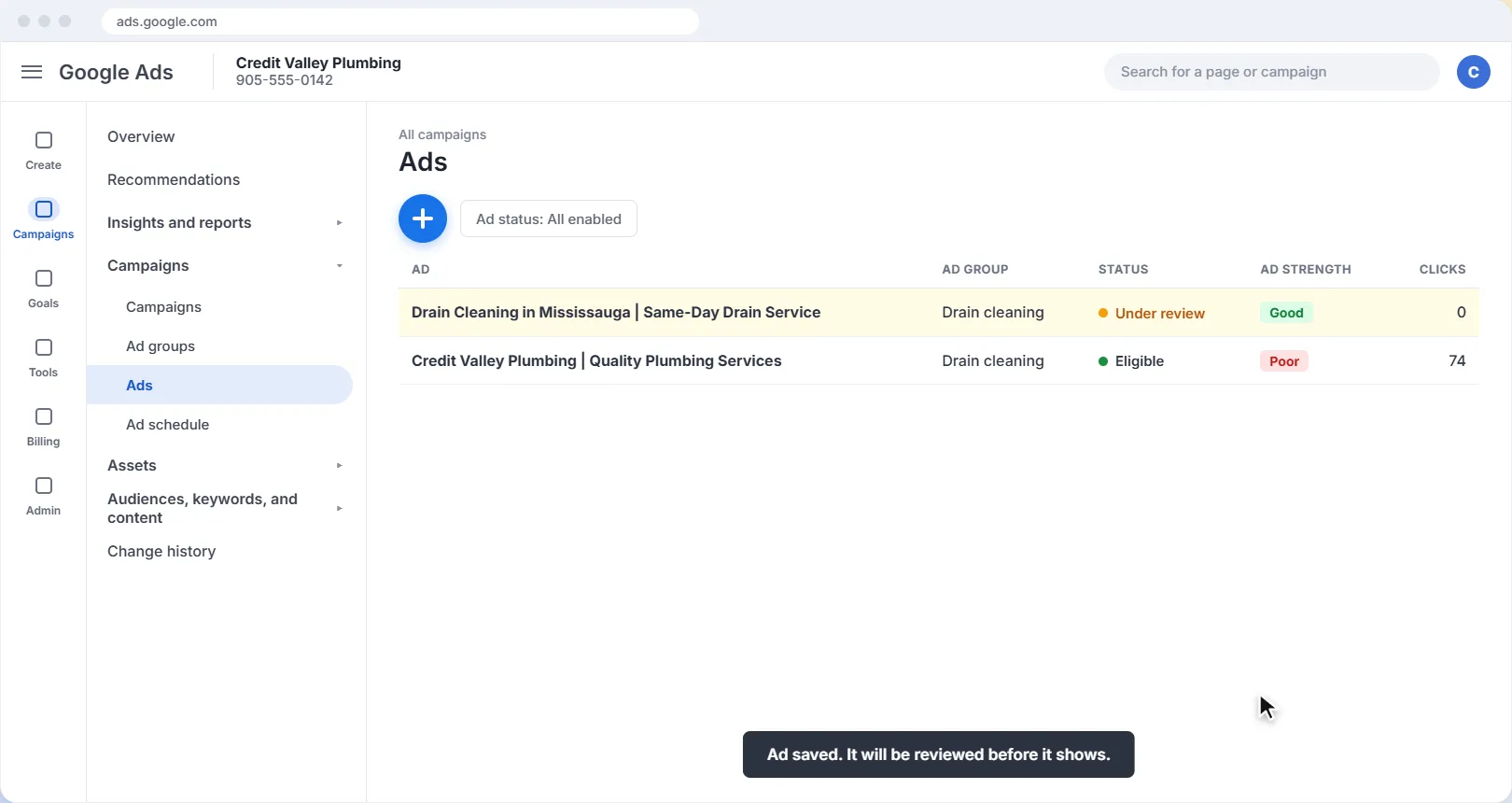
Ad strength is a guide, not a score Google ranks you on. Google says Ad Strength doesn't decide whether your ad can show and isn't used to calculate Ad Rank or Quality Score. It's a checklist for giving Google enough good options to work with. What decides your cost and position is relevance and your landing page: see how to improve Quality Score.
What to put in your headlines
A good set of headlines covers different reasons to click. Here's a mix that works for most local service businesses, using our example plumber:
| Type | Example | Why it works |
|---|---|---|
| Service + city | Drain Cleaning in Mississauga | Matches the search, so it looks like the answer. |
| Speed or availability | Same-Day Drain Service | Most local jobs are urgent. |
| Proof | Rated 4.9 by 300+ Customers | Gives a stranger a reason to trust you. Only use claims you can back up. |
| Offer or pricing | Upfront Pricing, No Surprises | Answers the worry about cost before they call. |
| Call to action | Call Now for a Free Quote | Tells people what to do next. |
| Brand | Credit Valley Plumbing | Helps people who already know your name. |
Then add variations: other ways people describe the service (blocked drain, clogged drain), nearby areas you serve, your guarantee, your hours. Use the words people actually search, which you can find in the search terms report, and keep headlines in line with your keywords and match types.
Pin sparingly
Pinning fixes a headline or description to one position, such as Headline 1. Google says pinning isn't recommended for most advertisers: every pin cuts the number of combinations Google can try, and it can lower your Ad Strength. If something must always show, such as a legal disclaimer or your brand, pin just that one, or pin two or three alternatives to the same position so Google still has a choice.
Write one ad per service. Google recommends at least two responsive search ads with Good or Excellent ad strength in each ad group. If your ads cover every service at once, split them into ad groups first, so each ad and landing page can be specific.
Common mistakes
- Sending clicks to the homepage. The ad promises drain cleaning; the page should be about drain cleaning, with a phone number at the top. Compare your results with typical conversion rates by industry.
- Fifteen versions of the same headline. Google can only mix what you give it. Similar headlines produce similar ads and keep Ad Strength low.
- Breaking ad rules. Excessive capitals ("FREE QUOTE"), repeated punctuation like "!!", or phone numbers in the ad text can get an ad disapproved. See why Google Ads get disapproved.
- Leaving out the extras. Your ad has more room than headlines and descriptions. Add sitelinks to other services and a call asset so people can call straight from the ad.
- Never checking results. Without conversion tracking, you only know which ads get clicks, not which ones bring calls.
Rather have someone write your ads?
Our Google Ads management covers the ad copy, the assets and the landing page for each service, written for the searches your customers actually make.
See our Google Ads managementThe screens in this guide are simplified illustrations of Google Ads; Google updates its layout often, so labels may differ slightly in your account. Google's own guides: About responsive search ads and About Ad Strength for responsive search ads. The plumbing business, its ads and its reviews are examples.
Frequently asked questions
How many characters can a Google Ads headline have?
Up to 30 characters per headline, and up to 90 per description. Each of the two display path fields takes up to 15 characters. A responsive search ad can have up to 15 headlines (at least 3) and up to 4 descriptions (at least 2).
What should I put in my Google Ads headlines?
Cover different reasons to click: your service and city, speed or availability, proof such as reviews, an offer or pricing, a call to action and your brand name. Use the words people actually search, which you can find in the search terms report.
How do I write a good Google Ads description?
Use descriptions for what doesn't fit in a headline: what makes you different, the areas you serve and what to do next, such as call now or book online. Each one can appear with any headline, so make sure every description makes sense on its own.
Does Ad Strength affect my ad's ranking?
No. Google says Ad Strength doesn't decide whether your ad can show and isn't used to calculate Ad Rank or Quality Score. It's a guide to giving Google enough varied headlines and descriptions to work with. Relevance and your landing page matter more: see how to improve Quality Score.
Should I pin headlines in Google Ads?
Only when something must always show, such as your brand or a required disclaimer. Google says pinning isn't recommended for most advertisers, because every pin cuts the combinations Google can test and can lower Ad Strength. If you do pin, pin two or three options to the same position.
How many ads should I have in each ad group?
Google recommends at least two responsive search ads with Good or Excellent Ad Strength in each ad group. Keep each ad group to one service so the ad and its landing page can be specific. If you'd rather have it done for you, see our Google Ads management.
More Google Ads guides
How to Add Sitelinks in Google Ads
In Google Ads, open Campaigns › Assets, click the plus button and choose Sitelink. Pick where to add it (Account is a good start), then enter the sitelink text (up to 25 characters), both description lines and the page's URL. Click Add sitelink to add more, aiming for at least four, then click Save.
1:23 video · 6 min read
How to Add a Call Button to Your Google Ads (Call Assets)
In Google Ads, go to Campaigns › Assets, click +, choose Call, pick the campaign, enter your country and phone number, optionally set a schedule for your business hours, and save. People searching on their phones can then tap a Call button right on your ad.
1:18 video · 5 min read
How to Use Google Keyword Planner (Free, Without Running Ads)
In Google Ads, go to Tools › Planning › Keyword Planner and click Discover new keywords. Type a few words that describe your services, click Get results, then change the location to the area you serve. Use Avg. monthly searches to see how popular each keyword is and the top of page bid columns to estimate costs. It's free, and you don't need a running campaign.
1:22 video · 7 min read
How to Improve Your Google Ads Quality Score
Quality Score is Google's 1 to 10 rating for each keyword, built from expected clickthrough rate, ad relevance and landing page experience. To see it, open Search keywords, click the columns icon and add the Quality score columns. Then fix whichever part is Below average: use the searcher's words in your ad, give people a specific reason to click, and send the click to a fast page about that exact service.
1:23 video · 7 min read
Why Is My Google Ad Disapproved? (And How to Fix It)
A disapproved ad broke a Google Ads policy and can't show anywhere. Open Campaigns › Ads and hover over Disapproved in the Status column to see which policy. The usual causes for small businesses are a broken landing page (Destination not working), a URL that doesn't match your site, all caps, or extra punctuation like "!!". Edit the ad, fix it and save, and it's reviewed again, usually within one business day. If Google got it wrong, appeal from Tools › Policy manager.
1:24 video · 7 min read
How Much Should I Spend on Google Ads?
Multiply a typical cost per click for your keywords by the clicks you want each day (often 10 to 20 for a local business) to get your average daily budget. Over a month, Google won't charge more than 30.4 times that daily amount. Set it under Campaigns › Campaigns by clicking the pencil in the Budget column, then raise it only when the clicks are turning into customers.
1:27 video · 6 min read
Google Ads Keyword Match Types Explained (Broad, Phrase, Exact)
Google Ads has three keyword match types. Broad match (the default, no symbols) can show your ad on related searches. Phrase match ("in quotes") shows on searches that include your keyword's meaning. Exact match ([in brackets]) shows only on searches with the same meaning or intent. On a small budget, start with phrase and exact for your main services.
1:27 video · 7 min read
How to Set Up Google Ads Conversion Tracking
In Google Ads, go to Goals › Summary and click + Create conversion action. Enter your website and click Scan, pick a category like Submit lead form, then track your thank-you page with Page load, URL contains “thank-you”. Keep it as a primary action, set Count to One for leads, and save. For calls, turn on call reporting so Calls from ads is tracked with a minimum call length, then test everything with Tag Assistant.
1:15 video · 7 min read
Why Are My Google Ads Not Showing? (And How to Fix It)
Start with the Status column on your Campaigns page and hover over it for the reason. The usual causes are a paused or ended campaign, a billing problem, a disapproved ad, keywords with low search volume, or a budget or bid that's too low. Check with the Ad preview and diagnosis tool, not by searching for your own ad.
1:25 video · 6 min read
How to Use the Search Terms Report in Google Ads
Open your campaign, go to Insights and reports › Search terms, set the date range, and sort by Cost. Tick searches that cost money but don't fit your business and click Add as negative keyword; add searches that bring in customers as keywords.
1:34 video · 6 min read
How to Set an Ad Schedule in Google Ads
Open Campaigns › Ad schedule, click the pencil icon, pick your campaign, add the days and hours you want your ads to run (for example Monday to Friday, 7:00 AM to 7:00 PM), and save. Outside those hours your ads stop showing, so you aren't paying for clicks nobody can answer.
1:14 video · 5 min read
How to Target Your Service Area in Google Ads
Open your campaign, click Settings › Locations, choose Enter another location › Advanced search › Radius, enter your address and how far you travel, then open Location options and choose Presence. Save, and your ads focus on people who are actually in your service area.
1:20 video · 5 min read
How to Add Negative Keywords in Google Ads (Step by Step)
Open your campaign, go to Audiences, keywords, and content › Search keywords › Negative search keywords, click +, type the words you want to block (like jobs or diy), choose the campaign or ad group, and save. Your ads stop showing for searches that contain those words.
1:15 video · 5 min read