
How to Use Google Keyword Planner (Free, Without Running Ads)
By Adrian Chromenko, primarydm.com·November 23, 2026·7 min read
Quick answer
In Google Ads, go to Tools › Planning › Keyword Planner and click Discover new keywords. Type a few words that describe your services, click Get results, then change the location to the area you serve. Use Avg. monthly searches to see how popular each keyword is and the top of page bid columns to estimate costs. It's free, and you don't need a running campaign.
Google Keyword Planner is a free tool inside Google Ads that shows what people search for, roughly how often, and what advertisers pay to appear for those searches. You don't have to run ads to use it, and you don't pay anything to look. For a local business it answers a simple question before you spend a dollar: which words do my customers actually type into Google? Watch the video above, or follow the steps below.
Why it's worth checking first
The words you use for your services are often not the words your customers use. A plumber might call it "drain remediation"; customers search for "drain cleaning" or "clogged drain". If your ads and pages are built around your words instead of theirs, you either don't show up or you pay for clicks that were never likely to call.
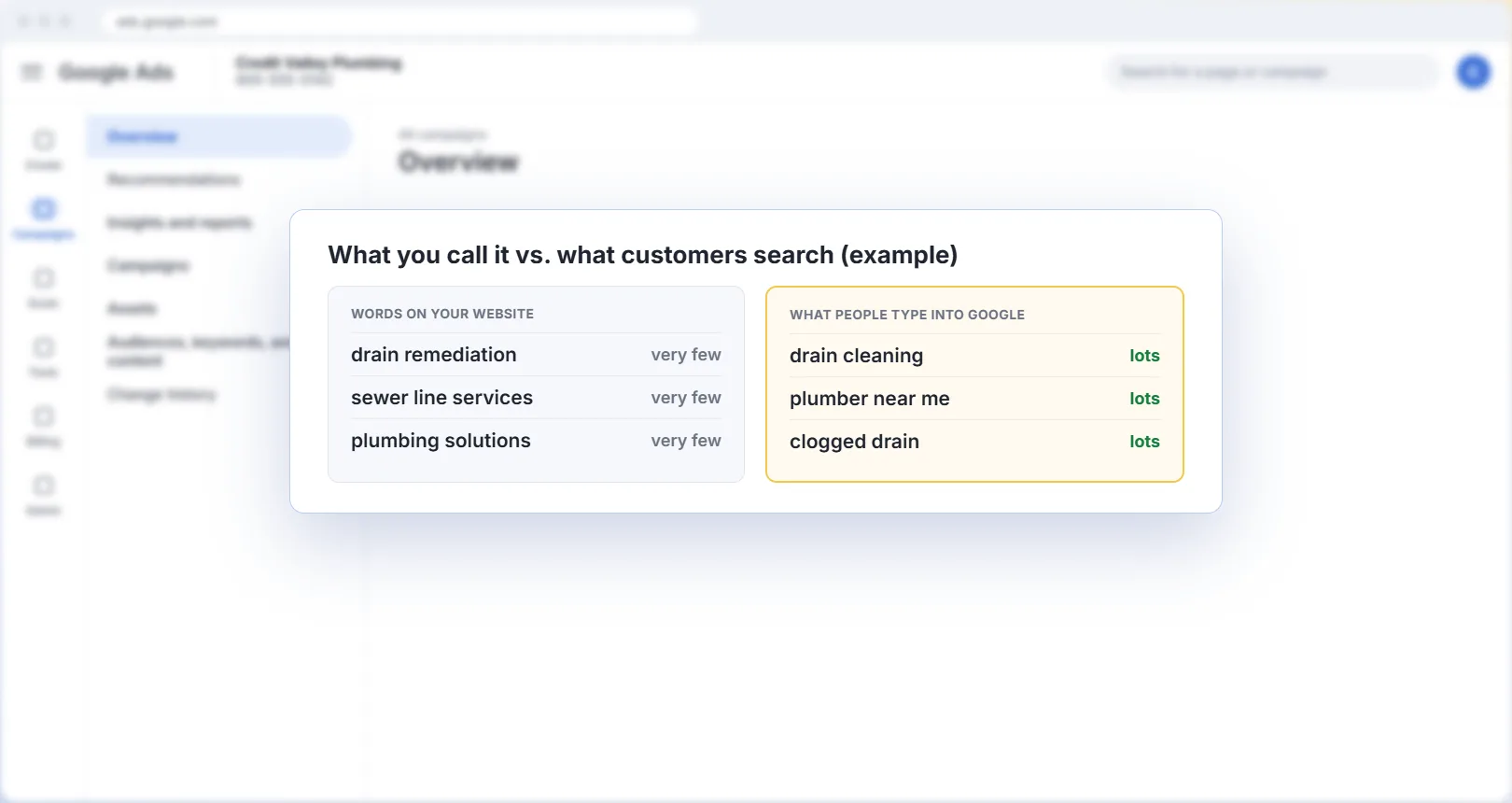
Before you start: what you need
- A Google Ads account. Keyword Planner lives inside Google Ads. It's free to open an account.
- A finished account setup, including billing details. Google says you must complete your account setup, with billing information, to use features like keyword ideas. Entering billing details doesn't charge you anything; you only pay when ads run.
- No running campaign. You don't need an active campaign. If Google's new-account setup pushes you into creating one, look for the option to switch to Expert mode, which lets you finish setting up the account without launching a campaign. Don't publish a campaign you don't want to pay for.
How to use Keyword Planner
1Open Tools › Planning › Keyword Planner
In Google Ads, click Tools in the left menu. Under Planning, click Keyword Planner.
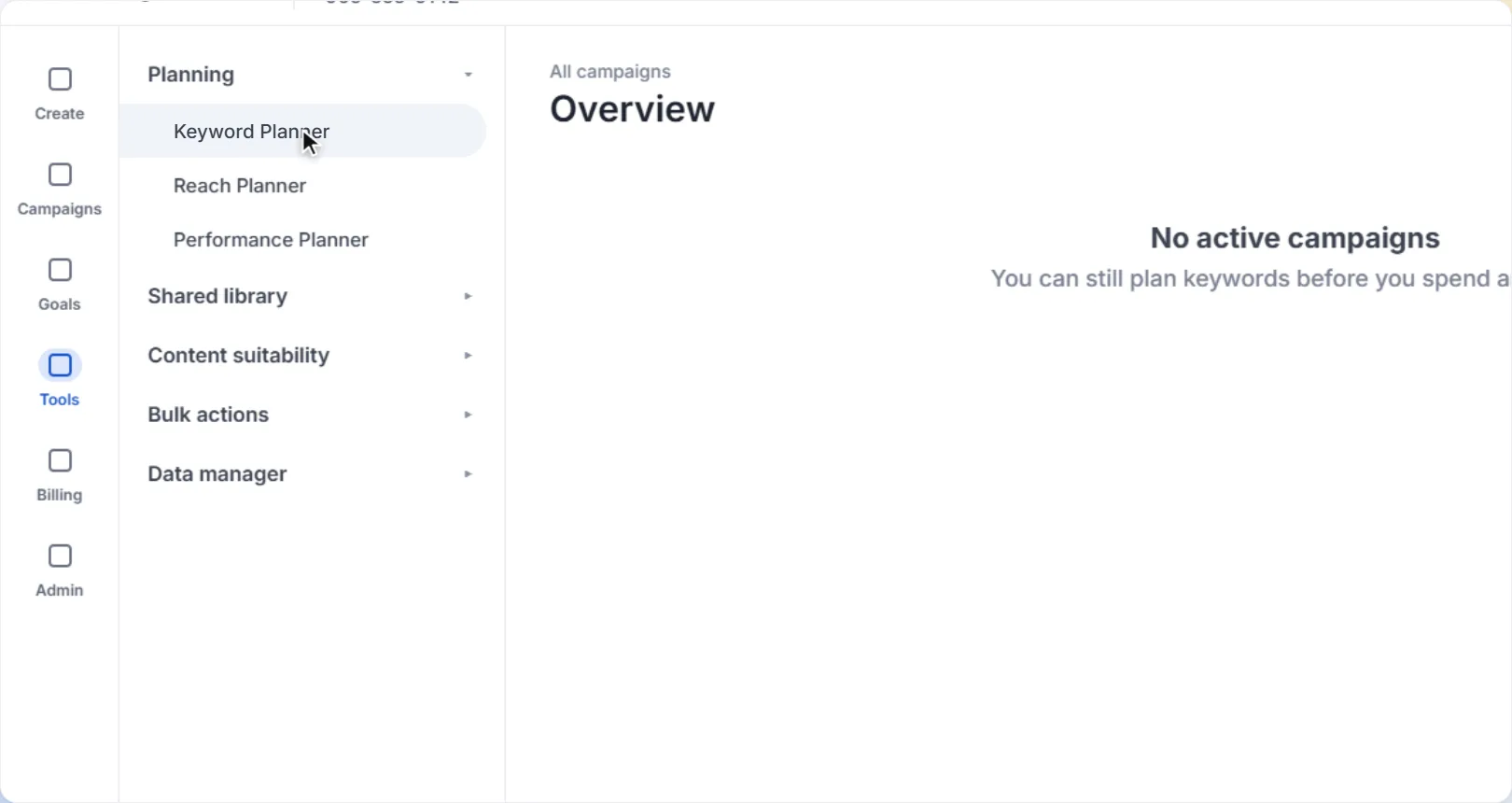
2Click Discover new keywords
Keyword Planner opens with two options. Discover new keywords gives you ideas from a few words or a website. Get search volume and forecasts is for checking a list of keywords you already have. Start with Discover new keywords.
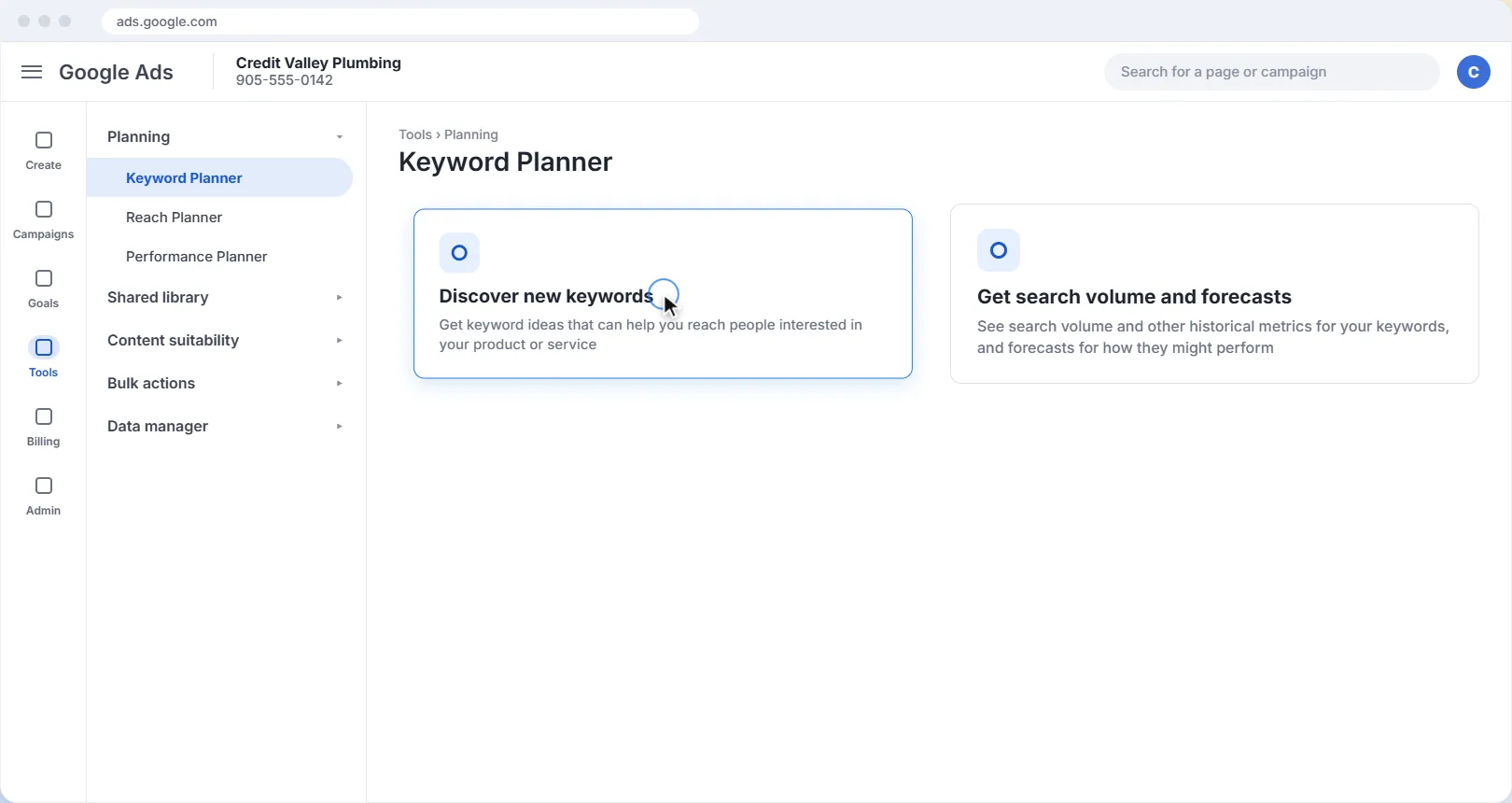
3Type your services and click Get results
Under Start with keywords, type a few words or short phrases that describe what you sell, like drain cleaning and plumber. Separate them with a comma. You can also enter your own website, and Google will try to leave out ideas unrelated to what you offer. Then click Get results.
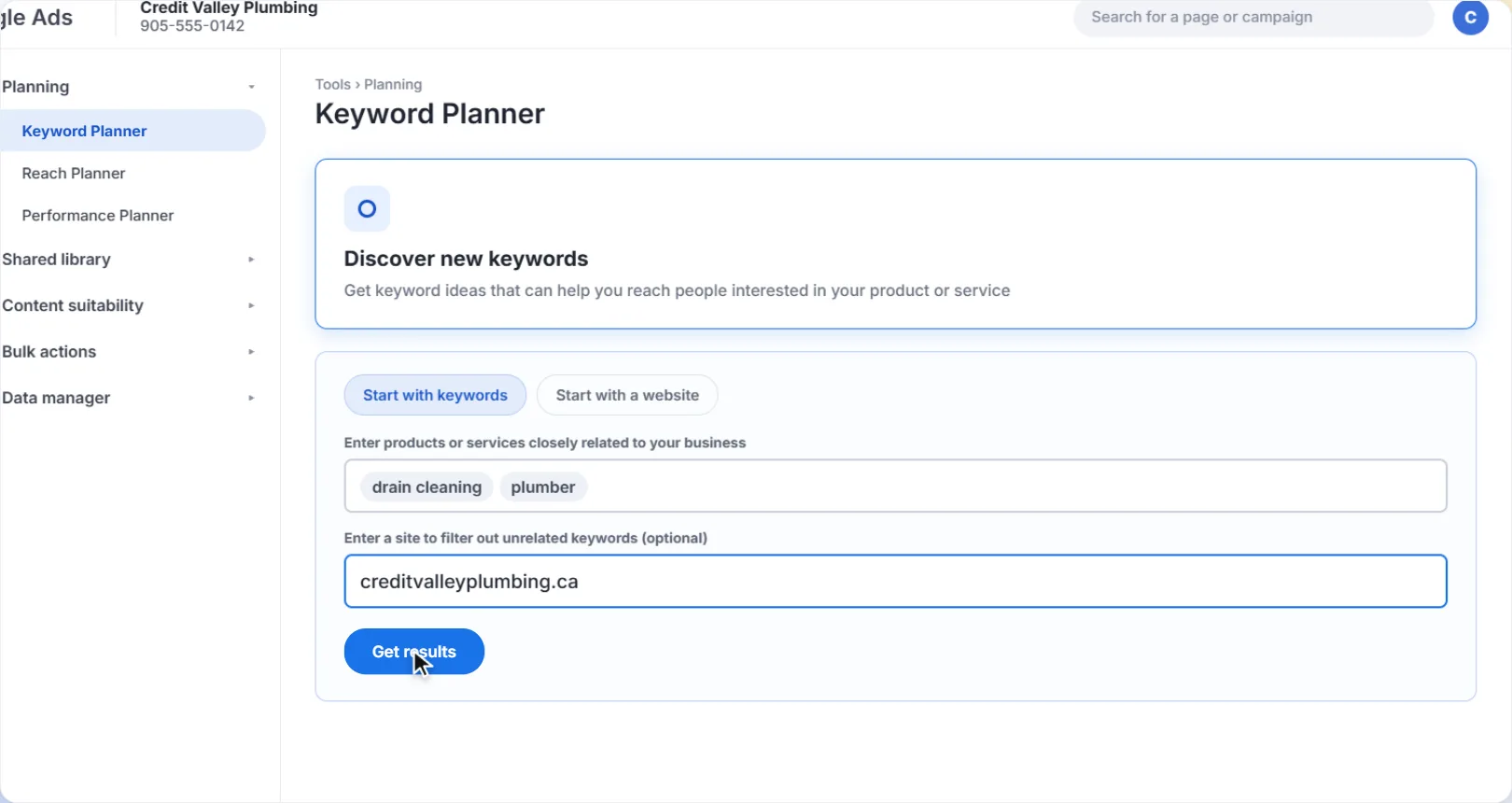
Prefer to start from a site? The Start with a website tab suggests keywords based on any site's content, including a competitor's.
4Set the location to the area you serve
At the top of the results, the location usually defaults to your whole country. That's far wider than a local business serves, and it makes every number bigger than it is for you. Click the location, type your city or region, select it from the list and click Save. The numbers update for that area.
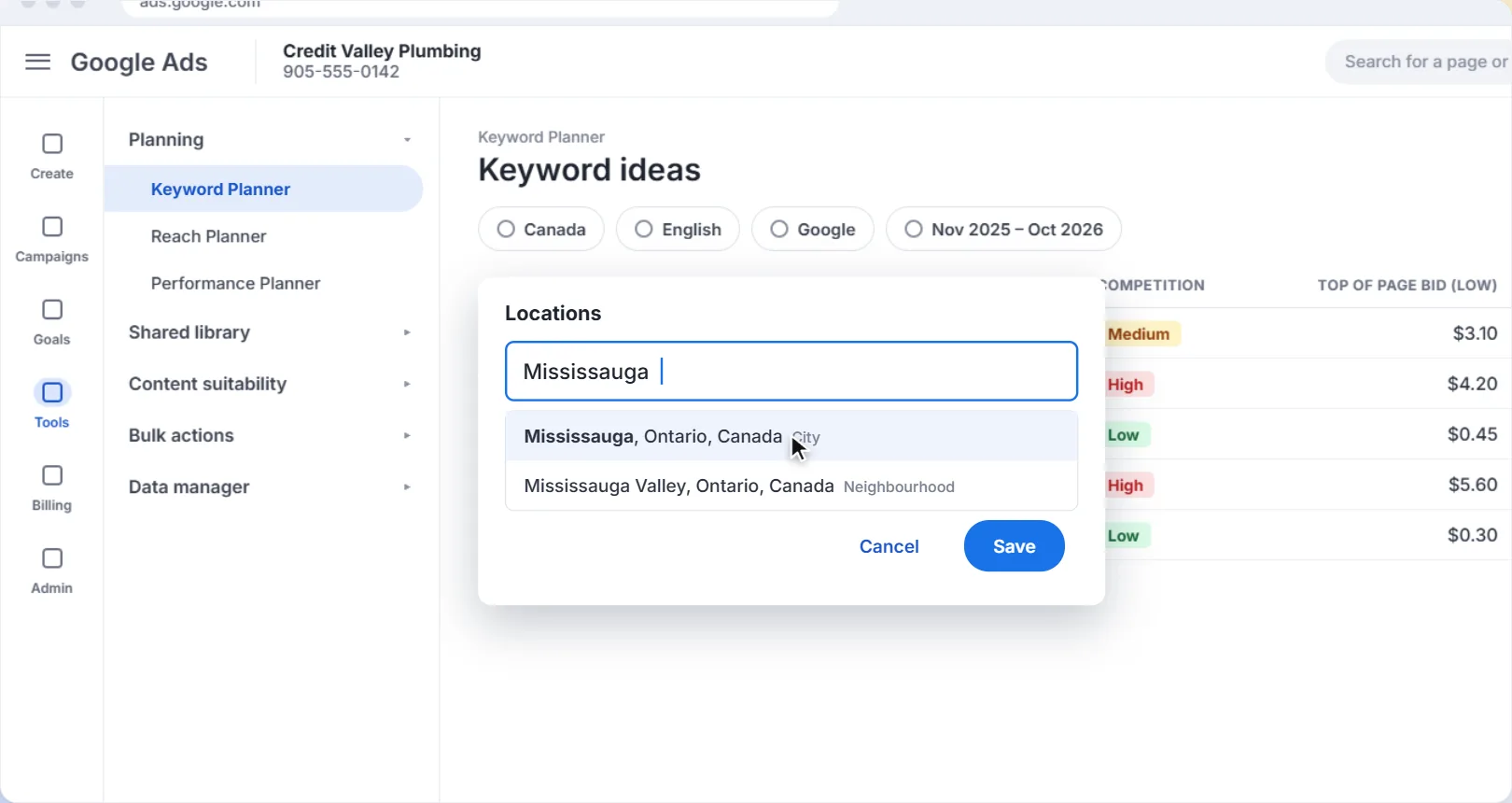
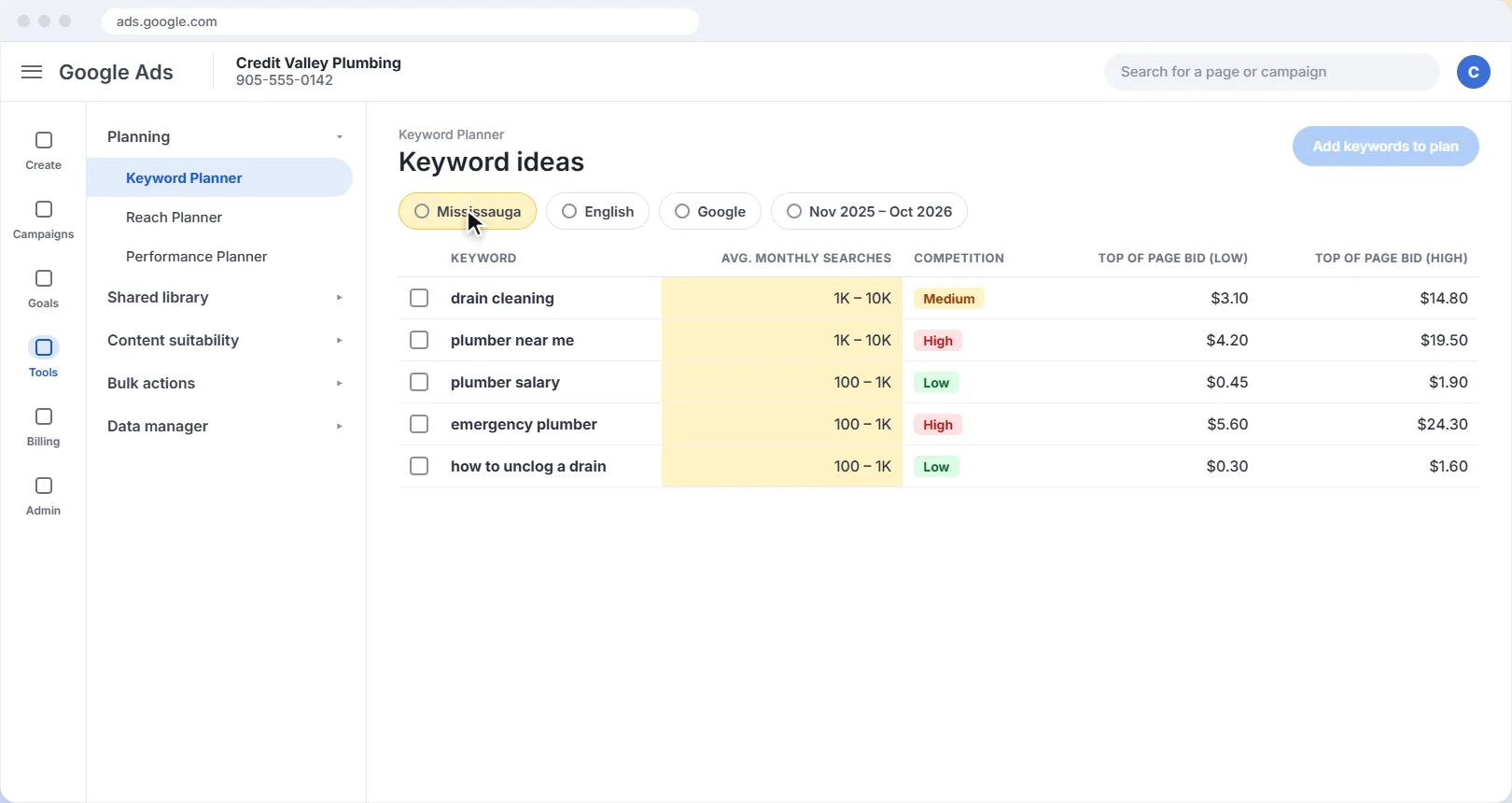
Match the location to your ads. Use the same area here that you target in your campaign. Our guide to targeting your service area shows how to set that up.
5Read the results
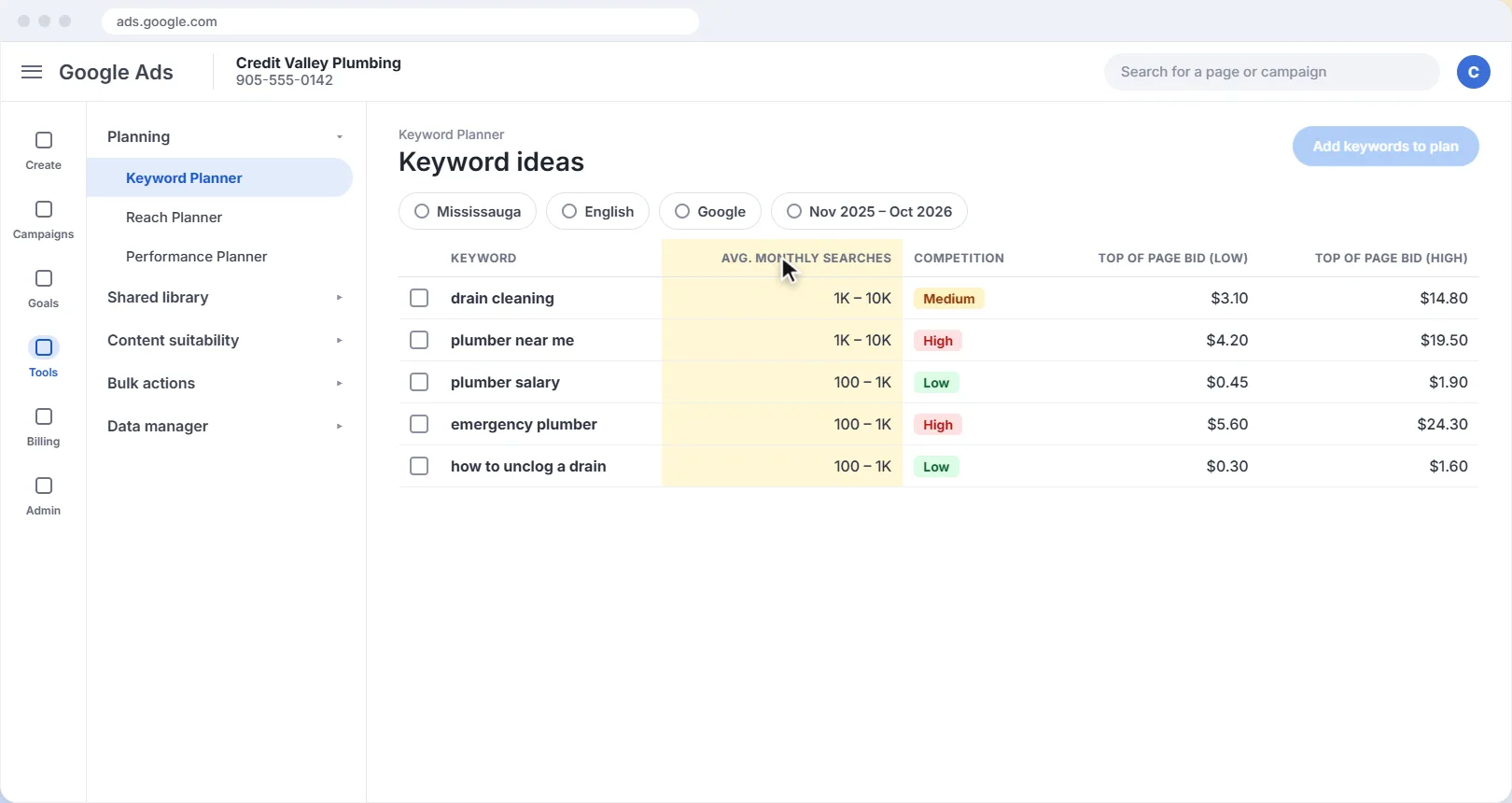
Each keyword idea comes with a few columns. The ones that matter most for a local business:
| Column | What it tells you |
|---|---|
| Avg. monthly searches | How many times people searched for the keyword and close variants, averaged over 12 months, in the location you chose. If your account isn't spending, you may see a range like 1K – 10K rather than an exact number. |
| Competition | Low, medium or high: how many advertisers showed ads on this keyword compared with others. It's about ads, not how hard it is to rank in regular search results. |
| Top of page bid (low range) | Roughly the 20th percentile of what advertisers have paid to show at the top of the page for this keyword, in your location. |
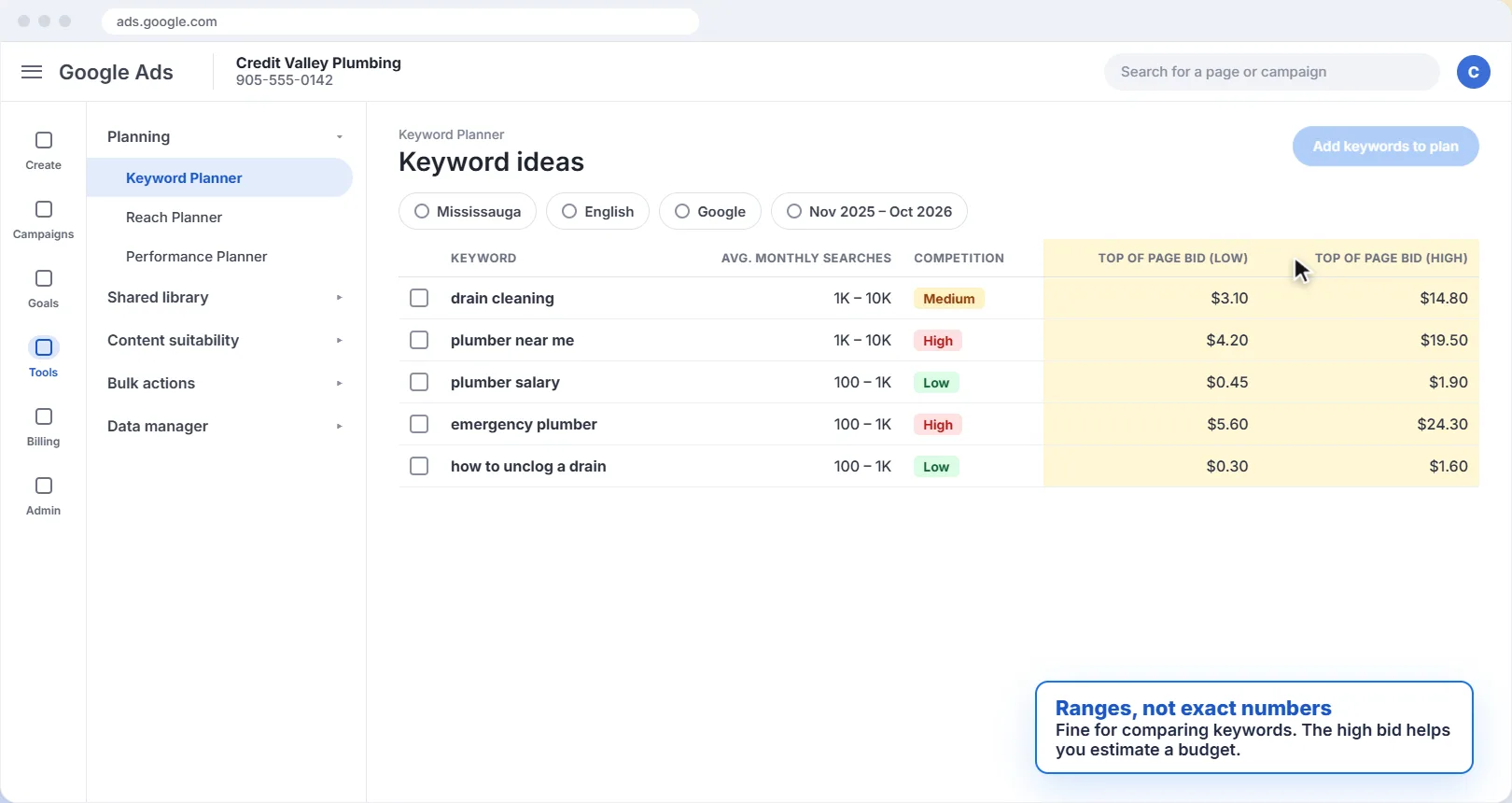
| Top of page bid (high range) | Roughly the 80th percentile. A sensible cautious figure for cost per click when you plan a budget. |
6Pick the keywords that match what you sell
Go down the list and tick the keywords that describe work you actually do, in the way a customer who's ready to hire would search. Skip the rest. A few common ones to skip: job searches (plumber salary, plumber jobs), do-it-yourself questions (how to unclog a drain) and services you don't offer. Then click Add keywords to plan to save them.
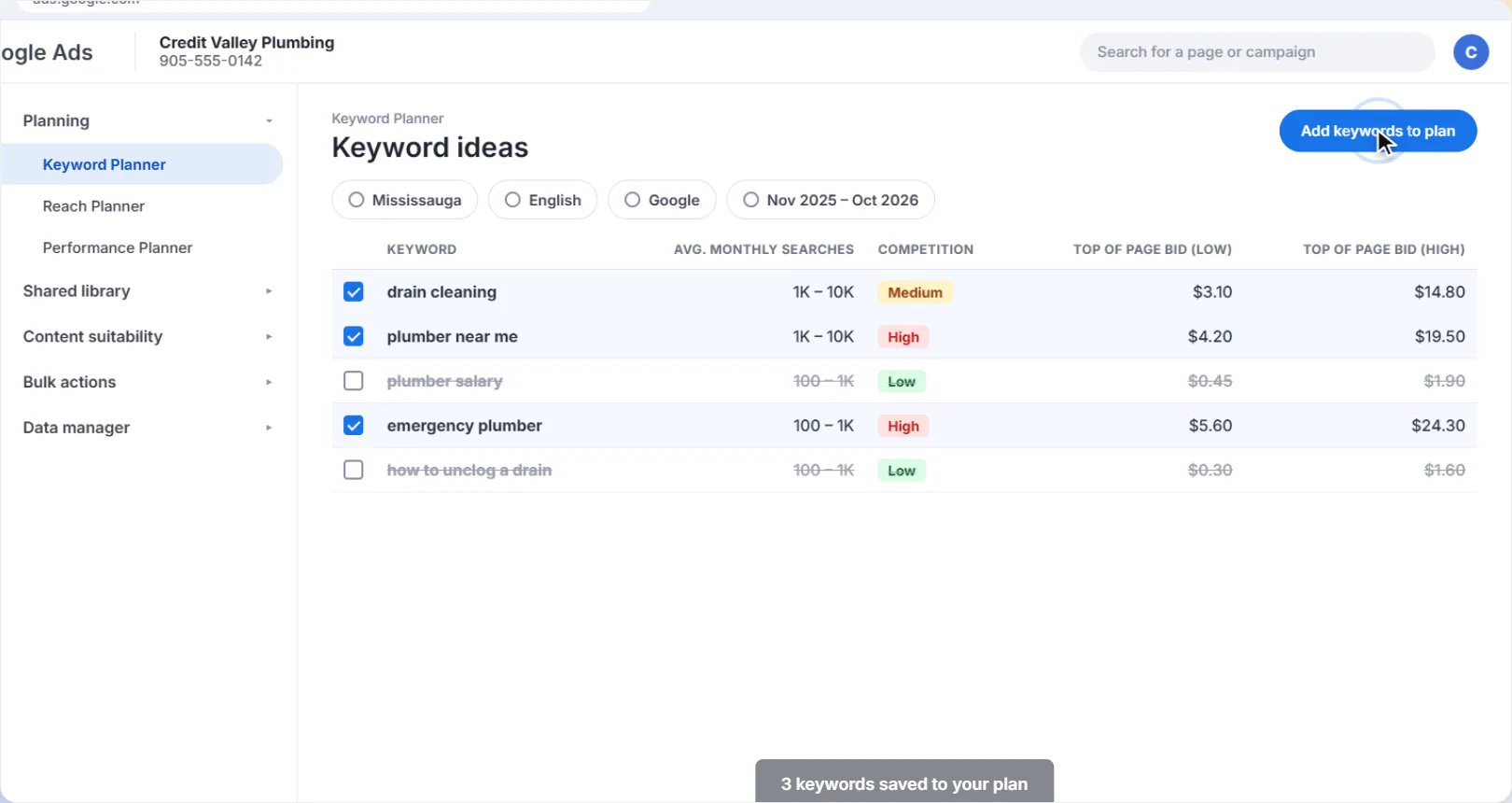
Turn your skips into negative keywords. The words you skipped, like salary, jobs and how to, are exactly the searches you don't want your ads to show for. Add them as negative keywords when you build your campaign.
What to do with your list
- Estimate a budget. Take the high top-of-page bid for your main keywords as a cautious cost per click, and multiply it by the clicks you want each day. Our guide on how much to spend on Google Ads walks through the maths.
- Choose match types. The volume shown is for the keyword itself, whatever match type you pick. How widely your ads show depends on the match type you use in the campaign: see keyword match types explained.
- Group by service. Put keywords for each service in their own ad group, so each ad and landing page can speak to that search.
- Use it for your website too. The same list tells you which services deserve their own page and what to call them. That's the heart of local SEO, and it costs nothing to check.
Don't chase the biggest numbers. A keyword with 100 to 1,000 searches a month in your city, from people ready to hire, is usually worth more than one with 10,000 searches from people who are just curious. For a local business, intent beats volume.
Checking a list you already have
If you already have keywords, for example from an old campaign or your own notes, choose Get search volume and forecasts instead. Paste the list, or upload a CSV file, and Keyword Planner shows the same historical figures plus a forecast of clicks, impressions and cost for a given budget. Forecasts are estimates: your real results depend on your bids, budget, ads, landing page and competition.
Want the keyword research done for you?
Our Google Ads management starts with keyword research for your services and your area, then the campaign, negative keywords, tracking and landing pages to turn those searches into customers.
See our Google Ads managementThe screens in this guide are simplified illustrations of Google Ads; Google updates its layout often, so labels may differ slightly in your account. Google's own guides: Use Keyword Planner and About Keyword Planner forecasts. The plumbing business, search volumes and bids are examples, not benchmarks.
Frequently asked questions
Is Google Keyword Planner free?
Yes. Keyword Planner is free to use inside a Google Ads account. You only pay when ads run, and you don't need an active campaign to research keywords.
Can I use Keyword Planner without creating an ad?
Yes. You need a Google Ads account with the setup finished, including billing details, but you don't need to run a campaign. If the new-account setup pushes you to create one, switch to Expert mode to finish setting up the account without launching it.
Why does Keyword Planner show ranges instead of exact search volumes?
Accounts that aren't spending, or spend little, may see search volumes as ranges like 1K – 10K. Ranges are still useful for comparing keywords and seeing which ones people actually search. More exact figures generally appear once the account is running ads.
What does top of page bid mean in Keyword Planner?
It's what advertisers have historically paid to show at the top of the search results for that keyword, in your chosen location. The low range is roughly the 20th percentile and the high range roughly the 80th. The high figure makes a cautious cost per click when you work out a budget.
How do I find keywords for my local area?
Change the location at the top of the results from your country to your city or region, ideally the same area you target in your campaign. The search volumes and bids update for that area, which is far more useful for a local business than national numbers.
Can I use Keyword Planner for SEO?
Yes. The same search volumes show which services people look for and what words they use, which tells you what pages your website needs and what to call them. Competition in Keyword Planner is about advertisers, not how hard a keyword is to rank for. See our SEO services if you'd like help with the site side.
More Google Ads guides
Google Ads Keyword Match Types Explained (Broad, Phrase, Exact)
Google Ads has three keyword match types. Broad match (the default, no symbols) can show your ad on related searches. Phrase match ("in quotes") shows on searches that include your keyword's meaning. Exact match ([in brackets]) shows only on searches with the same meaning or intent. On a small budget, start with phrase and exact for your main services.
1:27 video · 7 min read
How to Use the Search Terms Report in Google Ads
Open your campaign, go to Insights and reports › Search terms, set the date range, and sort by Cost. Tick searches that cost money but don't fit your business and click Add as negative keyword; add searches that bring in customers as keywords.
1:34 video · 6 min read
How to Add Negative Keywords in Google Ads (Step by Step)
Open your campaign, go to Audiences, keywords, and content › Search keywords › Negative search keywords, click +, type the words you want to block (like jobs or diy), choose the campaign or ad group, and save. Your ads stop showing for searches that contain those words.
1:15 video · 5 min read

How to Write Google Ads That Get Clicks (Headlines and Descriptions)
Go to Campaigns › Ads, click + and choose Responsive search ad. Use the page for that service as the final URL, then write up to 15 headlines (30 characters each) and up to 4 descriptions (90 characters each). Put your service and city in one headline, make the rest say different things (proof, an offer, a call to action), aim for Good or Excellent Ad Strength, and pin sparingly.
1:27 video · 6 min read
How to Add Sitelinks in Google Ads
In Google Ads, open Campaigns › Assets, click the plus button and choose Sitelink. Pick where to add it (Account is a good start), then enter the sitelink text (up to 25 characters), both description lines and the page's URL. Click Add sitelink to add more, aiming for at least four, then click Save.
1:23 video · 6 min read
How to Improve Your Google Ads Quality Score
Quality Score is Google's 1 to 10 rating for each keyword, built from expected clickthrough rate, ad relevance and landing page experience. To see it, open Search keywords, click the columns icon and add the Quality score columns. Then fix whichever part is Below average: use the searcher's words in your ad, give people a specific reason to click, and send the click to a fast page about that exact service.
1:23 video · 7 min read
Why Is My Google Ad Disapproved? (And How to Fix It)
A disapproved ad broke a Google Ads policy and can't show anywhere. Open Campaigns › Ads and hover over Disapproved in the Status column to see which policy. The usual causes for small businesses are a broken landing page (Destination not working), a URL that doesn't match your site, all caps, or extra punctuation like "!!". Edit the ad, fix it and save, and it's reviewed again, usually within one business day. If Google got it wrong, appeal from Tools › Policy manager.
1:24 video · 7 min read
How Much Should I Spend on Google Ads?
Multiply a typical cost per click for your keywords by the clicks you want each day (often 10 to 20 for a local business) to get your average daily budget. Over a month, Google won't charge more than 30.4 times that daily amount. Set it under Campaigns › Campaigns by clicking the pencil in the Budget column, then raise it only when the clicks are turning into customers.
1:27 video · 6 min read
How to Set Up Google Ads Conversion Tracking
In Google Ads, go to Goals › Summary and click + Create conversion action. Enter your website and click Scan, pick a category like Submit lead form, then track your thank-you page with Page load, URL contains “thank-you”. Keep it as a primary action, set Count to One for leads, and save. For calls, turn on call reporting so Calls from ads is tracked with a minimum call length, then test everything with Tag Assistant.
1:15 video · 7 min read
Why Are My Google Ads Not Showing? (And How to Fix It)
Start with the Status column on your Campaigns page and hover over it for the reason. The usual causes are a paused or ended campaign, a billing problem, a disapproved ad, keywords with low search volume, or a budget or bid that's too low. Check with the Ad preview and diagnosis tool, not by searching for your own ad.
1:25 video · 6 min read
How to Add a Call Button to Your Google Ads (Call Assets)
In Google Ads, go to Campaigns › Assets, click +, choose Call, pick the campaign, enter your country and phone number, optionally set a schedule for your business hours, and save. People searching on their phones can then tap a Call button right on your ad.
1:18 video · 5 min read
How to Set an Ad Schedule in Google Ads
Open Campaigns › Ad schedule, click the pencil icon, pick your campaign, add the days and hours you want your ads to run (for example Monday to Friday, 7:00 AM to 7:00 PM), and save. Outside those hours your ads stop showing, so you aren't paying for clicks nobody can answer.
1:14 video · 5 min read
How to Target Your Service Area in Google Ads
Open your campaign, click Settings › Locations, choose Enter another location › Advanced search › Radius, enter your address and how far you travel, then open Location options and choose Presence. Save, and your ads focus on people who are actually in your service area.
1:20 video · 5 min read