
How to Set an Ad Schedule in Google Ads
By Adrian Chromenko, primarydm.com·November 21, 2026·5 min read
By default, Google Ads shows your ads 24 hours a day, 7 days a week. That's fine if someone can always pick up the phone, but most local businesses can't. A plumber or a cleaner who pays for a click at 2 AM usually gets a voicemail, or nothing at all. An ad schedule tells Google to show your ads only on the days and at the times you choose. It takes a few minutes. Watch the video above, or follow the steps below.
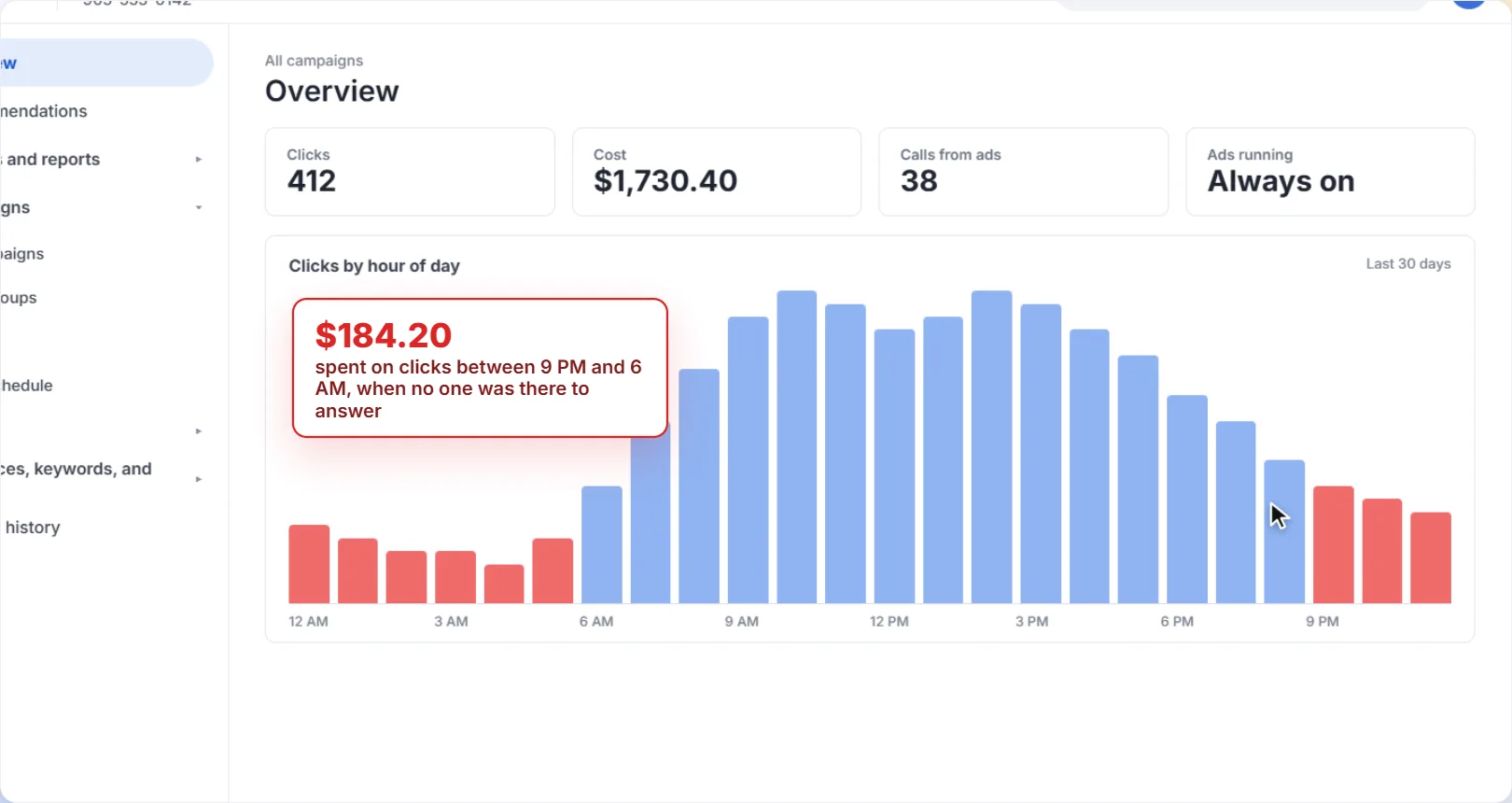
Check when your clicks happen
Before you change anything, look at when people are clicking your ads. If a lot of clicks come in late at night or on days you're closed, and few of them turn into calls or bookings, an ad schedule will help.
How to set an ad schedule
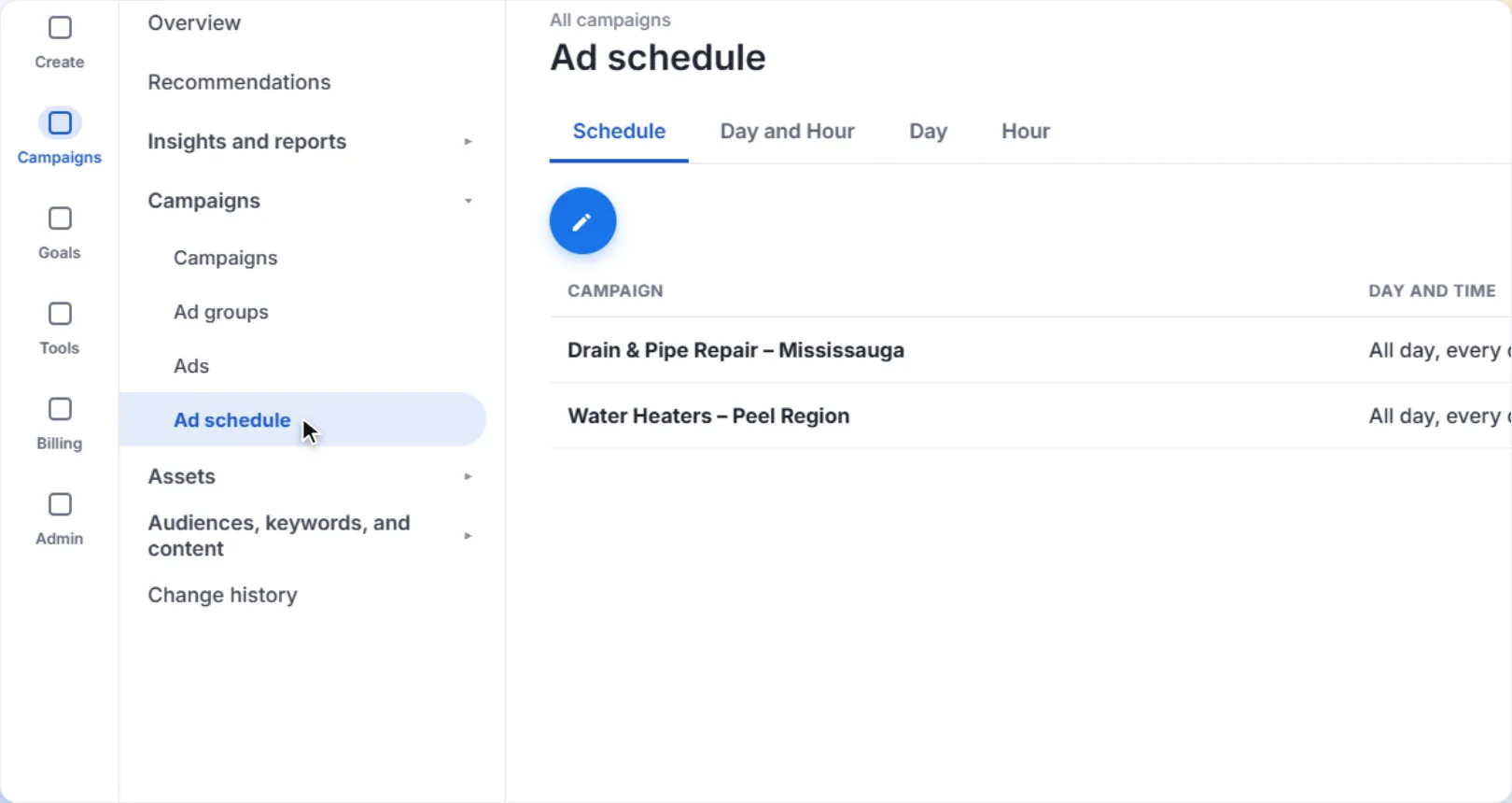
1Open Ad schedule
In the left menu, open Campaigns and click Ad schedule.
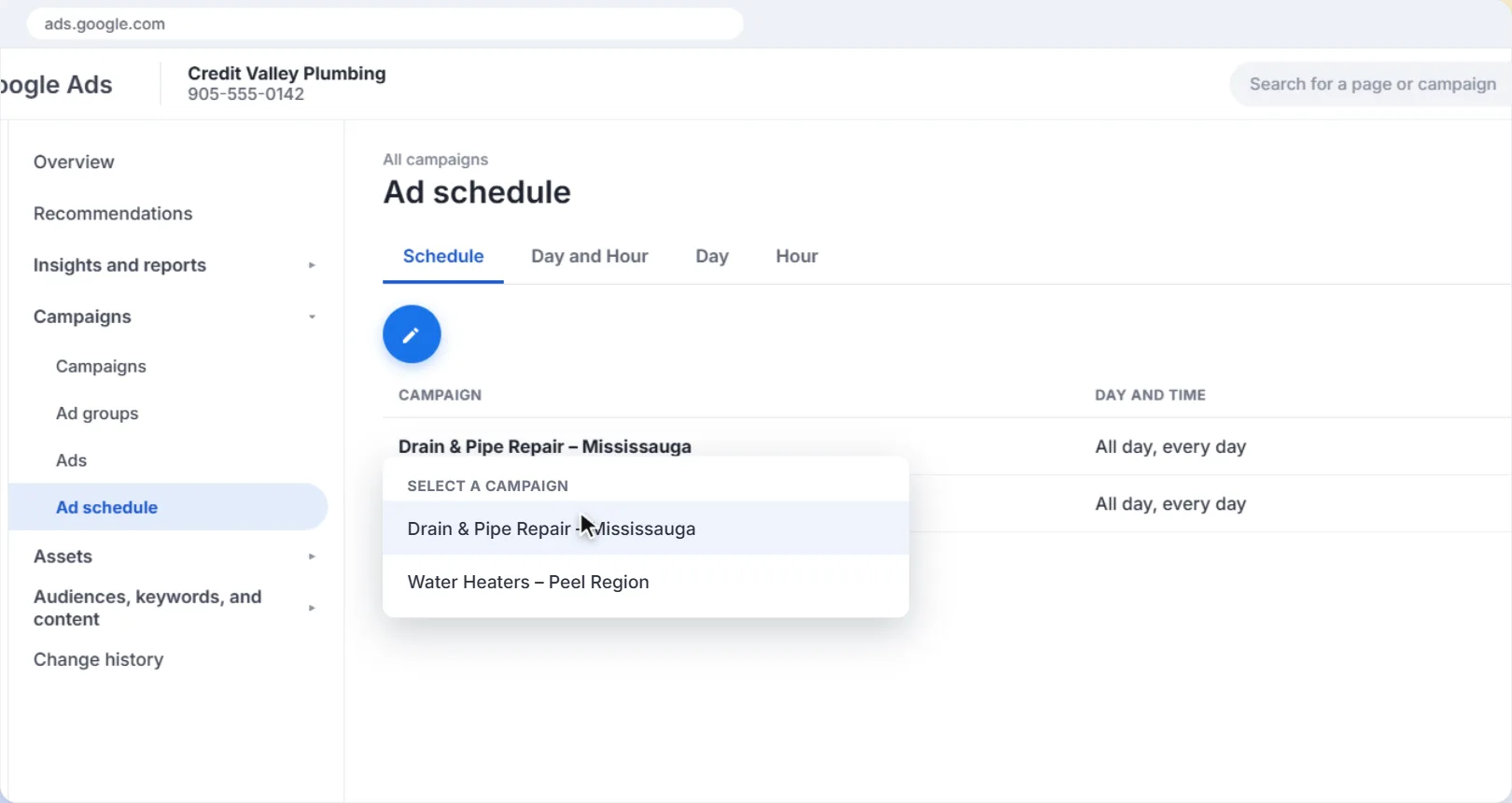
2Click the pencil icon and choose a campaign
Click the blue pencil icon, then choose the campaign you want to schedule. Each campaign has its own schedule, so repeat these steps for every campaign that needs one.
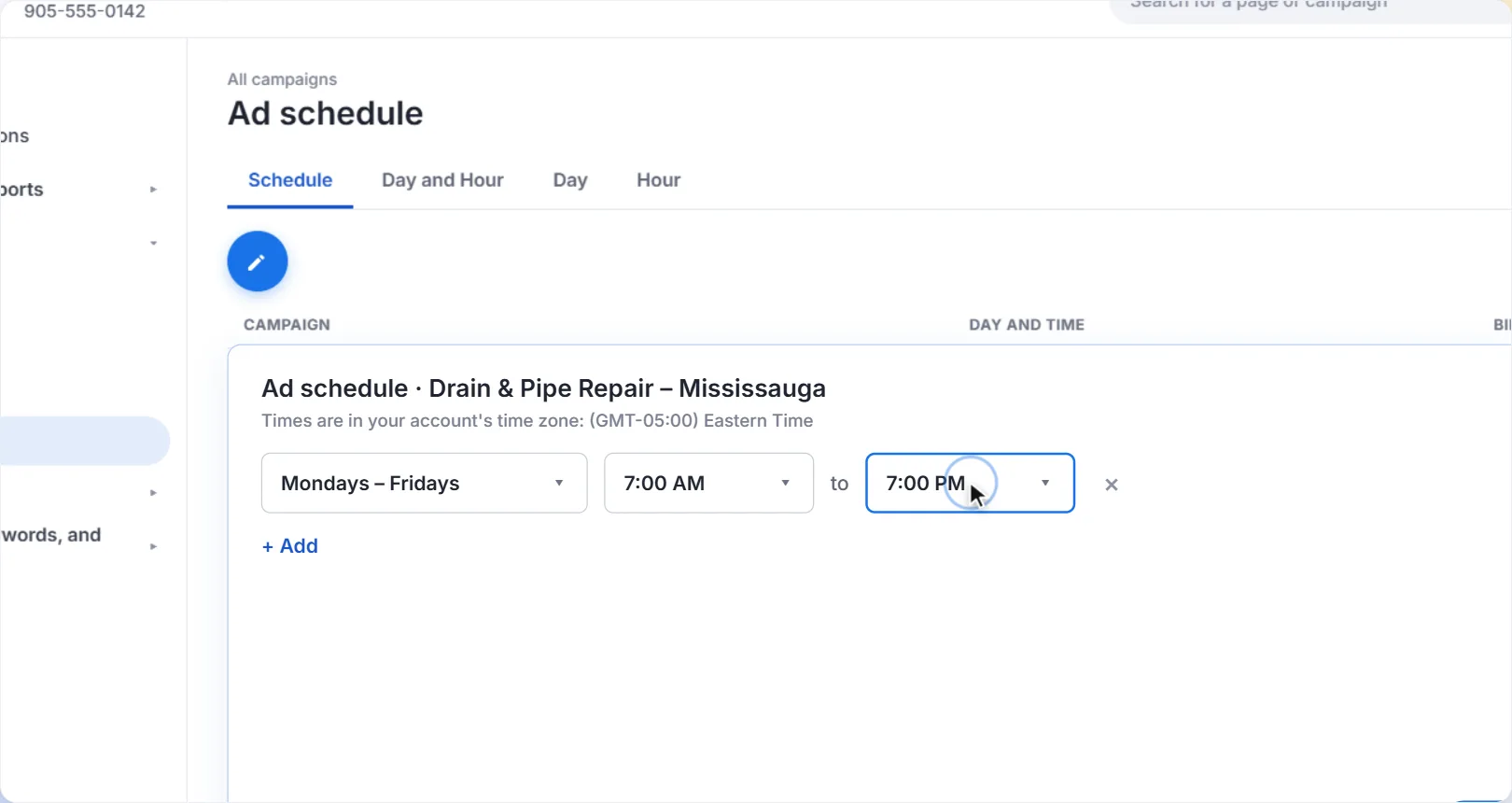
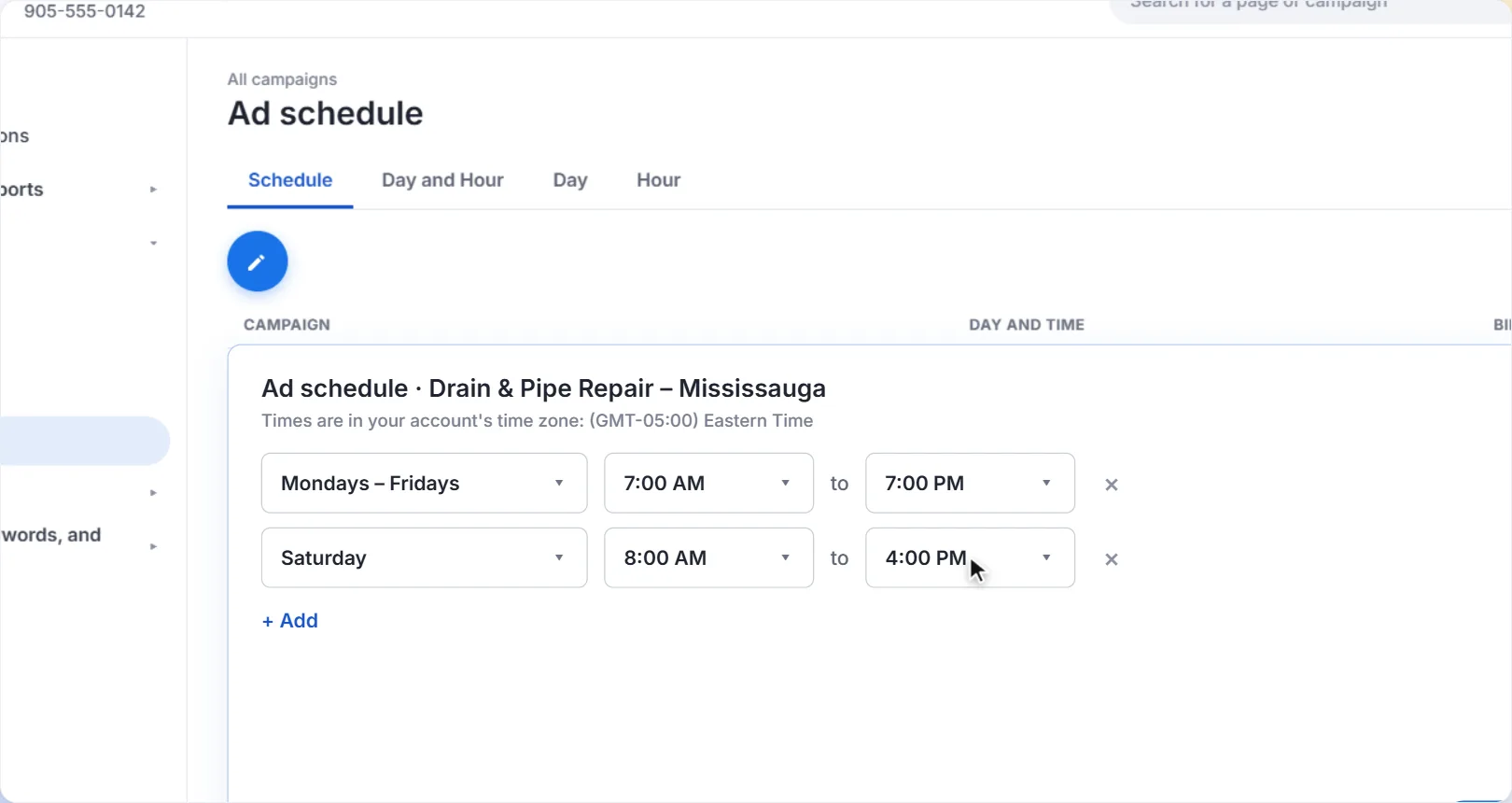
3Pick the days and set the hours
Choose the days, then the start and end times. In this example, ads run Monday to Friday, 7:00 AM to 7:00 PM. Set the hours to when someone can actually answer the phone or take a booking, not just when the doors are open.
4Click Add for other days
If your hours are different on some days, click Add to create another time period. Here, Saturday, 8:00 AM to 4:00 PM. Any day you leave out, like Sunday in this example, gets no ads.
5Save
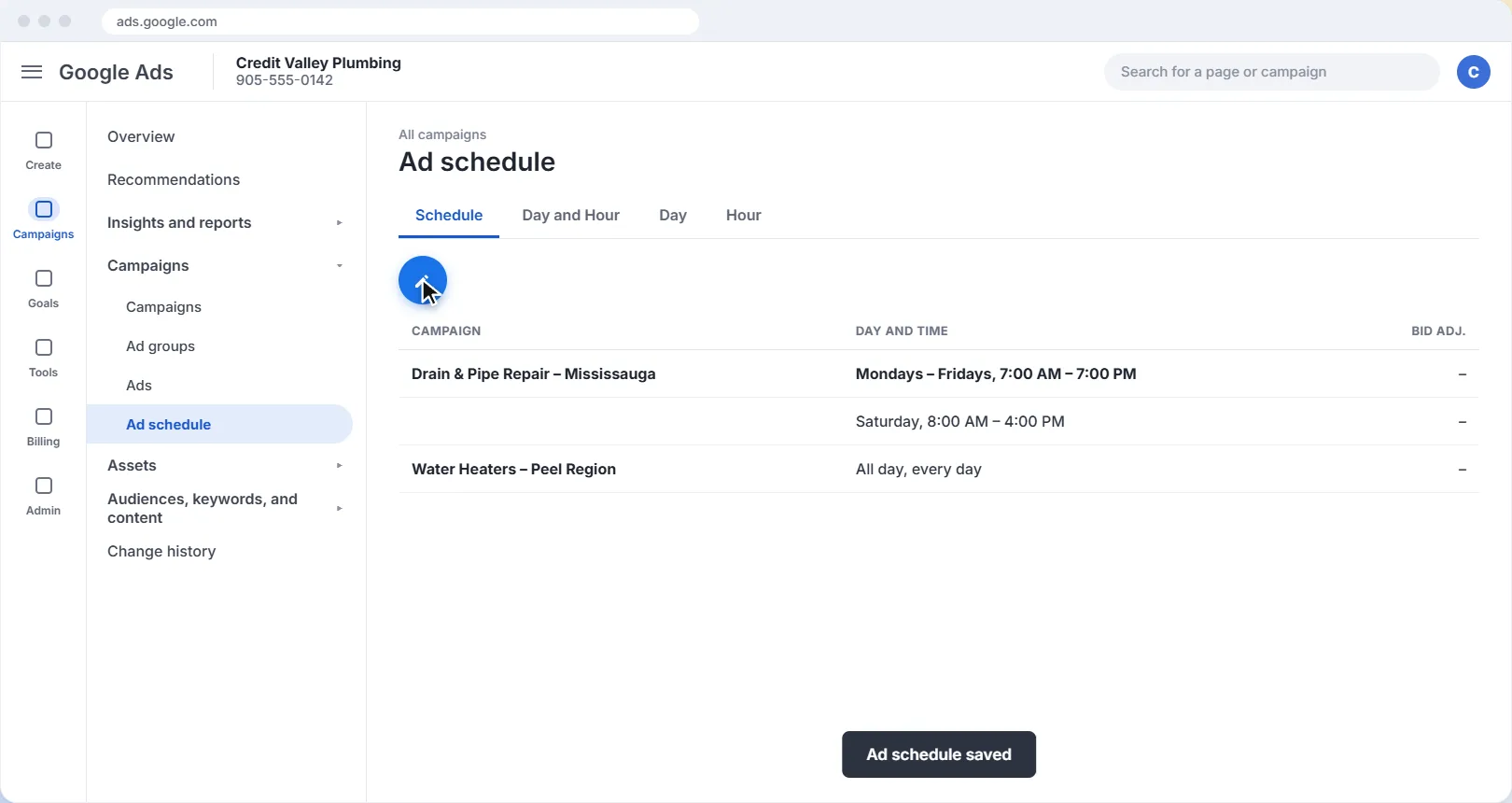
Click Save. Your schedule now shows on the Ad schedule page, and your ads only run during those hours.
6Check the Day and Hour view after a few weeks
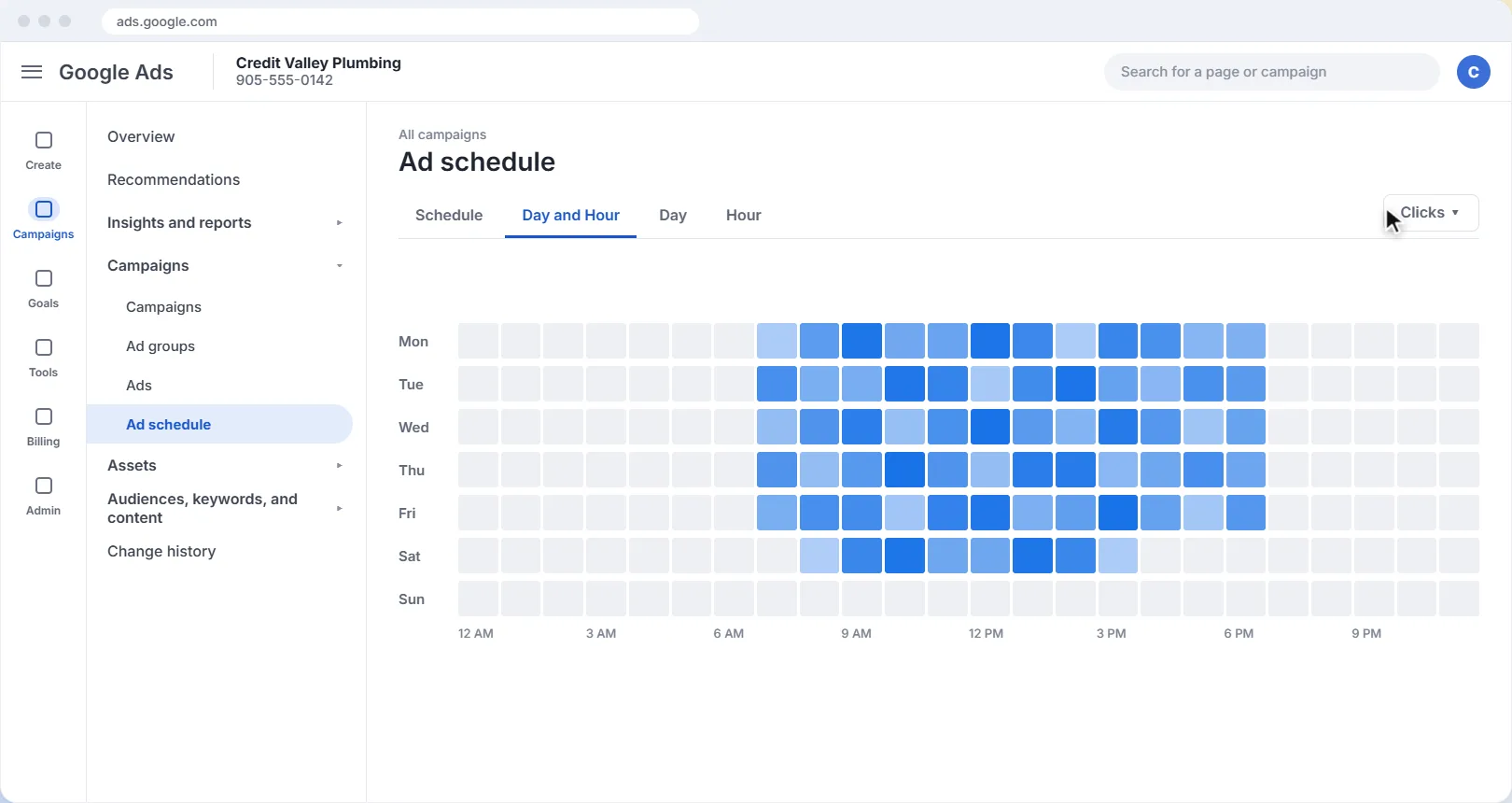
Open the Day and Hour tab on the same page to see when your ads got clicks. You can switch the chart from Clicks to other measures, like conversions, using the menu in the top right.
Good to know
| Thing to know | What it means for you |
|---|---|
| Time zone | Schedules use your Google Ads account's time zone. If your customers are in a different time zone, adjust the hours to match theirs. |
| Overnight hours | A time period can't run past midnight. To run ads from 11 PM to 7 AM, add two periods: for example Monday 11:00 PM to 12:00 AM, and Tuesday 12:00 AM to 7:00 AM. |
| Limit | You can set up to 6 time periods per day for each campaign. |
| Budget | Fewer hours doesn't automatically mean a smaller bill. Google still paces toward your monthly budget (about 30.4 times your average daily budget) during the hours you keep, so set your daily budget to what you want to spend. |
Check the numbers before you cut hours. Some businesses find that evening clicks bring in good jobs, like people booking for the next morning. Look at the Day and Hour view (with conversions or calls, if you track them) before switching off a time slot, not just at the clicks.
A few more tips
- Start with your real hours. Match the schedule to when calls get answered, then adjust once you have a few weeks of data.
- Pair it with the right area. A schedule controls when your ads show. To control where, see how to target your service area.
- Make every click count. Fewer hours means each click matters more, so add negative keywords to block searches that will never become customers, and add a call asset so people can phone you straight from the ad.
Review it each season. If your hours change in summer, over the holidays or when you add staff, update your ad schedule the same day.
Want help with your Google Ads?
We set up and manage Google Ads for local businesses in Mississauga and across the GTA: the right service area, keywords that bring in jobs, and landing pages that turn clicks into customers.
Get help with your Google AdsThe screens in this guide are simplified illustrations of Google Ads; Google updates its layout often, so labels may differ slightly in your account. Google's own guides: Set up an ad schedule and About ad scheduling. The plumbing business and figures are examples.
More Google Ads guides
 Video guide
How to Use the Search Terms Report in Google Ads
See the exact searches that triggered your ads, block the ones that waste money, and turn the ones that bring in jobs into keywords, with a narrated video walkthrough.
6 min read
 Video guide
How to Add a Call Button to Your Google Ads (Call Assets)
Let people on phones call you straight from your ad. A narrated video and step-by-step guide to adding a call asset, scheduling it for your business hours, and counting calls as conversions.
5 min read
 Video guide
How to Target Your Service Area in Google Ads
Make sure your ads only reach people you can actually serve: set a radius around your business and switch the location option to Presence, with a narrated video walkthrough.
5 min read
 Video guide
How to Add Negative Keywords in Google Ads (Step by Step)
Stop paying for clicks that never turn into customers. A narrated video and step-by-step guide to adding negative keywords in Google Ads, with match types explained and a starter list.
5 min read