
How to Target Your Service Area in Google Ads
By Adrian Chromenko, primarydm.com·November 21, 2026·5 min read
If you serve customers in one area, like a roofer in Mississauga or a cleaner in Brampton, every click from outside that area is money spent on someone you can't help. Google Ads lets you draw a circle around the area you serve and show your ads only to people inside it. It takes about two minutes. Watch the video above, or follow the steps below.
Check where your clicks are coming from
Open your campaign and look at the Locations report (under Insights and reports). It shows where the people who clicked your ads were. If you see cities you don't serve, with clicks and cost but no conversions, your location settings are too broad.
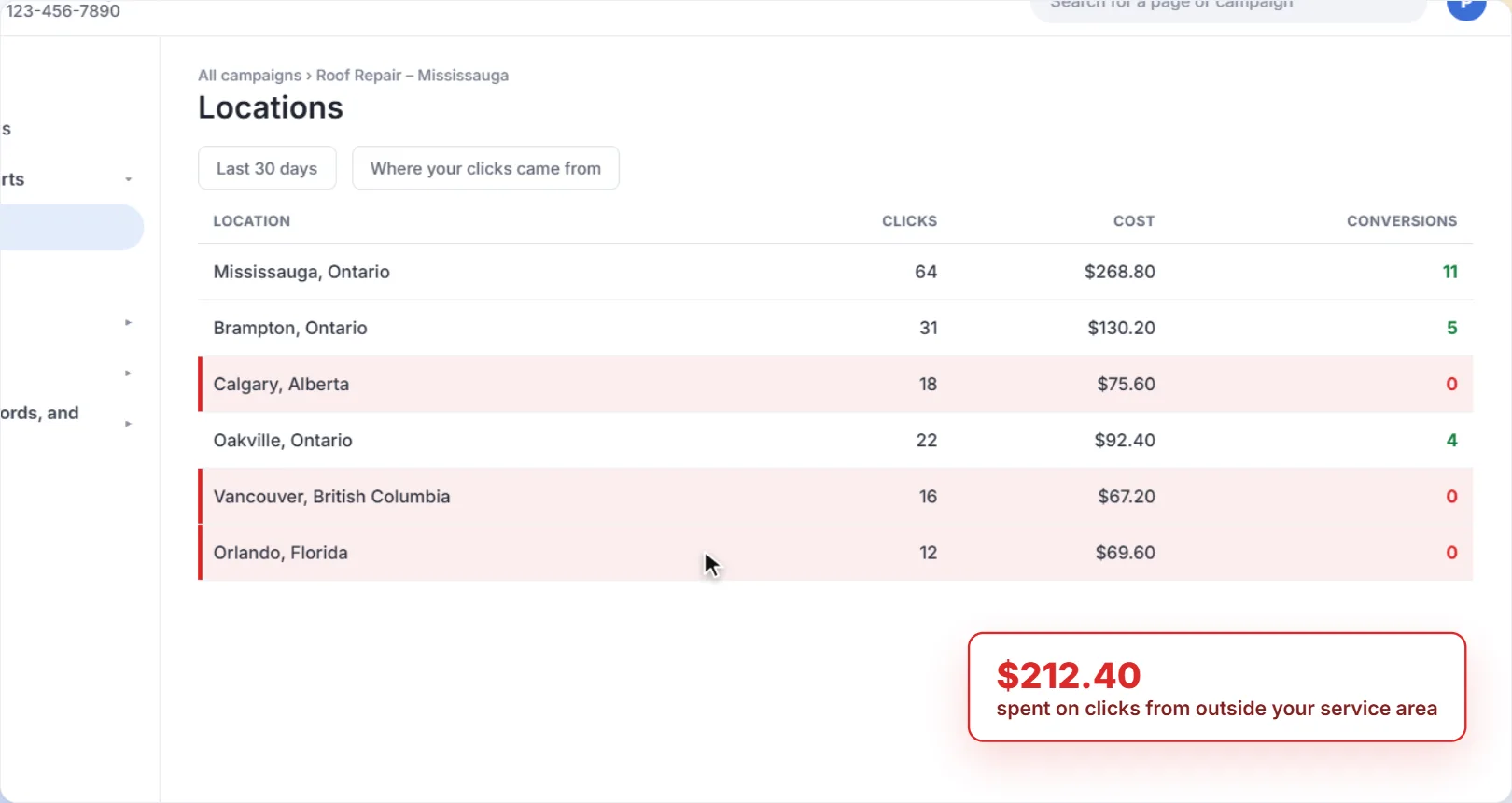
How to target your service area
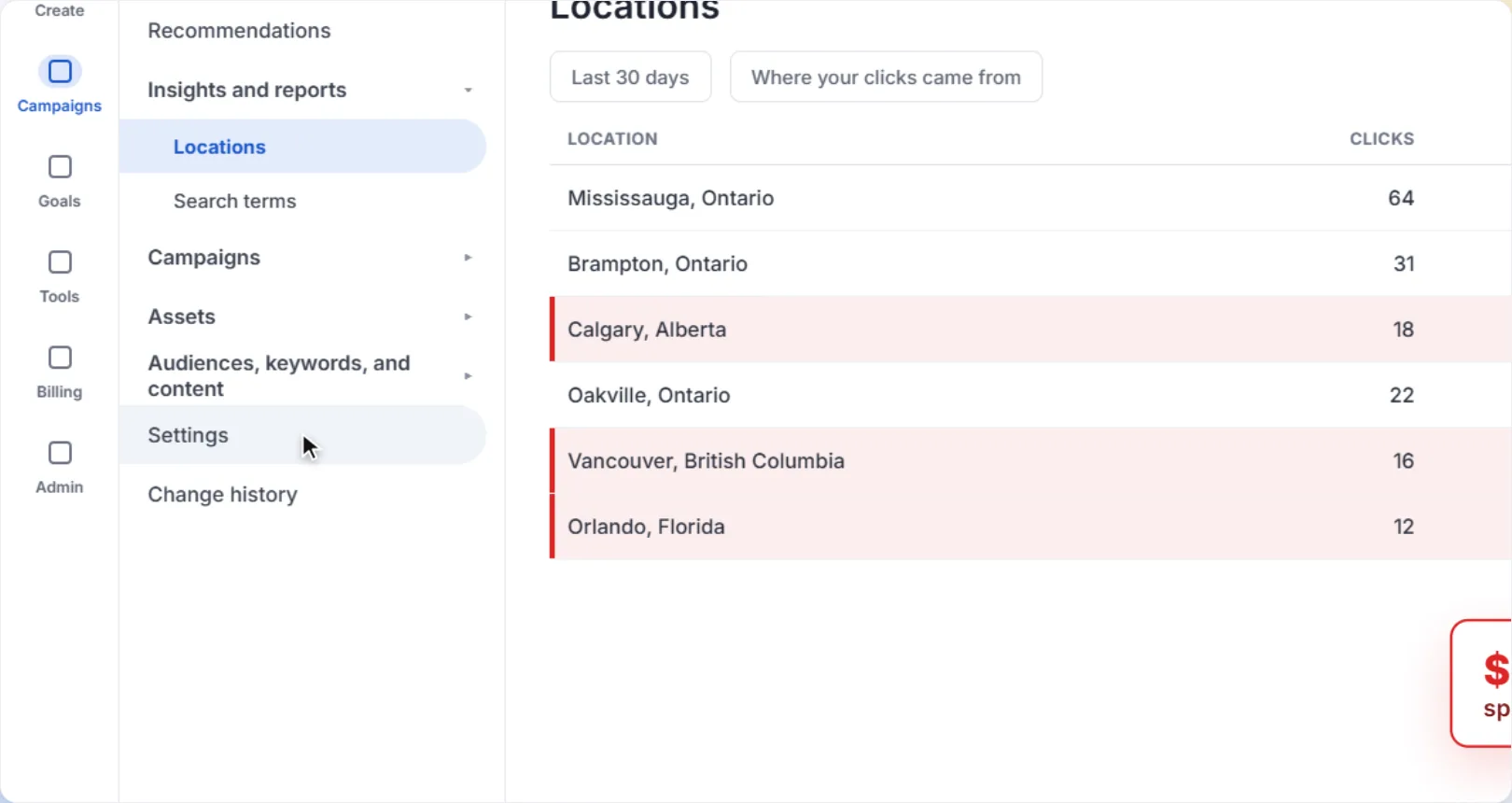
1Open your campaign settings
Open the campaign you want to change, then click Settings in the left menu.
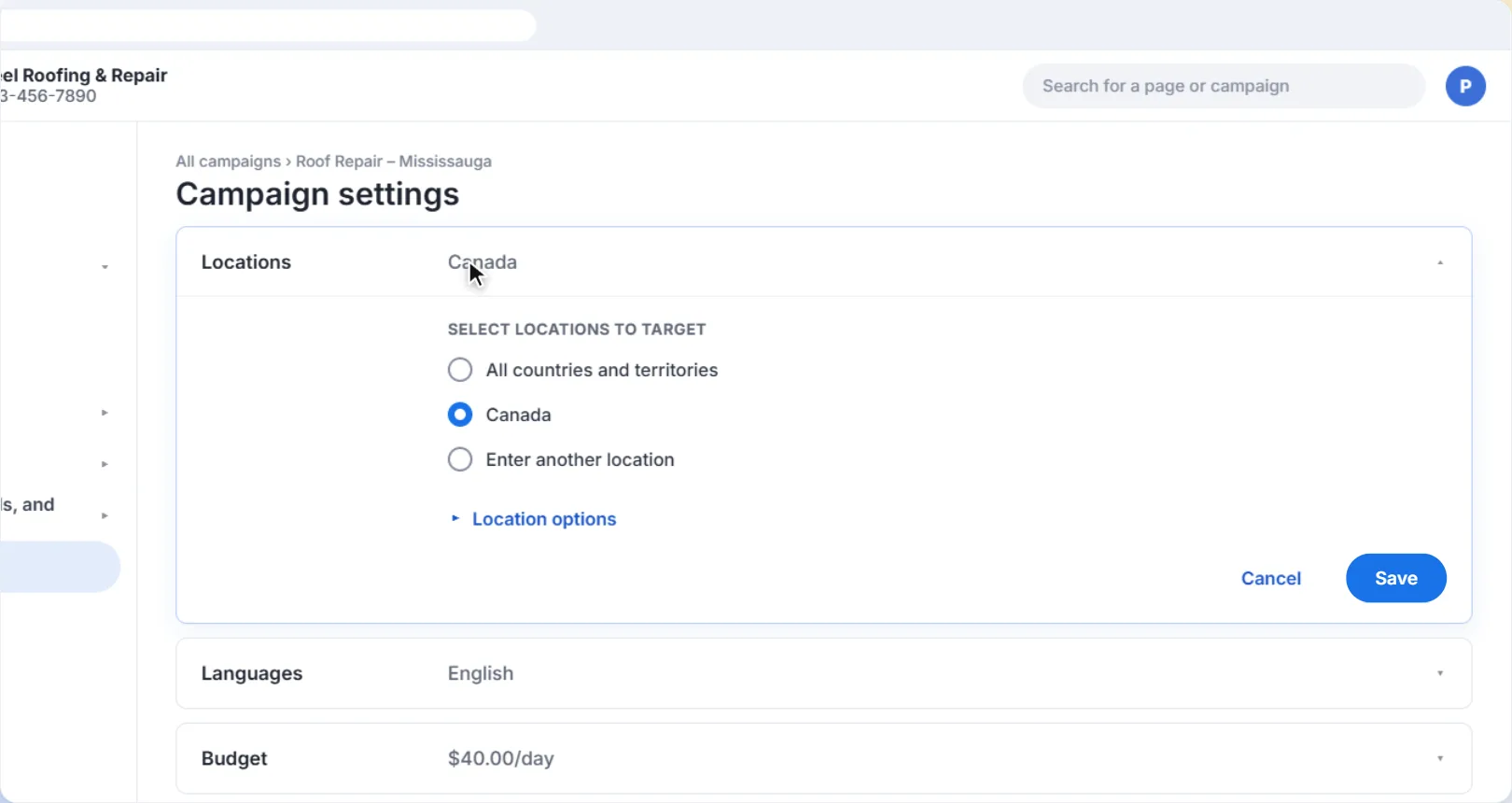
2Open Locations
Click Locations to open your location settings. Many campaigns are set to a whole country, like Canada, which is far too wide for a local business.
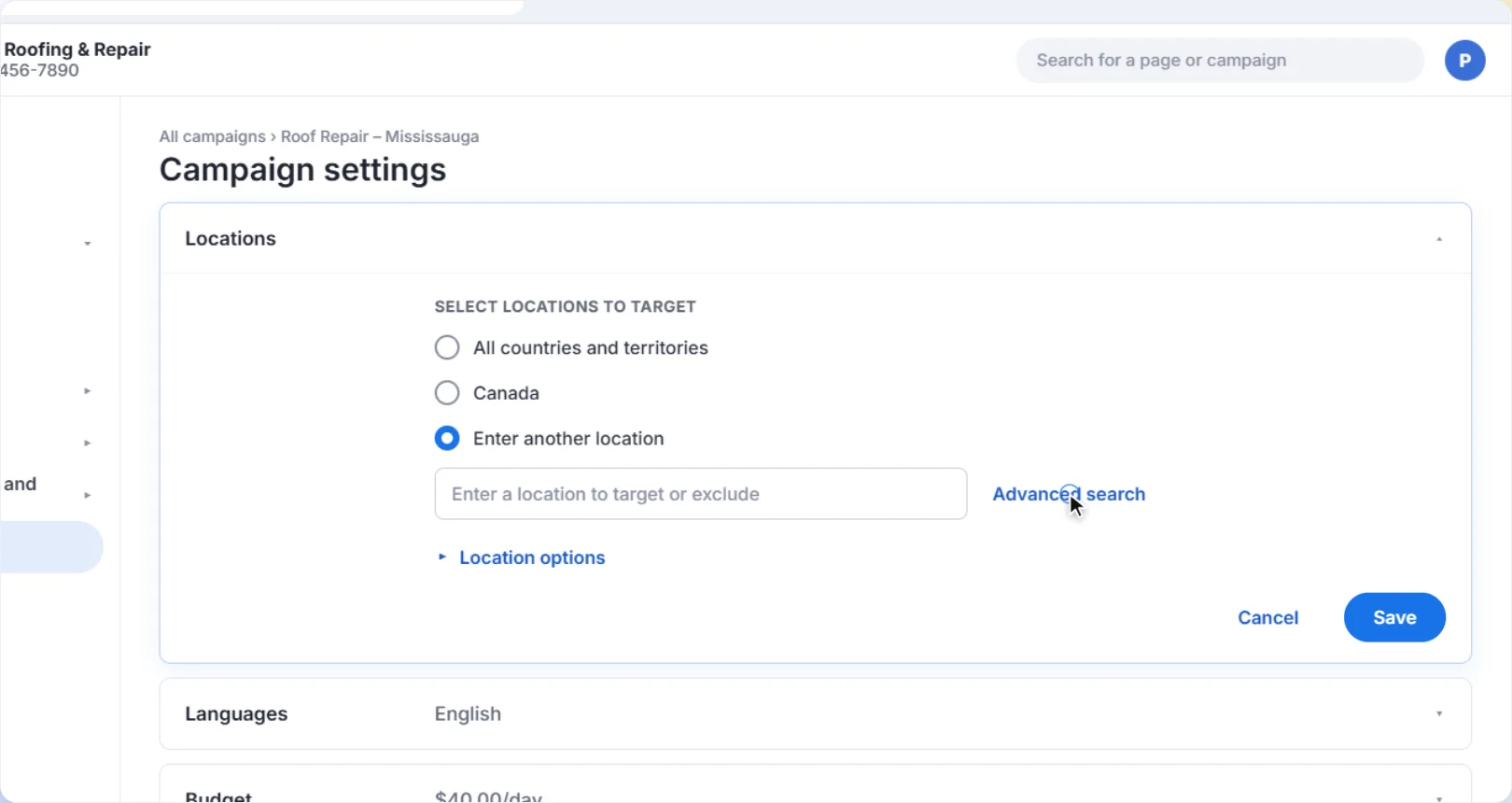
3Choose Enter another location, then Advanced search
Select Enter another location. You could type a city name here, but a radius usually matches a service area better, so click Advanced search.
4Set a radius around your business
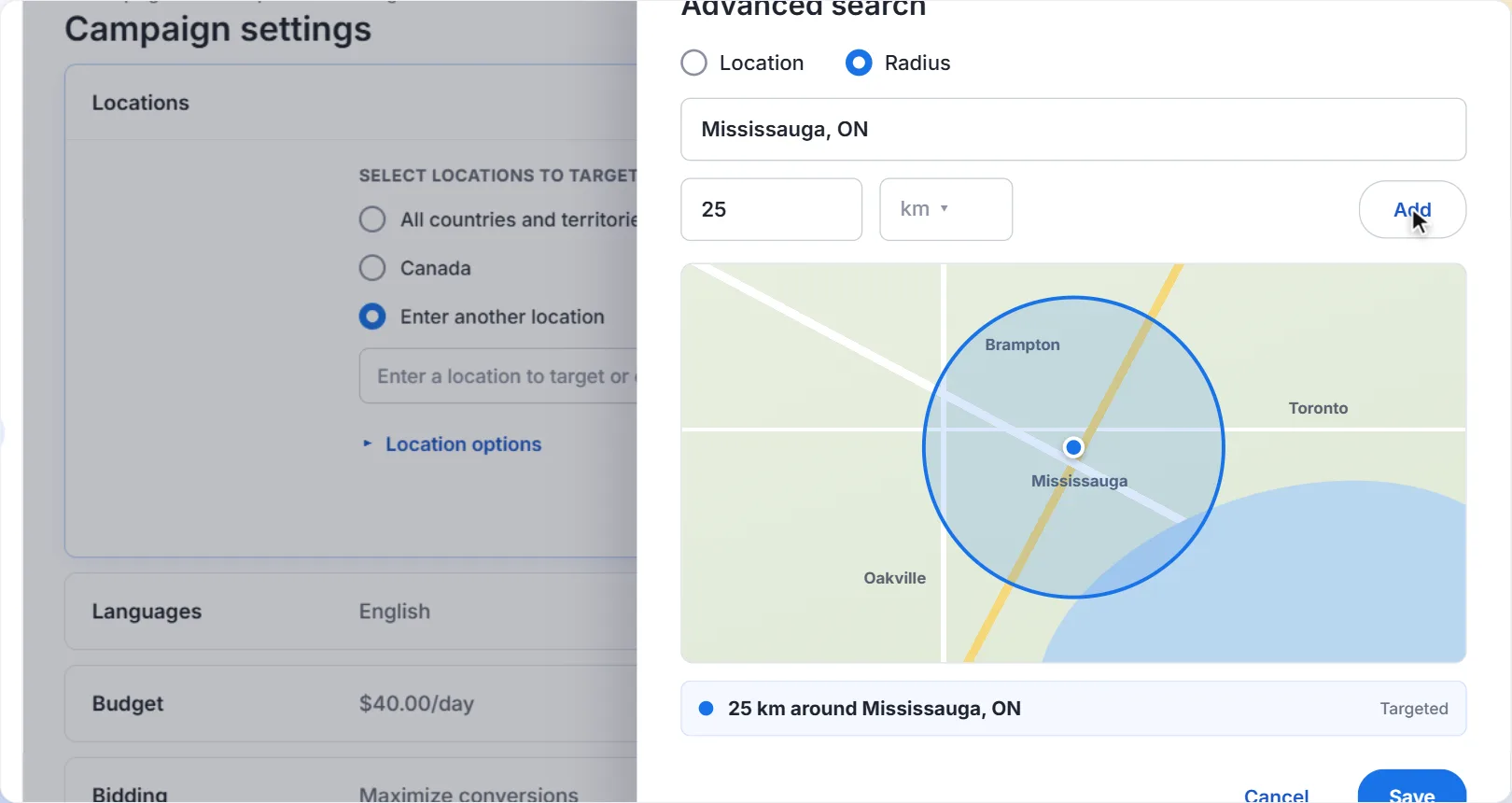
Choose Radius, type your business address, and enter how far you travel for a job (for example, 25 km).
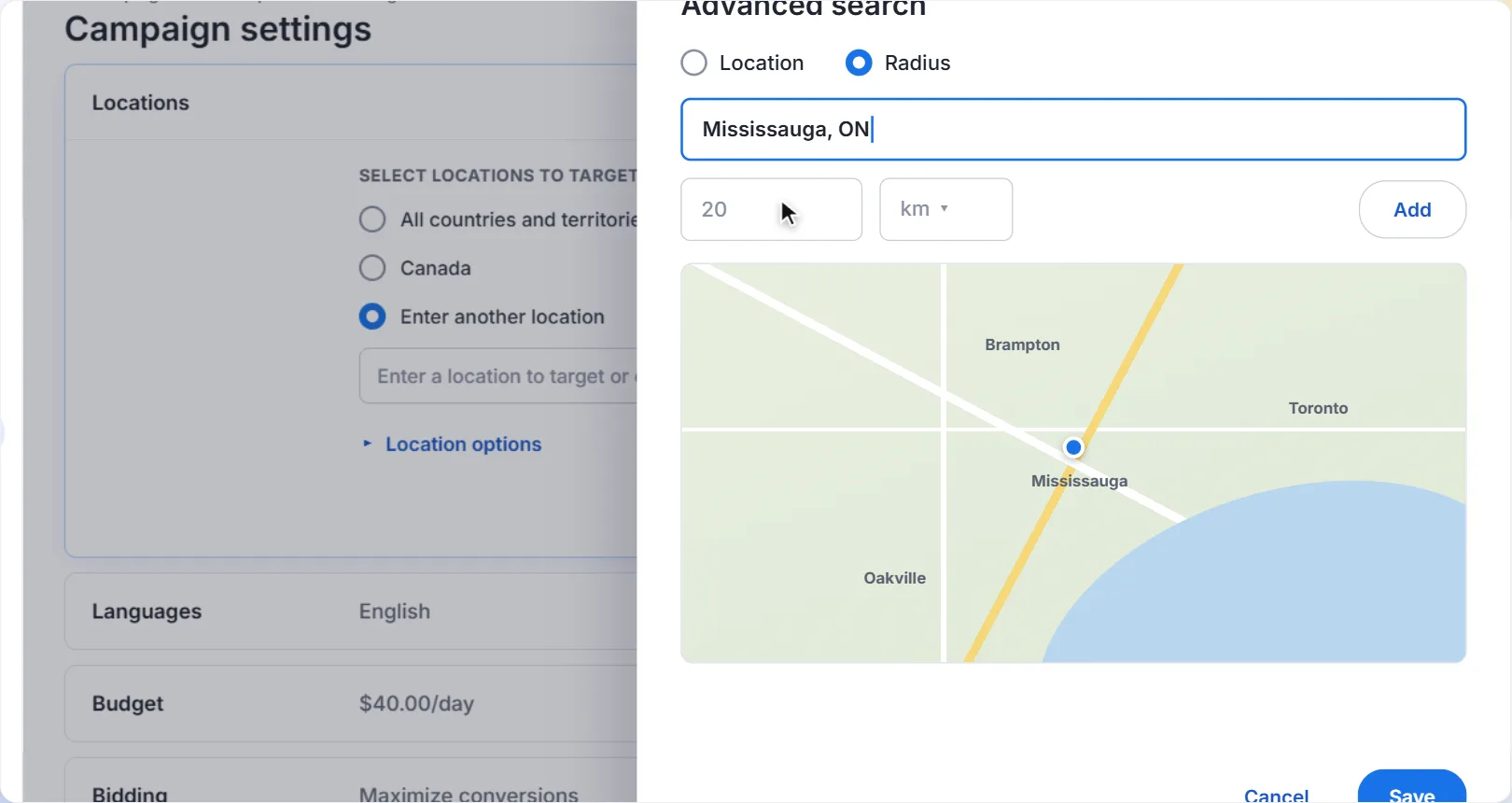
Click Add. The map shows the area your ads will cover, so check it looks right, then click Save.
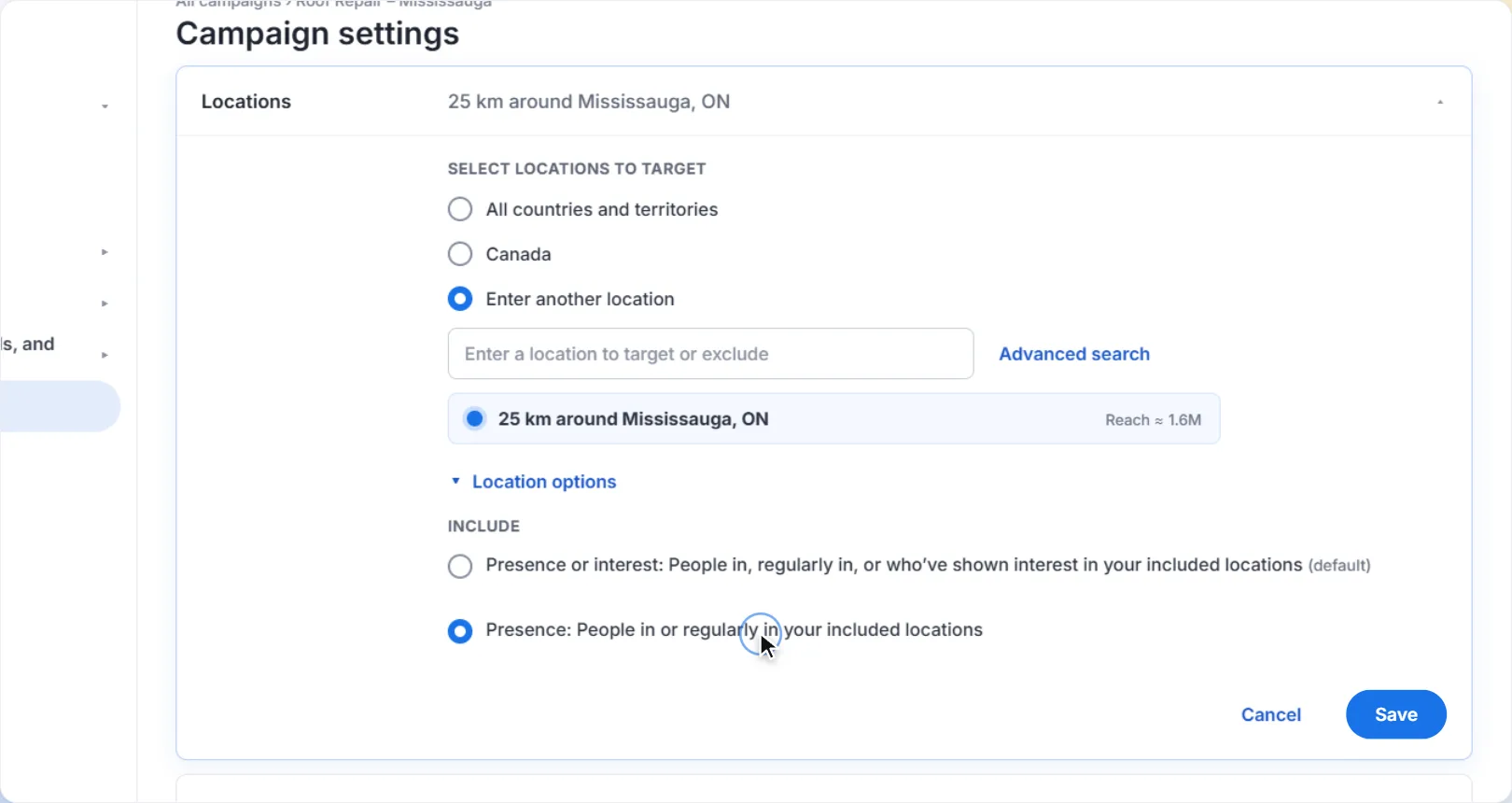
5Switch Location options to Presence
Click Location options. Under Include, choose Presence: People in or regularly in your included locations. This is the step most people miss (see below).
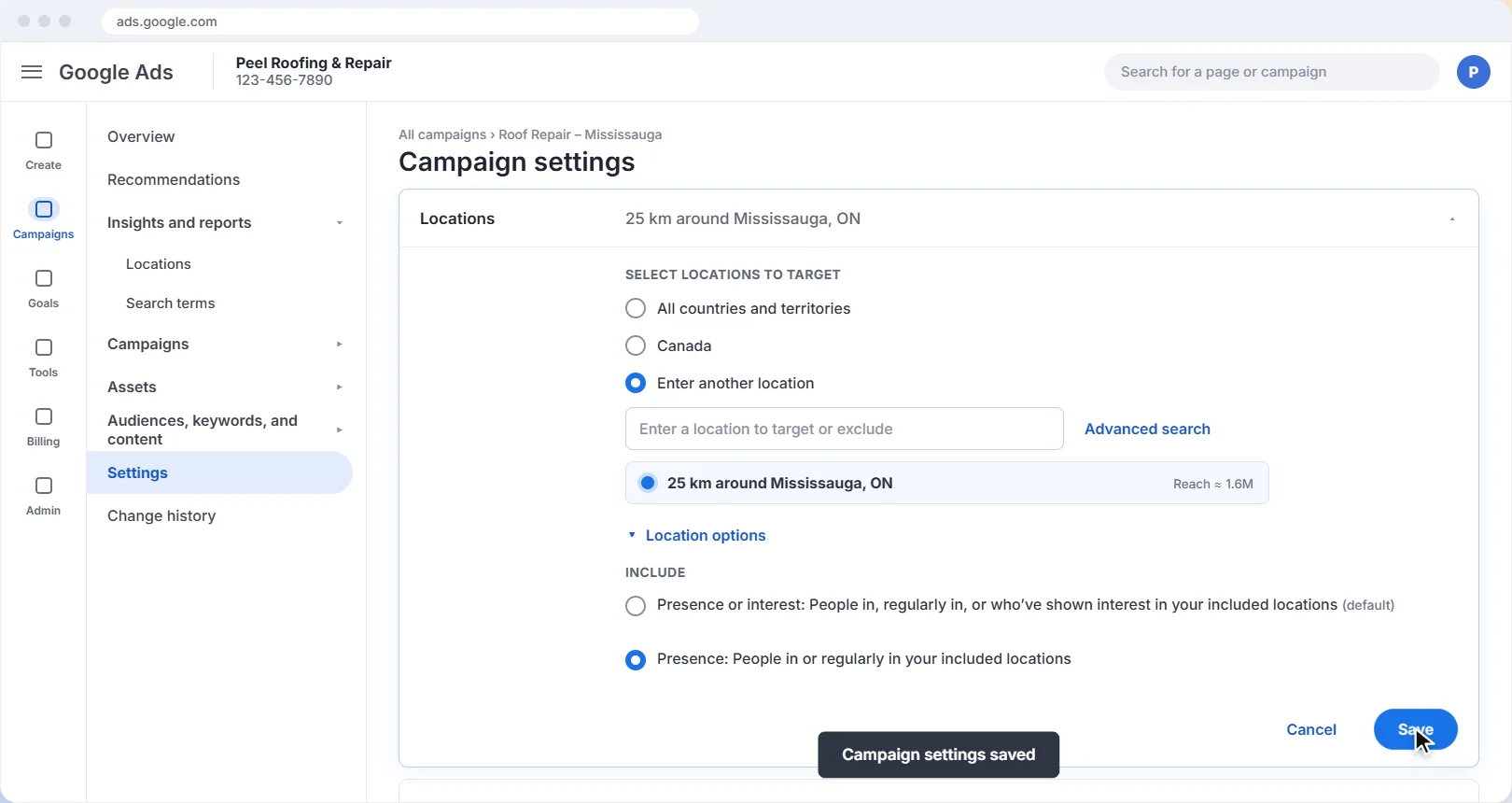
6Save
Click Save. From now on, your ads focus on people in the area you actually serve.
Presence vs. Presence or interest
Google's default option is Presence or interest. It sounds harmless, but it means your ads can also show to people who are nowhere near your area and have only shown interest in it, for example by searching for it.
| Option | Who sees your ads | Best for |
|---|---|---|
| Presence or interest (default) | People in your area, plus people elsewhere who've shown interest in it. Someone in Calgary searching “roofer Mississauga” can see your ad. | Travel, real estate, businesses that sell to people planning to visit |
| Presence | Only people who are in, or regularly in, your area. | Local service businesses: trades, cleaning, clinics, restaurants |
Pick a radius you can really serve. If you only take jobs within 25 km, don't set 50 km “to be safe”. A wider radius spreads the same budget over more people who are less likely to hire you. You can always widen it later if you're not getting enough clicks.
A few more tips
- Exclude areas you don't serve. If your radius crosses a city you don't work in, add that city under Exclude in the same Locations section.
- Several locations? Add a radius around each one, or create a separate campaign per location if they need different budgets.
- Mention your area in your ads too. Saying “Serving Mississauga & Brampton” in your ad text helps the right people click and the wrong ones skip.
Make it a habit. Check your Locations report once a month. If clicks from outside your area keep showing up, double-check that Presence is still selected and that your radius hasn't been widened.
Want help with your Google Ads?
We set up and manage Google Ads for local businesses in Mississauga and across the GTA: the right service area, keywords that bring in jobs, and landing pages that turn clicks into customers.
Get help with your Google AdsThe screens in this guide are simplified illustrations of Google Ads; Google updates its layout often, so labels may differ slightly in your account. Google's own guides: Target ads to geographic locations. The roofing business and figures are examples.