
How to Add Negative Keywords in Google Ads (Step by Step)
By Adrian Chromenko, primarydm.com·November 21, 2026·5 min read
Every Google Ads account pays for some clicks that were never going to become customers: people looking for jobs, DIY instructions or free courses. Negative keywords tell Google not to show your ads for those searches, so your budget goes to people who actually want to hire you. Watch the video above, or follow the steps below.
Find the searches that are wasting money
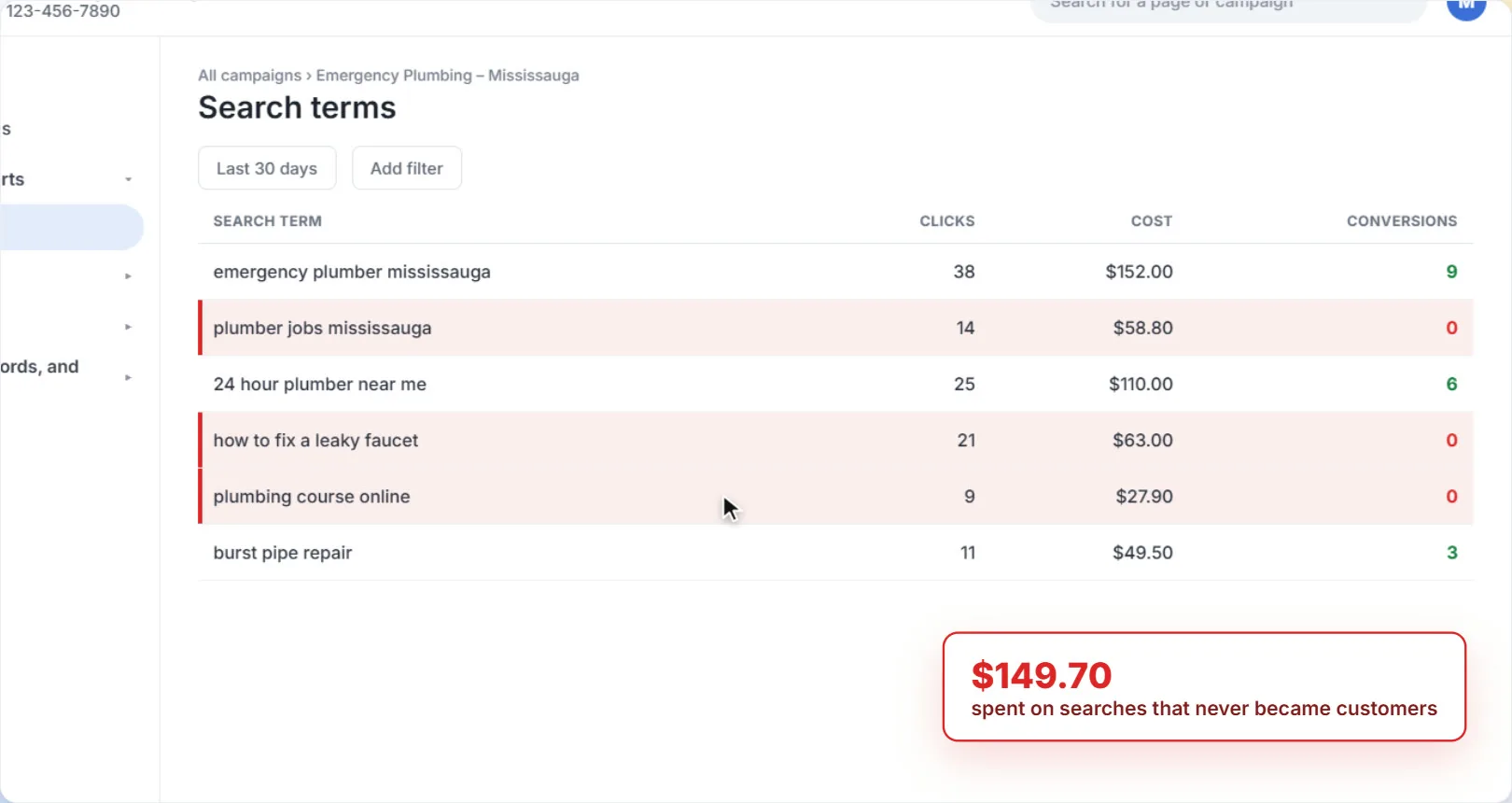
Start with the Search terms report (in your campaign, under Insights and reports). It shows the real searches people typed before clicking your ad. Look for terms with clicks and cost but no conversions, especially ones that show the person isn't a customer.
How to add negative keywords
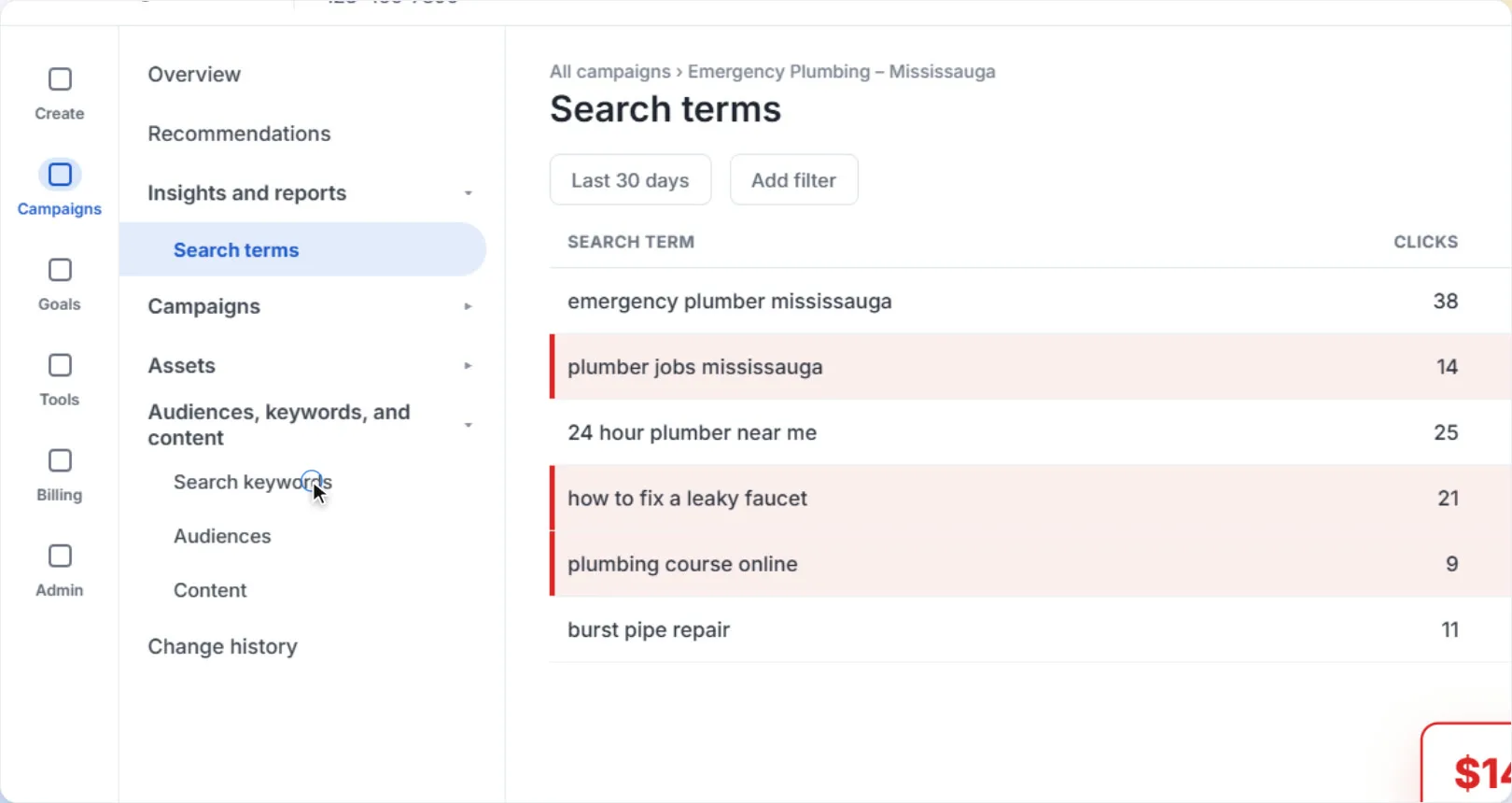
1Open Search keywords
Open the campaign you want to protect. In the left menu, click Audiences, keywords, and content, then Search keywords.
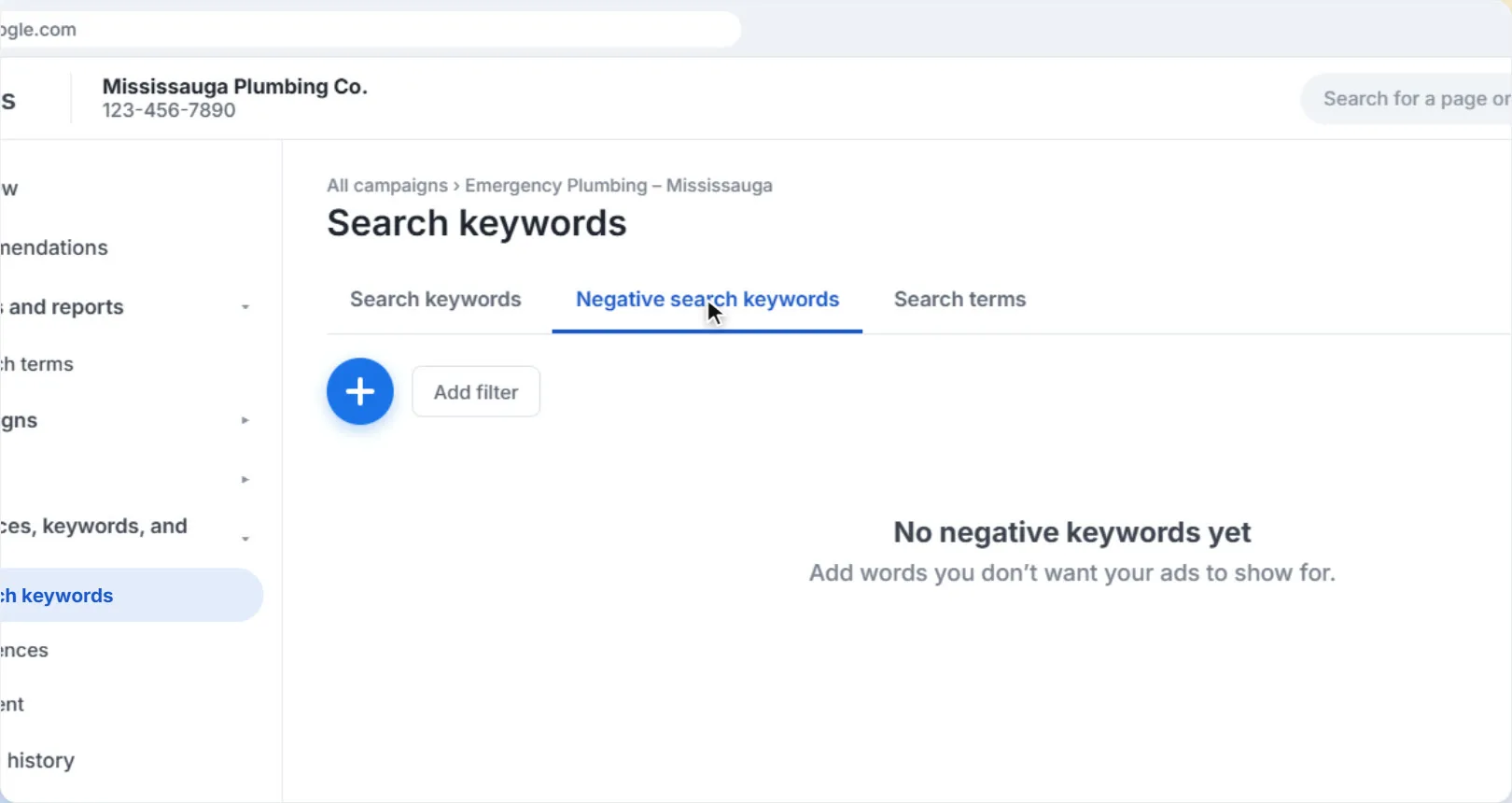
2Go to the Negative search keywords tab
At the top of the page, click the Negative search keywords tab. If you haven't added any yet, it will be empty.
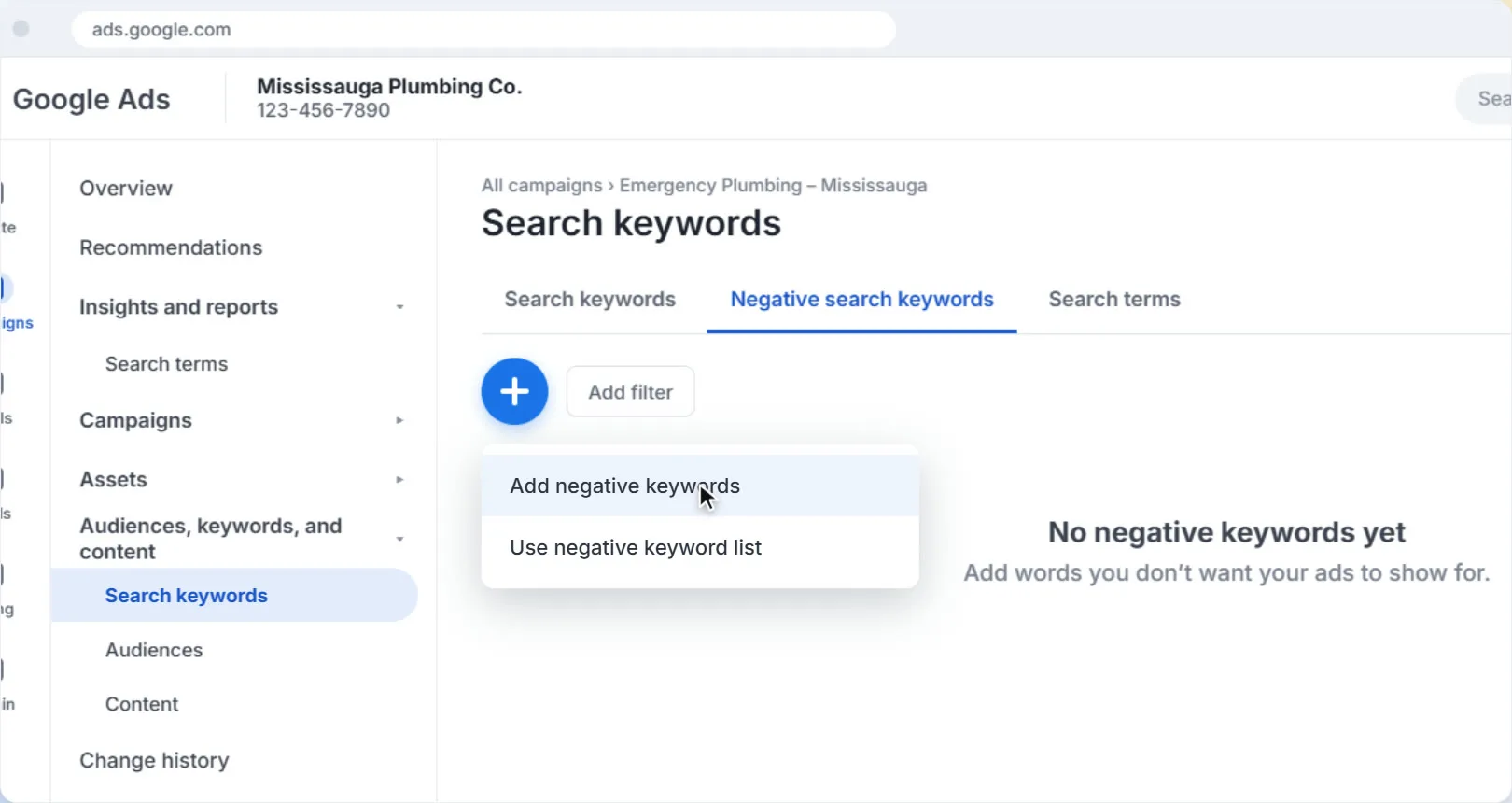
3Click the blue + button
Click the blue + button, then choose Add negative keywords. (Choose Use negative keyword list instead if you already have a saved list.)
4Choose where to add them, then type your keywords
Pick Campaign to block the words across the whole campaign, or Ad group to block them in one ad group only. Then select the campaign.
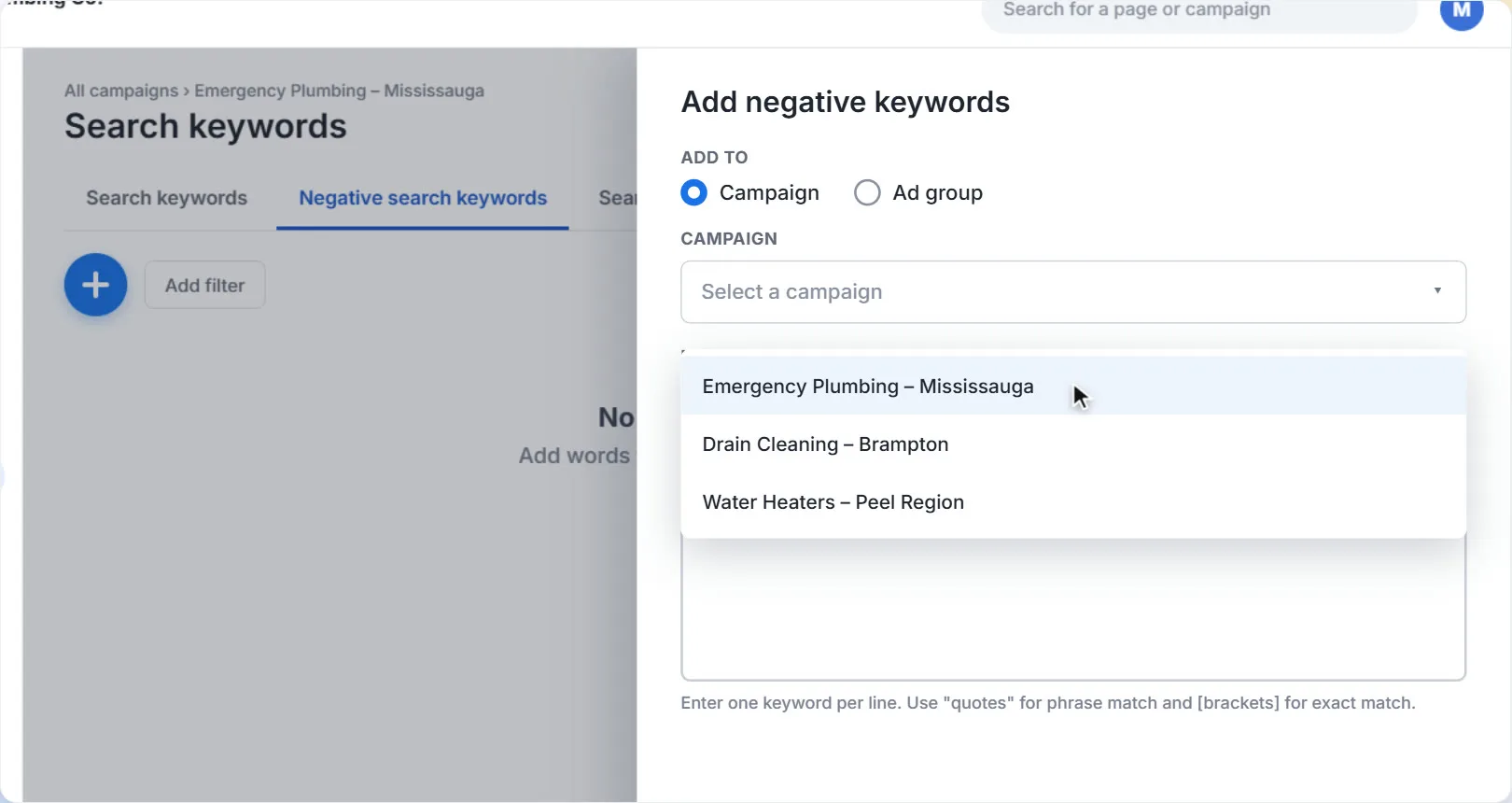
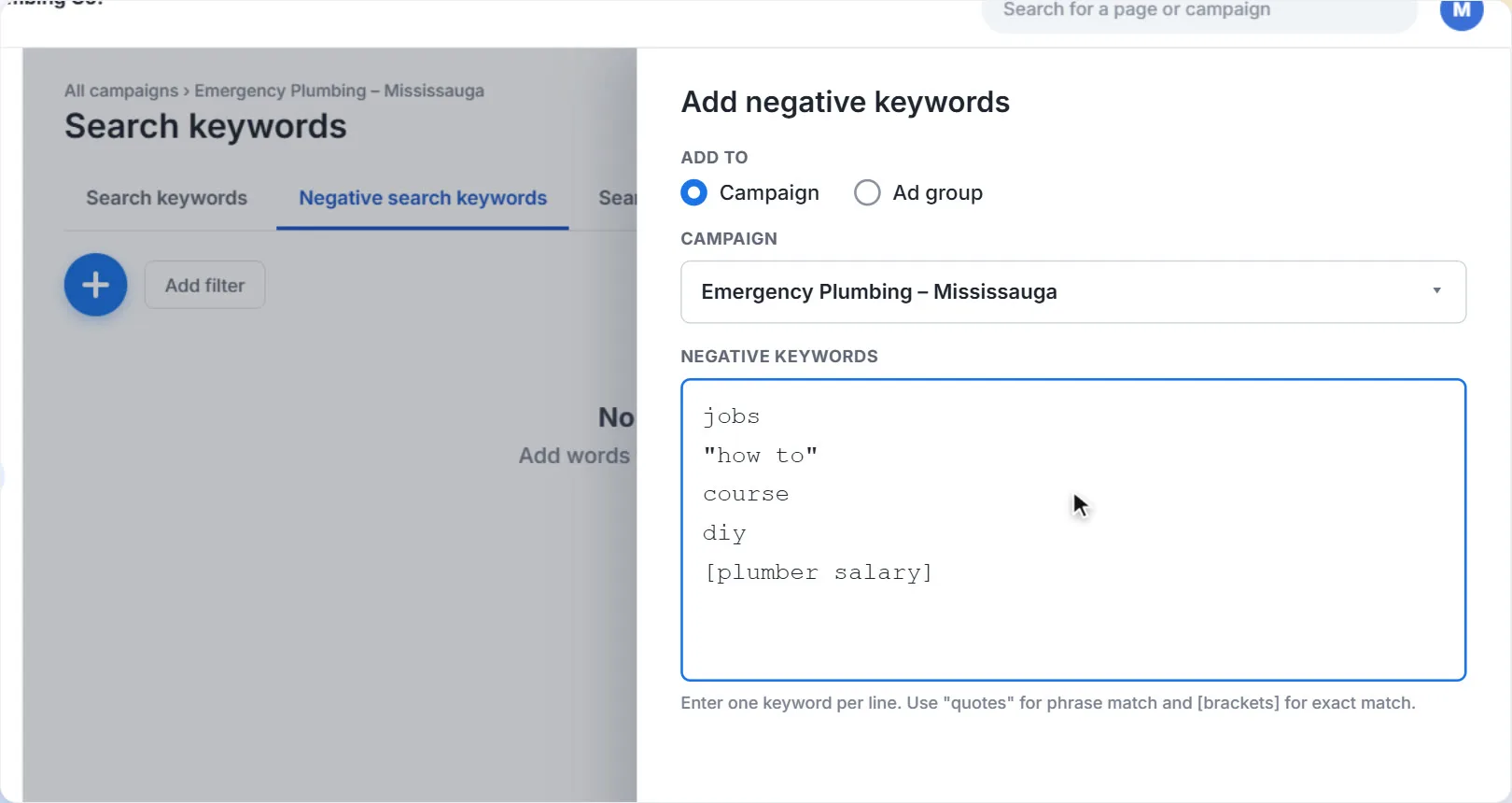
Now type your negative keywords, one per line. Add symbols to choose the match type (more on this below).
5Save
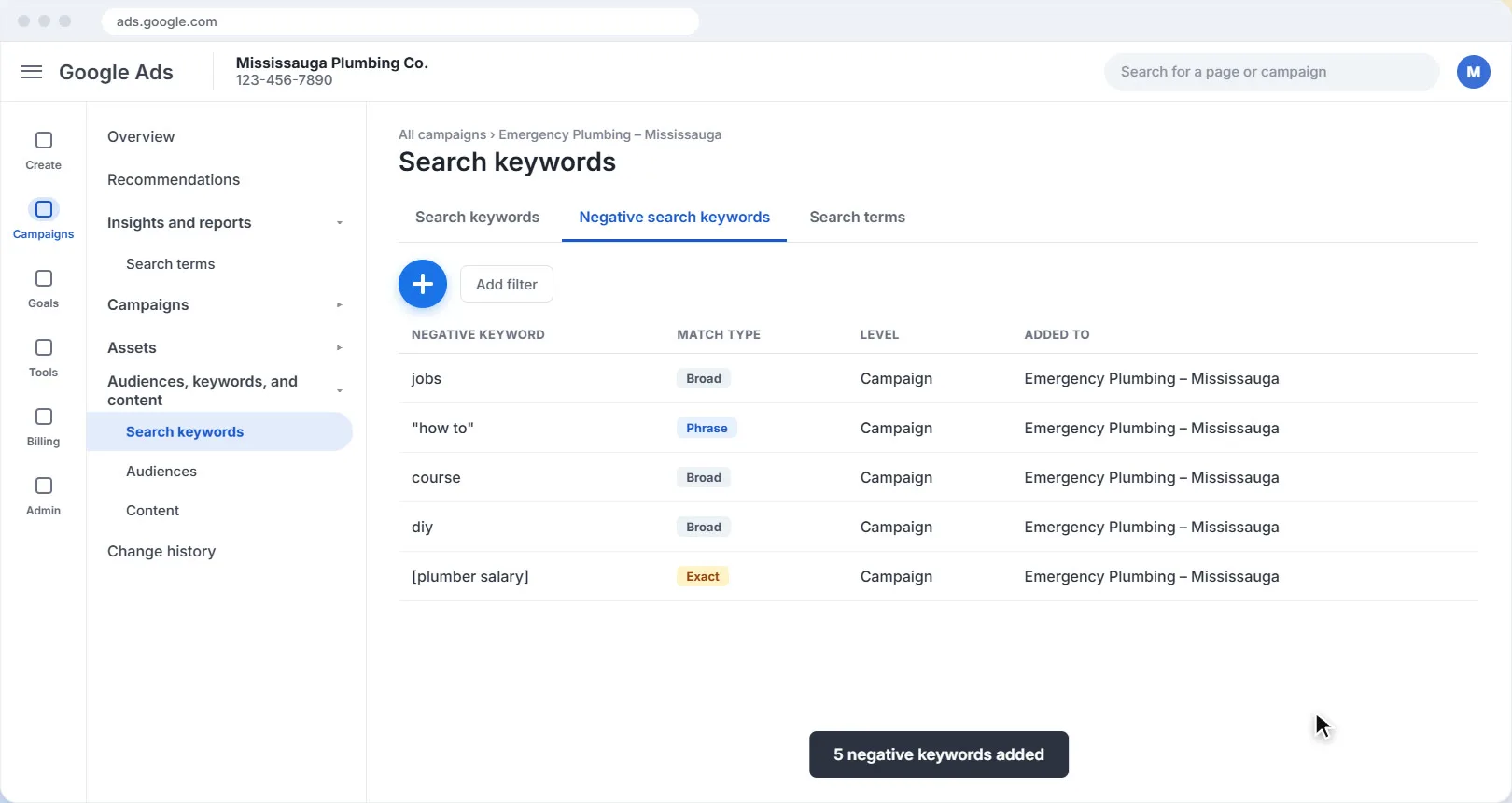
Click Save. Your negative keywords appear in the list with their match type, and from now on those searches won't trigger your ads.
Pick the right match type
Negative keywords work a little differently from normal keywords: they don't match close variations like plurals or misspellings, so you may need to add those separately.
| Type it like this | Match type | What it blocks |
|---|---|---|
jobs | Broad | Any search containing “jobs”, in any order. plumber jobs mississauga is blocked. |
"how to" | Phrase | Searches with “how to” together, in that order. how to fix a leaky faucet is blocked. |
[plumber salary] | Exact | Only the exact search “plumber salary”, nothing else. |
Be careful with broad negatives. Blocking free sounds sensible, but it would also block “free estimate”, which is exactly what many customers search for. Check that a negative keyword can't block the searches you want.
Good negative keywords to start with
Every business is different, but most service businesses can safely start with words like these (check each one against your own services first):
- Job seekers:
jobs,careers,hiring,salary,apprenticeship - Do-it-yourselfers:
"how to",diy,tutorial,youtube - Students:
course,training,certification,school - Wrong area: towns or cities you don't serve
Make it a habit. Check your Search terms report every week for the first month of a campaign, then monthly. New wasted searches show up all the time, and each one you block saves money every day after.
Want help with your Google Ads?
We set up and manage Google Ads for local businesses in Mississauga and across the GTA: the right keywords, negative keywords that stop wasted spend, and landing pages that turn clicks into customers.
Get help with your Google AdsThe screens in this guide are simplified illustrations of Google Ads; Google updates its layout often, so labels may differ slightly in your account. Google's own guide: Add negative keywords to campaigns. The plumbing business and figures are examples.