
How to Use the Search Terms Report in Google Ads
By Adrian Chromenko, primarydm.com·November 21, 2026·6 min read
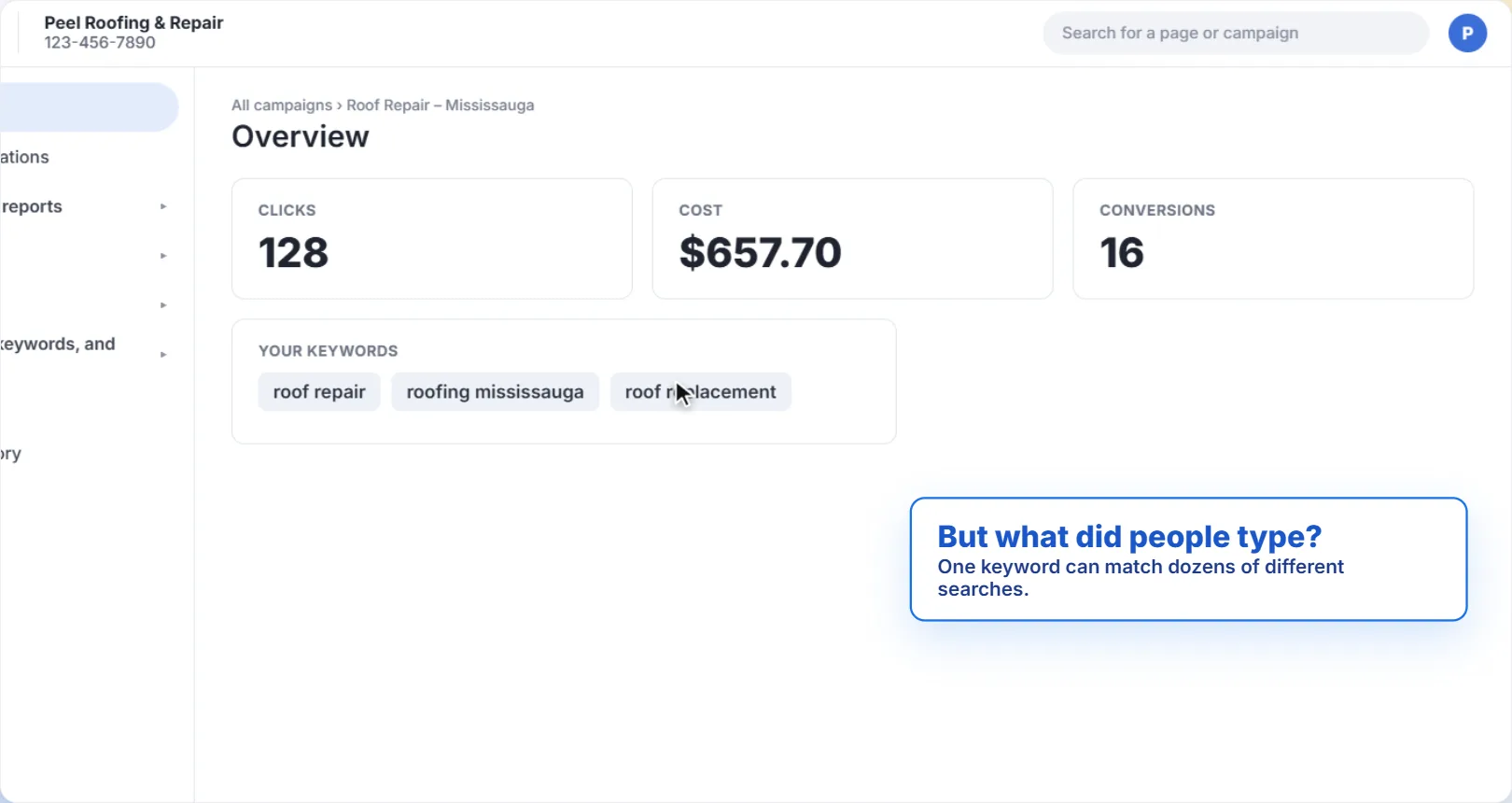
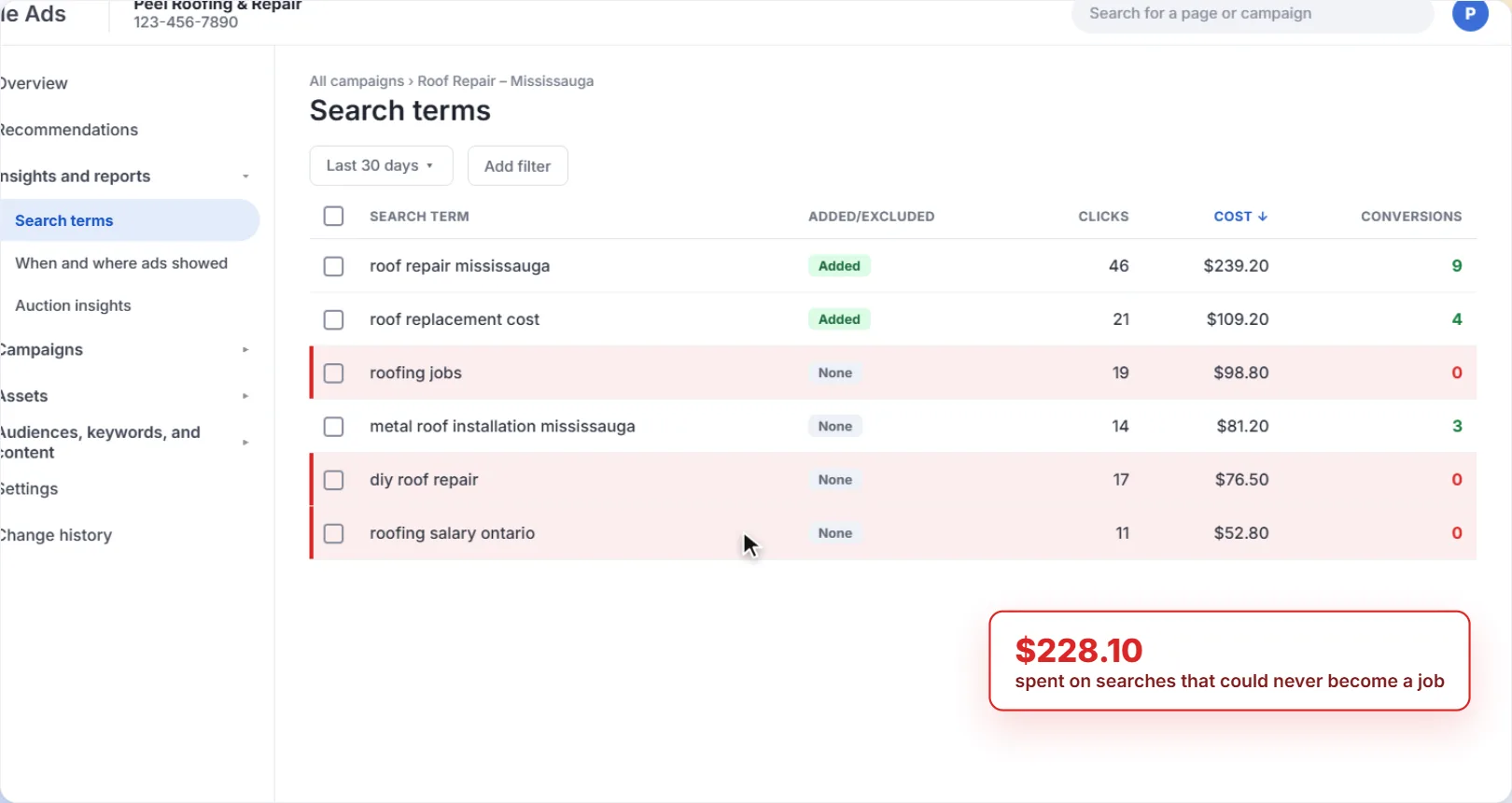
Your keywords are not the same as the searches people make. A keyword like roof repair can match dozens of different searches, and some of them, like roofing jobs or diy roof repair, come from people who will never hire you. The search terms report shows you exactly what people typed before they clicked your ad, so you can stop paying for the wrong searches and find new keywords that work. Watch the video above, or follow the steps below.
Why the search terms report matters
The Overview page tells you how many clicks you bought and what they cost. It doesn't tell you what those people were looking for. The search terms report does, one search at a time, with the clicks, cost and conversions for each.
How to use the search terms report
1Open Search terms
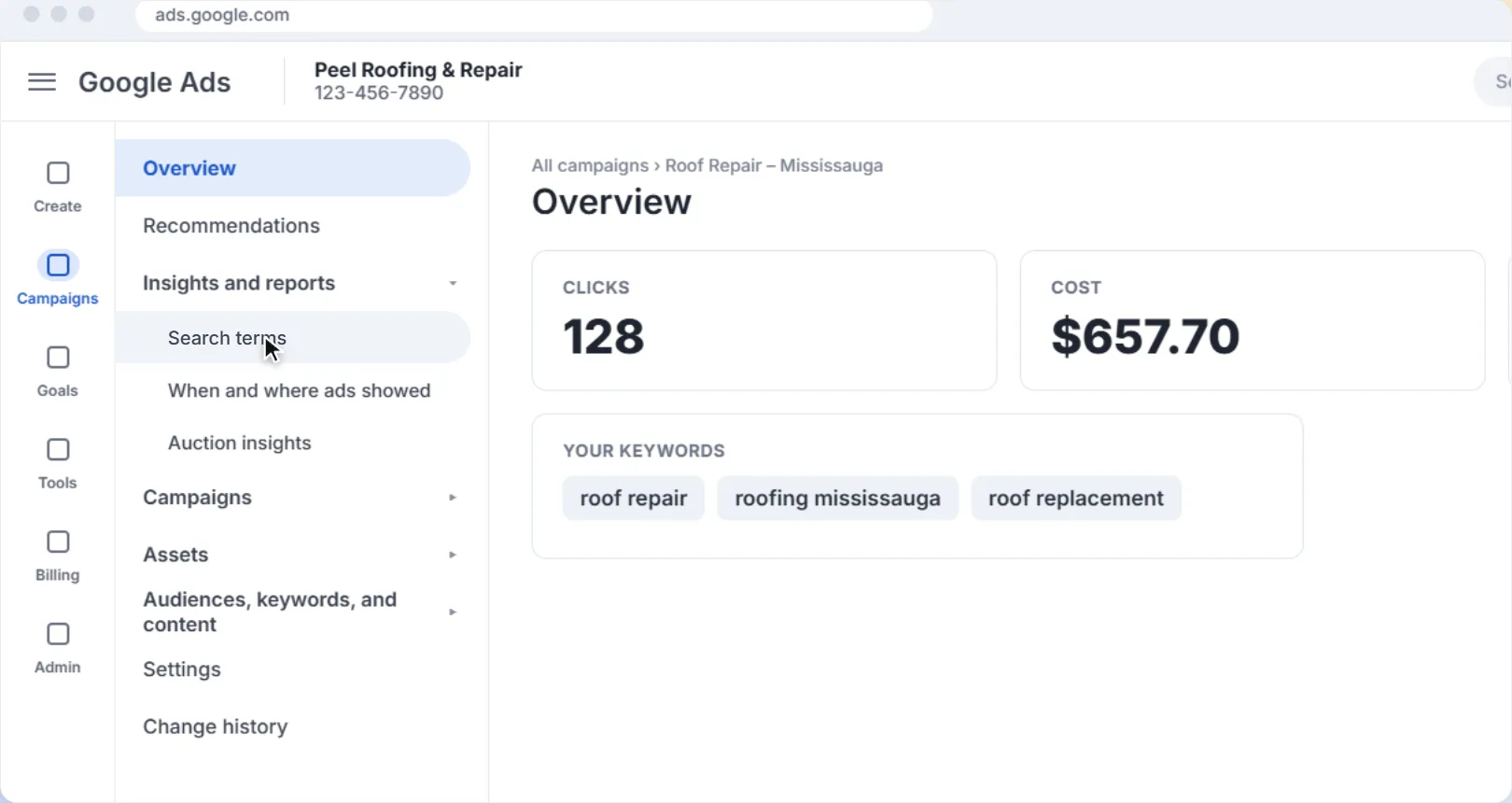
Open the campaign you want to check. In the left menu, open Insights and reports, then click Search terms.
2Set the date range
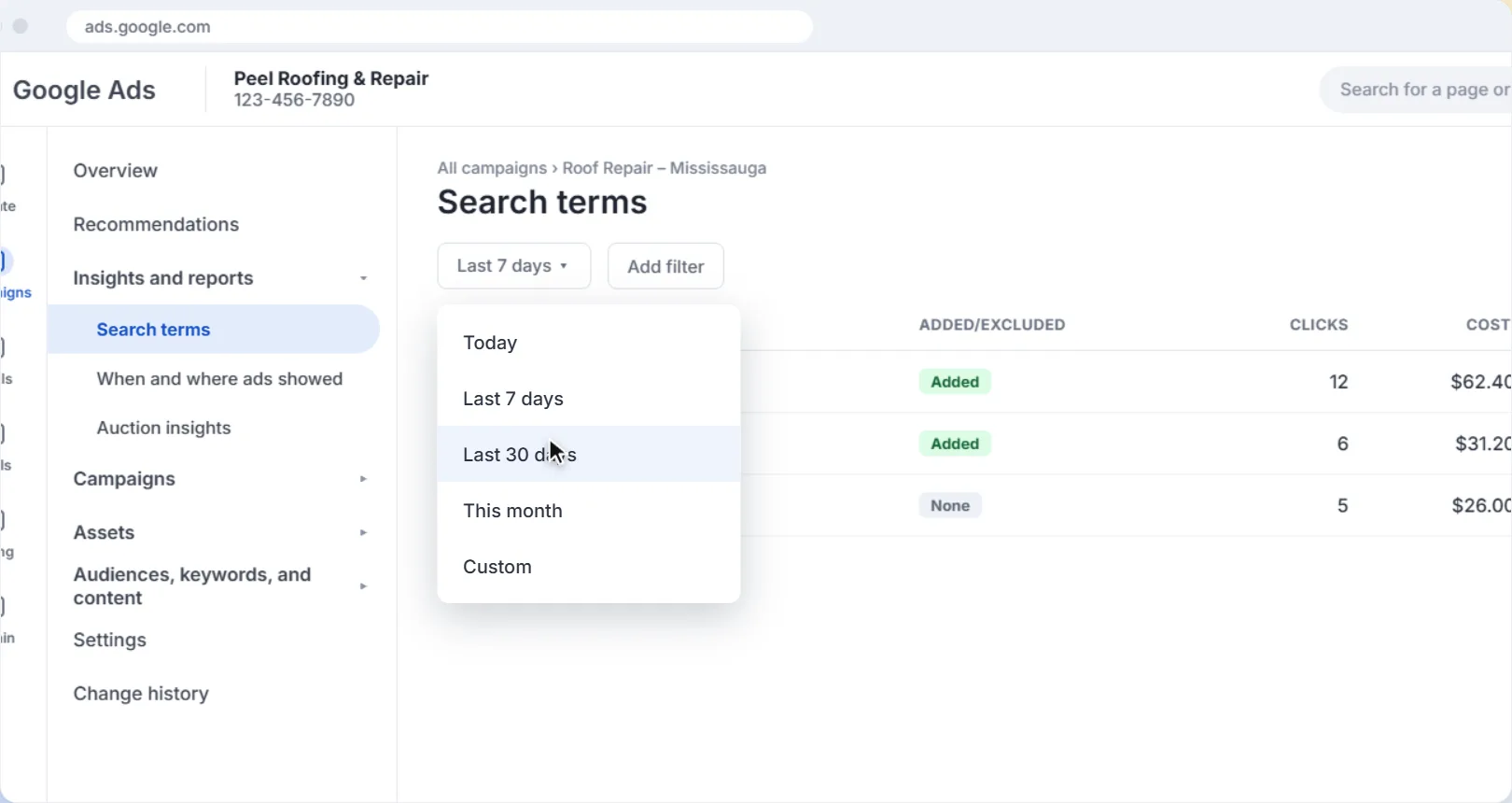
Click the date range at the top of the report and choose Last 30 days. A week of data is often too little to see a pattern; a month usually gives you enough clicks to judge each search fairly.
3Sort by cost
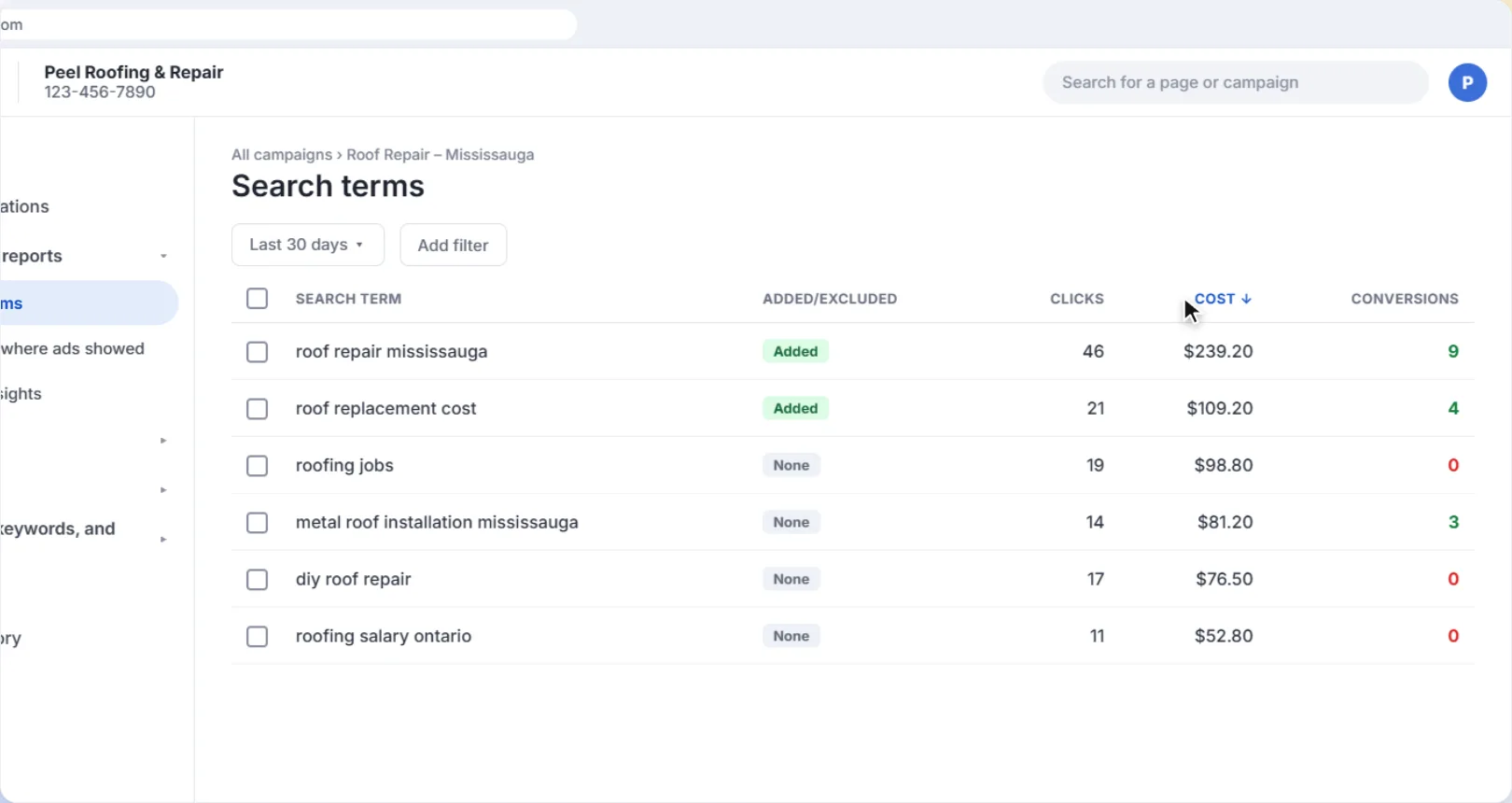
Click the Cost column header so the most expensive searches are at the top. These are the ones worth your attention first.
4Spot the searches that cost money but bring nothing in
Look for searches with clicks and cost but no conversions, especially ones that clearly aren't customers. Common examples for a trade business: job seekers (jobs, salary, hiring), do-it-yourselfers (diy, how to), and people looking for training or supplies.
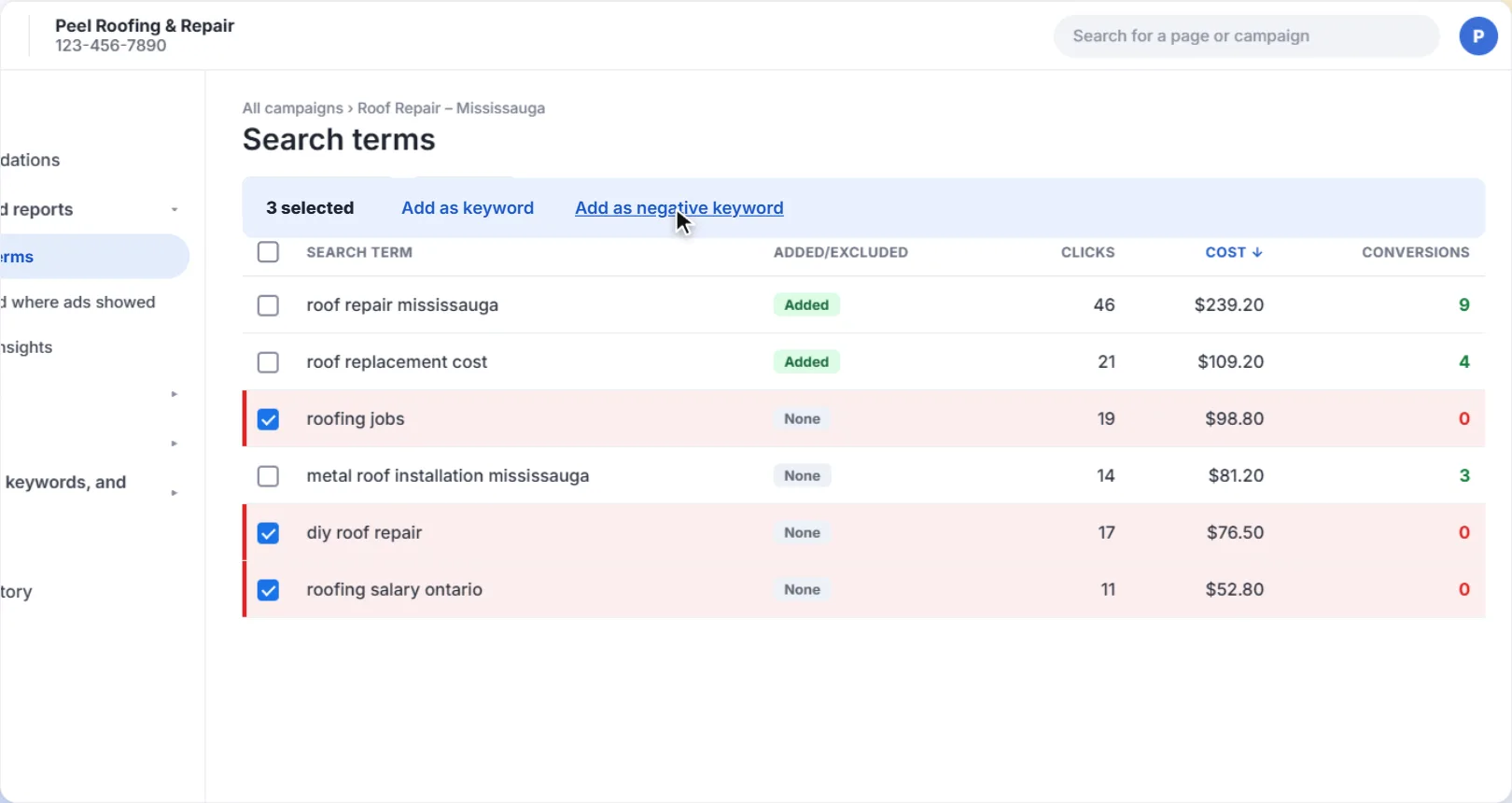
5Tick them, then click Add as negative keyword
Tick the box next to each search you want to block. A bar appears above the table; click Add as negative keyword.
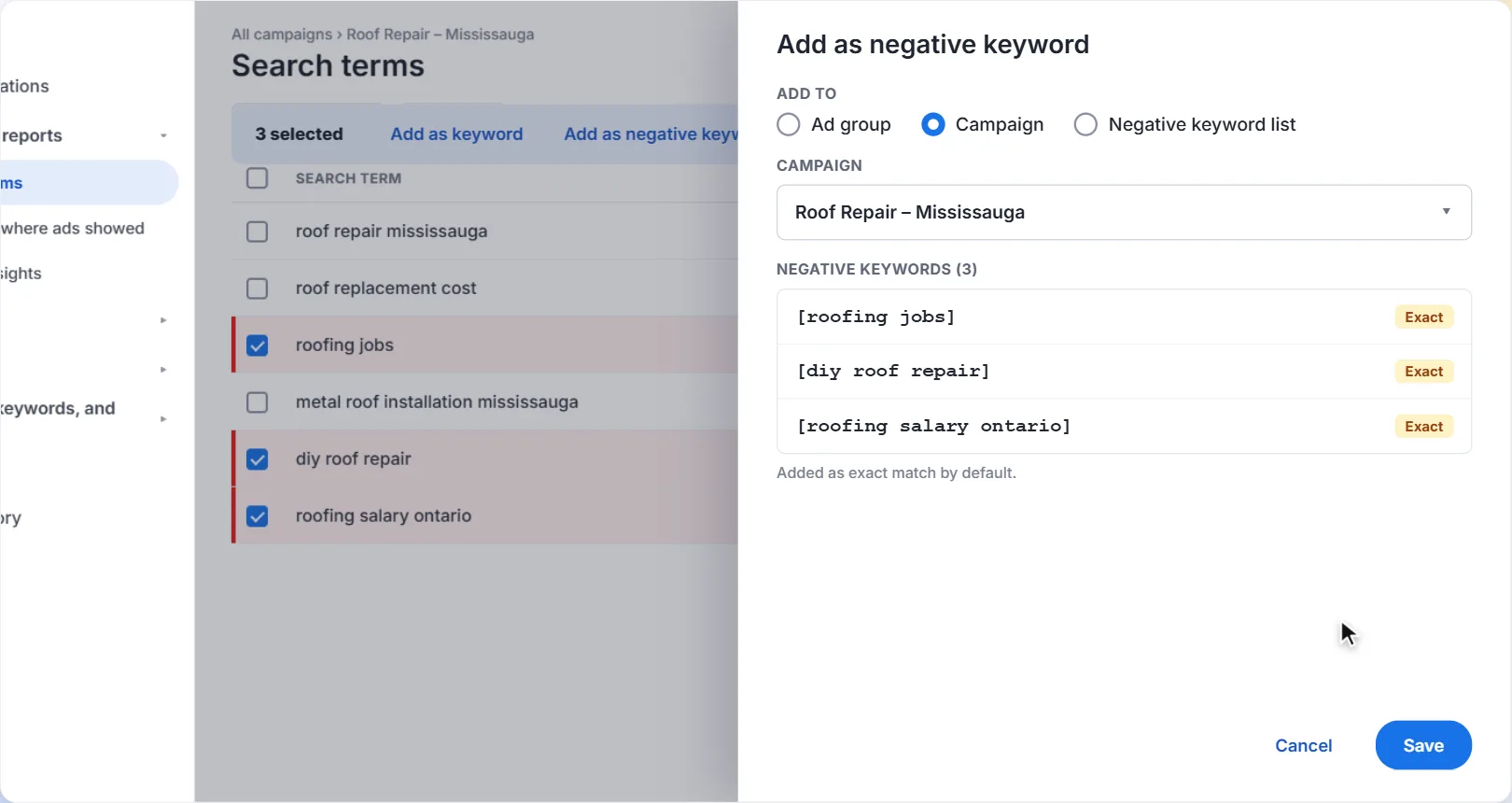
6Choose where to add them, then Save
Choose whether the negatives apply to the Ad group, the whole Campaign, or a Negative keyword list you can reuse across campaigns. For searches that are wrong for your whole business, like job seekers, the campaign or a shared list is usually the right choice. Click Save.
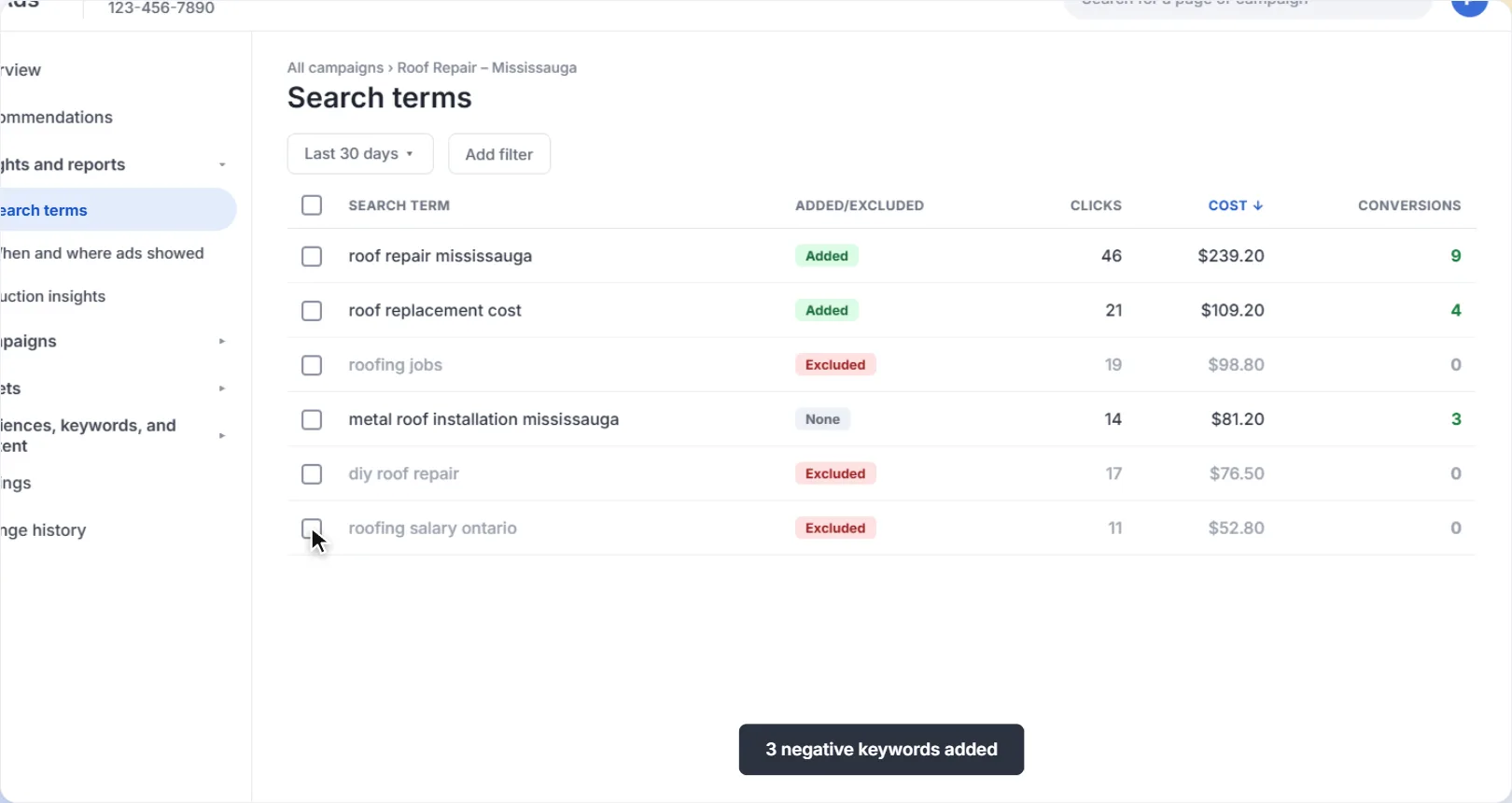
The searches are now marked Excluded, and your ads won't show for them again.
Negatives added from this report are exact match by default. That blocks only that exact search. If you want to block every search containing a word, like jobs, add it as a broad match negative instead. Our guide on how to add negative keywords in Google Ads explains the match types and has a starter list for local businesses.
7Add searches that work as keywords
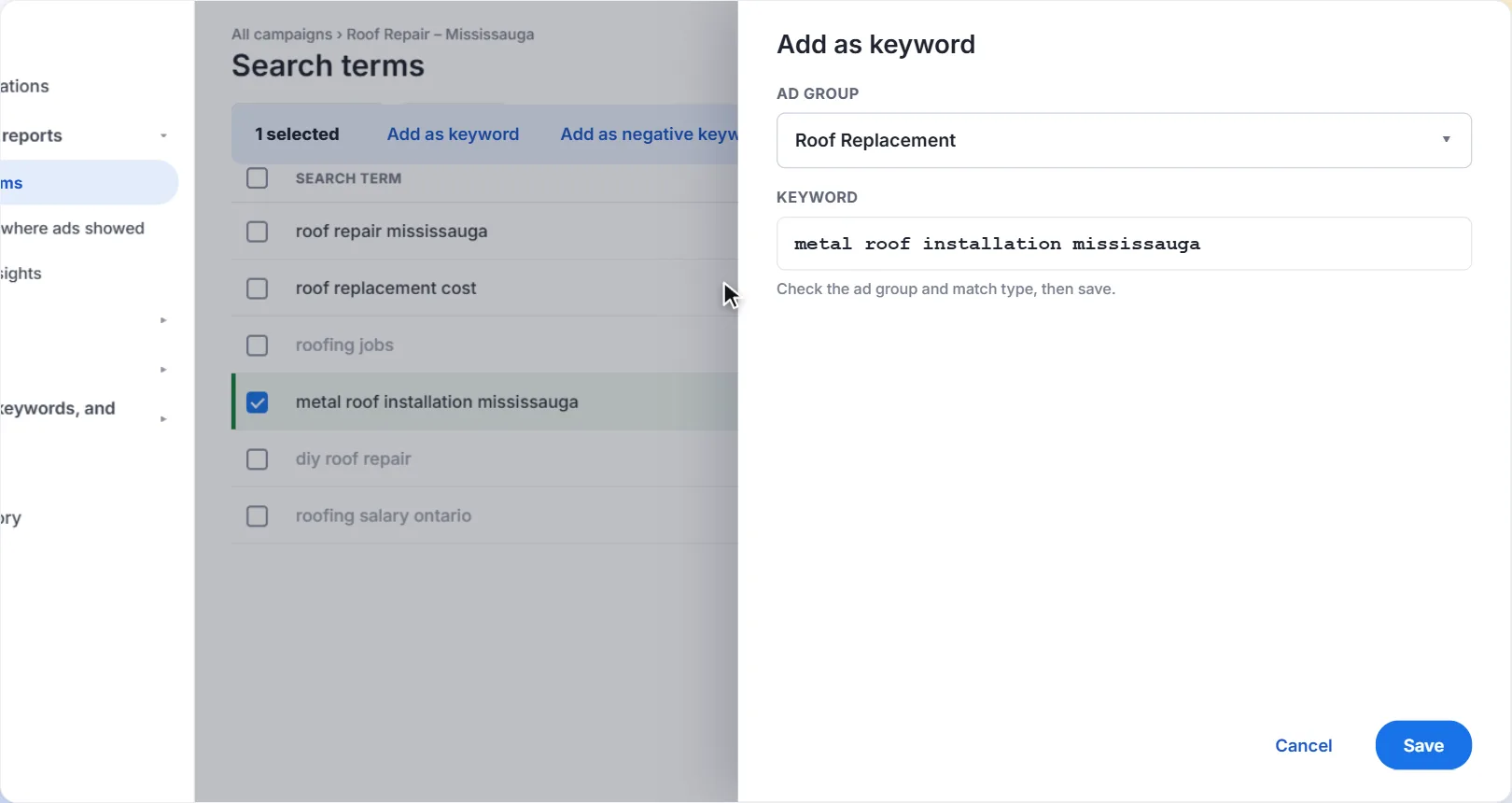
The report also shows you what's working. If a search brings in conversions and isn't one of your keywords yet (it shows None in the Added/Excluded column), tick it and click Add as keyword. Choose the ad group it belongs in, check the match type, and save. That gives you more control over its bid and ad text.
What to look for
| What you see | What it usually means | What to do |
|---|---|---|
| Cost, no conversions, clearly not a customer | Job seekers, DIY, students, competitors' brand names | Add as a negative keyword |
| Conversions, marked None | A good search you're not targeting directly | Add as a keyword |
| Cost, no conversions, but relevant | Could be too little data, or a landing page problem | Leave it for now and check again next month |
| Searches from places you don't serve | Your location settings may be too broad | Check your service area targeting |
A few more tips
- Check weekly at first, then monthly. A new campaign picks up a lot of odd searches in its first few weeks. Once those are blocked, a monthly check is usually enough.
- Don't block a search just because it hasn't converted yet. A relevant search with two clicks and no conversions may simply need more time.
- You won't see every search. Google leaves some searches with very little volume out of the report to protect people's privacy, so the totals in the report can be lower than your campaign totals.
Make it a habit. Put a monthly reminder in your calendar to open this report, sort by cost and look at the top 20 searches. It takes ten minutes and is one of the easiest ways to stop wasting budget.
Want help with your Google Ads?
We set up and manage Google Ads for local businesses in Mississauga and across the GTA: the right service area, keywords that bring in jobs, and landing pages that turn clicks into customers.
Get help with your Google AdsThe screens in this guide are simplified illustrations of Google Ads; Google updates its layout often, so labels may differ slightly in your account. Google's own guides: About the search terms report and Get negative keyword ideas using the search terms report. The roofing business and figures are examples.
More Google Ads guides
 Video guide
How to Add a Call Button to Your Google Ads (Call Assets)
Let people on phones call you straight from your ad. A narrated video and step-by-step guide to adding a call asset, scheduling it for your business hours, and counting calls as conversions.
5 min read
 Video guide
How to Set an Ad Schedule in Google Ads
Only run your ads when someone can answer the phone: set the days and hours your Google Ads show, with a narrated video walkthrough.
5 min read
 Video guide
How to Target Your Service Area in Google Ads
Make sure your ads only reach people you can actually serve: set a radius around your business and switch the location option to Presence, with a narrated video walkthrough.
5 min read
 Video guide
How to Add Negative Keywords in Google Ads (Step by Step)
Stop paying for clicks that never turn into customers. A narrated video and step-by-step guide to adding negative keywords in Google Ads, with match types explained and a starter list.
5 min read