
Free Chrome extension
TabReel: the free Chrome tab recorder that saves a real MP4
Record any browser tab with its audio, add a voice-over if you like, and get an MP4 that plays and seeks in every player. No watermark. No account. Nothing leaves your computer.
- Records tab video and tab audio
- Optional microphone voice-over
- Saves a real, seekable MP4 (H.264 + AAC)
- Up to 1440p at 60 fps
- Everything stays on your computer
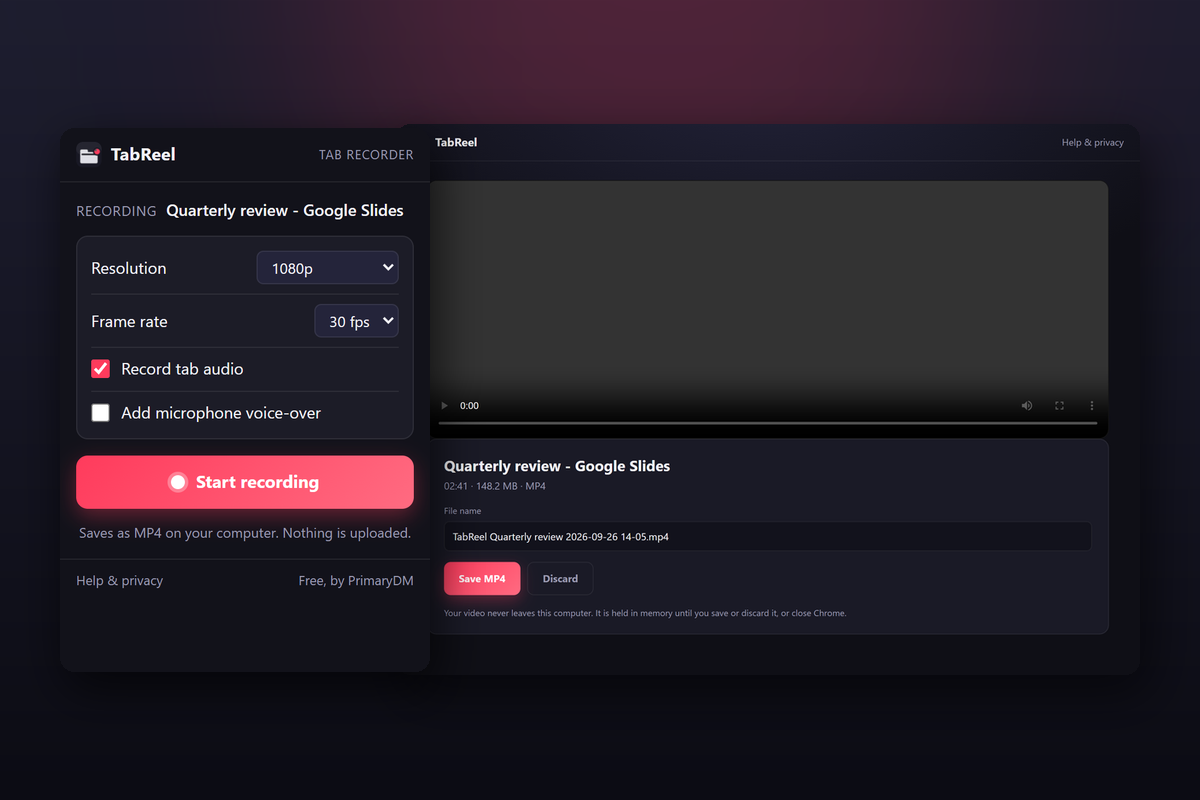
Why we built another tab recorder
We record a lot of website walkthroughs for clients. Every free extension we tried either stamped a watermark, capped the length, pushed the file to a cloud account, or produced an MP4 that would not scrub in an editor. TabReel fixes all four.
A real MP4, not a broken one
Most free recorders hand you a file that shows no length and will not scrub in Windows Media Player, QuickTime or your video editor. TabReel rewrites the file into a standard MP4 with a complete header, so every player shows the duration and seeks instantly.
Records just the tab
Only the tab you pick is captured. Notifications, other windows and your desktop never appear, and you can keep working in other tabs while it records.
Tab audio plus your voice
Keep the audio playing in the tab, add a microphone voice-over, or record silent. Both sources are mixed into one clean track.
Up to 1440p at 60 fps
Choose 720p, 1080p, 1440p or the native tab size, at 30 or 60 frames per second. Bitrates scale with the setting so text stays crisp.
Nothing is uploaded
The recording lives in your browser memory until you save it. The extension makes zero network requests and has no analytics.
Free with no catch
No watermark, no time limit, no sign-up, no "pro" tier. We built it because we needed it for client walkthroughs.
How to install TabReel
The Chrome Web Store listing is under review. Until it is approved you can install the extension manually in about a minute:
- 1Download the extension zip (v1.0.0) and unzip it into a folder you will keep, for example
Documents\TabReel. - 2In Chrome, open
chrome://extensionsand switch on Developer mode in the top right corner. - 3Click Load unpacked and choose the folder you just unzipped.
- 4Click the puzzle-piece icon in the toolbar and pin TabReel so it is always one click away.
Do not delete the folder afterwards. Chrome loads an unpacked extension from that location each time it starts.
How to record a Chrome tab as MP4
Four steps, about two minutes the first time.
- 1
Open the tab you want to record
Go to the page, video call, dashboard or slide deck you want to capture, then click the TabReel icon in the Chrome toolbar.
- 2
Pick your options
Choose the resolution and frame rate, decide whether to keep tab audio, and turn on the microphone if you want a voice-over. Chrome asks for microphone permission only the first time.
- 3
Record, then stop
Click Start recording. A red REC badge appears on the icon. Close the popup and use the tab normally. When you are done, click the icon again and choose Stop.
- 4
Preview and save the MP4
A preview tab opens with your recording. Check it, edit the file name, and click Save MP4 to choose where it goes on your computer.
Recording options
| Resolution | 720p, 1080p (default), 1440p, or native tab size |
|---|---|
| Frame rate | 30 fps (default) or 60 fps |
| Tab audio | On by default. You keep hearing the tab while it records. |
| Microphone | Optional voice-over, mixed with the tab audio |
| Video bitrate | 4 to 21 Mbps, scaled with resolution and frame rate |
| Output | MP4, H.264 video, AAC audio at 160 kbps |
The technical bit
TabReel uses Chrome's own tab-capture and MediaRecorder APIs, so the video is encoded by Chrome's hardware-accelerated H.264 encoder. That keeps CPU use low even at 1440p60.
Chrome's recorder writes a fragmentedMP4 with no duration in the header. That is why so many tab recorders produce files that show "--:--" in Windows Media Player or refuse to scrub in Premiere and DaVinci Resolve. When you stop, TabReel rebuilds the container into a standard progressive MP4 with full sample tables. No re-encoding, no quality loss, and it takes a few milliseconds per minute of video.
Requirements: Chrome 126 or newer, or an Edge or Brave build of the same generation. Chrome does not allow capture of chrome:// pages or the Web Store.
Frequently asked questions
Is TabReel really free?
Yes. There is no paid version, no watermark, no recording time limit and no account. PrimaryDM publishes it as a free tool.
Does it record the whole screen or just one tab?
Just the tab you choose. It uses the Chrome tab-capture API, so other windows, notifications and your desktop are never included. If you need full-screen or window capture, use a desktop recorder instead.
Why do other tab recorders produce MP4 files that will not seek?
Chrome's built-in recorder writes a fragmented MP4 with no duration in the header. Browsers play it fine, but many players and editors show no length and cannot scrub. TabReel rewrites the file into a standard MP4 after you stop, without re-encoding, so the duration and seeking work everywhere.
What format and codecs does it use?
H.264 video and AAC audio inside an MP4 container, the most widely compatible combination. On the rare Chrome build that cannot record MP4, it falls back to WebM and tells you.
Can I record my microphone too?
Yes. Turn on "Add microphone voice-over" in the popup. Chrome asks for microphone permission once, and the extension mixes your voice with the tab audio.
Is my recording uploaded anywhere?
No. The extension makes no network requests at all. The recording is held in your browser's memory until you save it to a file or discard it.
How long can I record?
There is no built-in limit. The recording is kept in memory until you save, so very long sessions depend on how much RAM you have. As a guide, an hour at 1080p is roughly 3 to 4 GB.
Which pages cannot be recorded?
Chrome blocks capture of its own internal pages (chrome://), the Chrome Web Store and other extensions' pages. Every normal website, web app and video call works.
Which browsers does it work in?
Google Chrome 126 or newer, plus Chromium-based browsers of the same generation such as Edge and Brave. It does not run in Firefox or Safari.
Privacy policy
Last updated 26 September 2026
TabReel records only when you click Start, and only the tab you chose. The recording is held in your browser's memory until you save it to a file or discard it. The extension makes no network requests, contains no analytics or advertising code, and never sends anything to PrimaryDM or anyone else. Your recording options are stored locally so they are remembered next time.
Permissions it asks for, and why:
- tabCapture: capture the video and audio of the tab you choose.
- activeTab: identify the tab you clicked the icon on.
- offscreen: run the recorder in the background while you keep working.
- storage: remember your options and whether a recording is running.
- downloads: save the finished MP4 where you choose.
- Microphone (optional): only if you turn on the voice-over option.
It does not read page content, browsing history, cookies or form data. Questions: adrian@primarydm.com.
Record your first tab in the next two minutes
Free, no watermark, and the MP4 works everywhere.
Need a custom Chrome extension or internal tool for your business? Talk to PrimaryDM. Or browse our other free tools.